SMALL CARDS, USEFUL RECALL
Printable flashcard maker your lesson, ready to hold and turn
Use this printable flashcard maker to put a prompt on one side and your checked answer on the other. Choose how many cards fit across and down the sheet, review both faces, and print separate sides, an aligned duplex set or fold-over cards. Your text stays paired throughout.
Custom text · Cut guides · A4 / Letter

Set up your flashcards
Supply the text, then choose the card grid and printing method.
My worksheets
Drafts save automatically in this browser, including unfinished input. Keep up to 20 named worksheets across all tools. Large images may exceed browser storage; download data as a backup.
Card preview
Fit complete rows onto each page using the selected columns and writing space. Extra page space stays at the bottom; answer gaps are not stretched.
Choose 1–6 columns and requested rows. Long text can reduce the effective rows or columns; the capacity below is actual. Layout changes keep your edits.
Duplex both interleaves each front with its back. Fold-over always prints one combined strip copy. Match the flip edge in the print dialog.
More reference rows make shorter cards. Automatic printing keeps this card height and adds complete rows when they fit; duplex fronts and backs remain paired.
Enter both card faces and generate to review the deck.
Match A4 or Letter, portrait orientation, scale and the selected flip edge in the print dialog. Duplex both interleaves fronts and backs. Test one sheet before cutting; fold-over needs only single-sided printing.
A card layout that starts with both faces
Prepare custom vocabulary cards with useful reverse sides, then choose how to assemble the set.
Keep every front with its own back
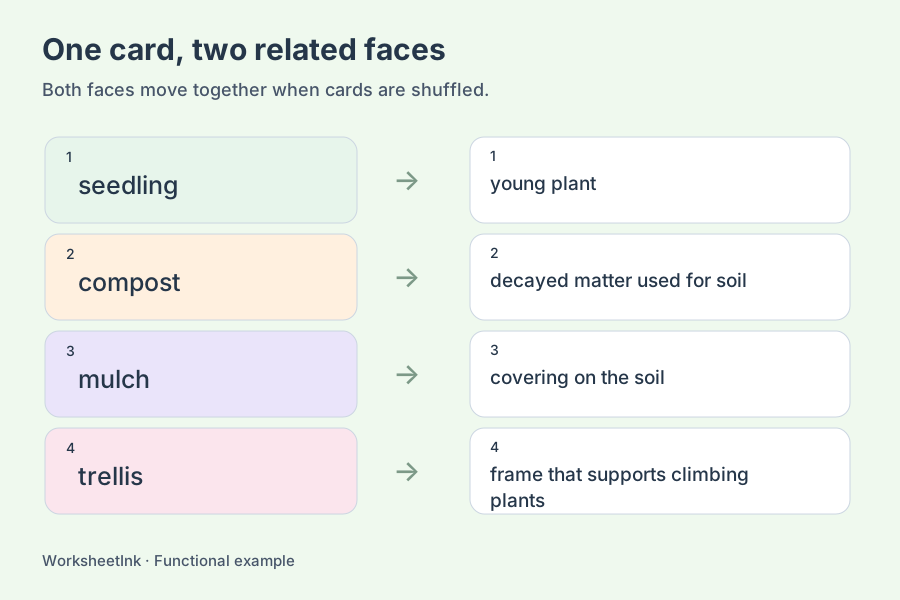
A vocabulary card can show a term on the front and a concise meaning on the back. A revision card can ask a question and give a checked response. Supply the two faces together rather than preparing unrelated lists. The tool preserves that relationship when selecting cards, changing their order, editing text or arranging the page. Matching small card numbers help you check the faces before cutting, including blank-backed cards you plan to complete by hand.
Choose duplex or a single-sided fold
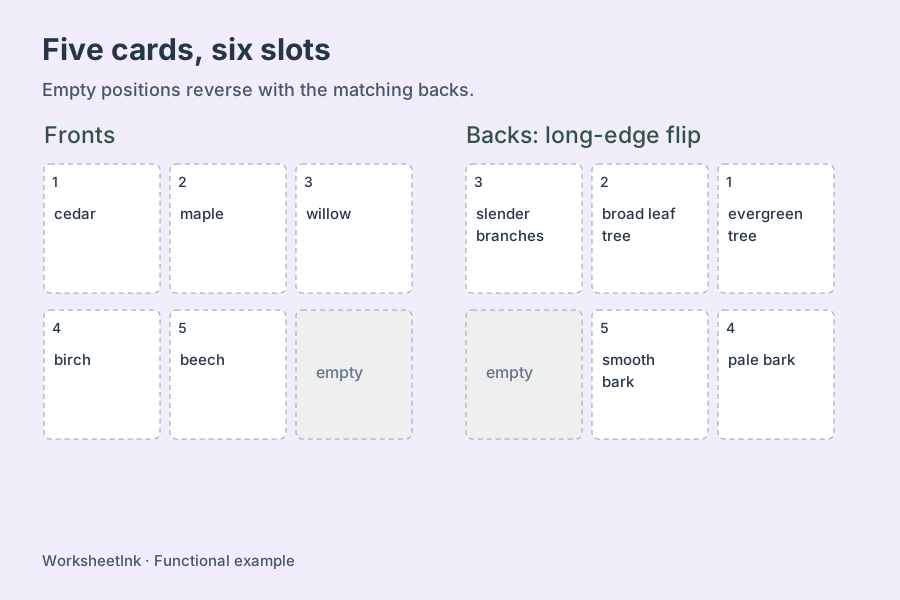
Double sided flashcards use a front sheet followed immediately by its matching back sheet. The reverse slots are rearranged for the selected flip edge, with empty slots kept in the correct positions on the final sheet. Fold-over cards put the prompt and answer next to each other with a dotted fold line. Single-sided mode prints ordinary unmirrored faces. These layouts serve different assembly methods; choose one before producing a stack.
Make useful cards and use the paper well
Review the content, the grid and the way the paper will turn.
- 01
Write a prompt and a checked answer
Enter one card per line as front | back. A two-column spreadsheet paste separated by tabs works too. Each face may contain up to 120 characters, including Chinese, accented text and mathematical symbols. Leave the back empty after the separator when you want to write it by hand. The front must contain something to ask or recognize. You can supply up to 200 nonempty lines.
Choose a small set with a specific purpose. For garden vocabulary, a term such as seedling can go on the front while young plant goes on the back. For a calculation, type the question and a verified result yourself. This is a text-card layout tool, not an automatic fact generator. It does not check mathematical answers, supply dictionary meanings, add pictures or extract information from a textbook.
- 02
Select the cards while keeping the relationship
Request one to 200 cards and choose input order or random selection. Input order takes the earliest valid entries; random selection shuffles complete front-and-back pairs before taking the requested amount. The two faces never shuffle independently. Exact repeated pairs are used once, while the same front with a different back remains as a separate card and is flagged for review.
A short front can support different questions only when its intended context is clear. For example, a word with two meanings may need an example phrase on each card. Invalid lines are listed by number so you can repair the source text. When fewer valid cards exist than requested, the actual total is shown. Blank backs are also reported, making a deliberate write-your-own-answer set easy to distinguish from an accidentally incomplete one.
- 03
Choose your cards per page
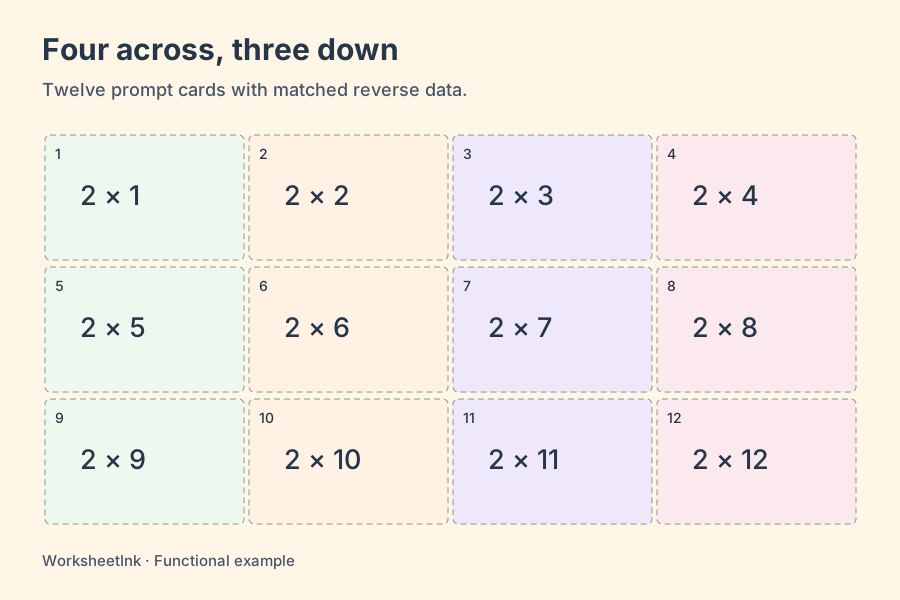
Set one to six cards per row and one to six requested rows per sheet. Three columns and four rows provide twelve slots for short vocabulary. Two columns and three rows provide larger reading areas. Six columns can be useful for brief labels, but a long explanation needs more room. Changing these layout settings preserves the selected cards, their order, manual edits and content version.
Text length is considered before a sheet is arranged. If the requested grid would leave too little room, the tool uses fewer rows, and fewer columns when necessary, then reports the effective grid and capacity. The remaining cards continue onto later sheets. It does not cut off the end of the answer to keep an ambitious density setting. In fold-over mode each cell contains two faces, so the usable width of either face is smaller and fewer rows may be needed.
- 04
Match the assembly method to your printer
Single-sided mode gives ordinary face sheets. You may print fronts only, backs only or both, then use them as separate cards or attach the corresponding faces. Duplex mode rearranges the back slots: long-edge flipping reverses columns, while short-edge flipping reverses rows. Both grids are centered on the selected paper so their positions match after the intended flip. Choose the same edge in the printer settings.
For automatic duplex, select both faces. The output is interleaved front, back, front, back for each sheet group. For manual printing, produce the front sheets and then the matching back sheets with unchanged layout and paper settings. Printer feed direction and stack order vary, so make one test sheet before a larger batch. Card numbers reveal a mismatch quickly. Software placement cannot remove a printer’s physical registration offset.
Fold-over mode needs only a single-sided printer. Each strip contains a front and back side by side. Cut the outside dashed boundary, fold the central dotted line with the printed faces outward, and read the reverse by turning the finished card like a book page. The output selection does not create a second duplicate copy in this mode. Turn cut guides off when you prefer a plain grid, but the fold line remains because it identifies the crease.
- 05
Review, edit and preserve the finished deck
Read every front and back before printing. Use Edit on a front or fold strip to replace either face; a successful change updates the revision marker and both outputs. A new generation replaces the card selection, so an edited deck asks before regeneration. Saving in this browser keeps the current work on the same device. Download its data if you want a portable copy with the exact cards and edits.
Select A4 or Letter here and in the print dialog, use portrait orientation, and avoid adding another multiple-pages-per-sheet setting: the generator has already arranged the card grid. Keep the scale consistent for both sides. Check the first physical sheet for legible text, correct partner numbers and useful finished size. A PDF records the layout; the data download records editable content. Neither is a cloud backup or a shared classroom account.
After cutting, show one prompt, allow time for a response, then reveal its back. Put cards needing another review into a separate pile and revisit a manageable subset. You can use the same deck for a partner quiz, a small group station or a short family review. The tool supplies the material, while you decide the pace and which answers need discussion. It does not score learners or schedule spaced review automatically.
Questions about printing your own flashcards
Practical answers about density, folds and the reverse side.
Copy two columns, one containing fronts and the other containing backs, and paste them as tab-separated rows. You can also type front | back on each line. Supply checked text, remove any spreadsheet heading row, and review the actual number of cards before printing.
Choose one to six columns and one to six requested rows, giving up to 36 slots for short text. The actual grid can use fewer rows or columns when either face is long. Its capacity is displayed explicitly. Fold-over strips contain both faces, so a folded card is narrower than the original printed strip.
That arrangement is intentional in duplex mode. Long-edge flipping reverses each row’s columns; short-edge flipping reverses the row order. After the paper turns, each answer occupies its own front’s physical position. The small card number is preserved to help you verify the pair.
Choose fold-over mode and print once. Cut around each strip, fold its dotted center with the text outward, and use the two visible faces as a card. Alternatively print separate faces and attach matching numbers. Manual duplex requires a one-sheet check of your printer’s loading direction.
Check that both jobs use the same paper, portrait orientation, scale and flip edge. Printer feed and physical registration can still cause small offsets. The tool centers equal-size grids but cannot calibrate your hardware. Test a small sheet before cutting or printing the whole deck.
Yes. Keep the separator and leave the second field empty. The blank face retains its card number and position, and a warning notes that the deck contains blank backs. This suits cards whose answers you want to write or discuss before completing them.
Yes. Columns, requested rows, print method, flip edge and cut-guide settings rearrange the current deck without changing the card text or its content version. Changing the selection count or order requires another generation, which asks before replacing a manually edited deck.
This version prints text that you provide. It does not upload pictures, generate definitions, verify facts, grade answers or schedule study sessions. Download the deck data to preserve it, and decide how to review or expand the cards yourself.
Make a small deck worth coming back to
Pair a clear prompt with a useful answer.
Choose your grid and check one printed sheet.
Paired text · Cut and fold or duplex printing