Math & calculation
Prepare calculation practice, from basic arithmetic to fractions, for the skills you are teaching.
PRINTABLE MATERIALS FOR LEARNING & EVERYDAY ROUTINES
Prepare math, English and Chinese practice, writing paper, puzzles, classroom resources and family planners. Choose a tool, customize the content and layout, then print what you need.
54 tools · Free to use · No account required
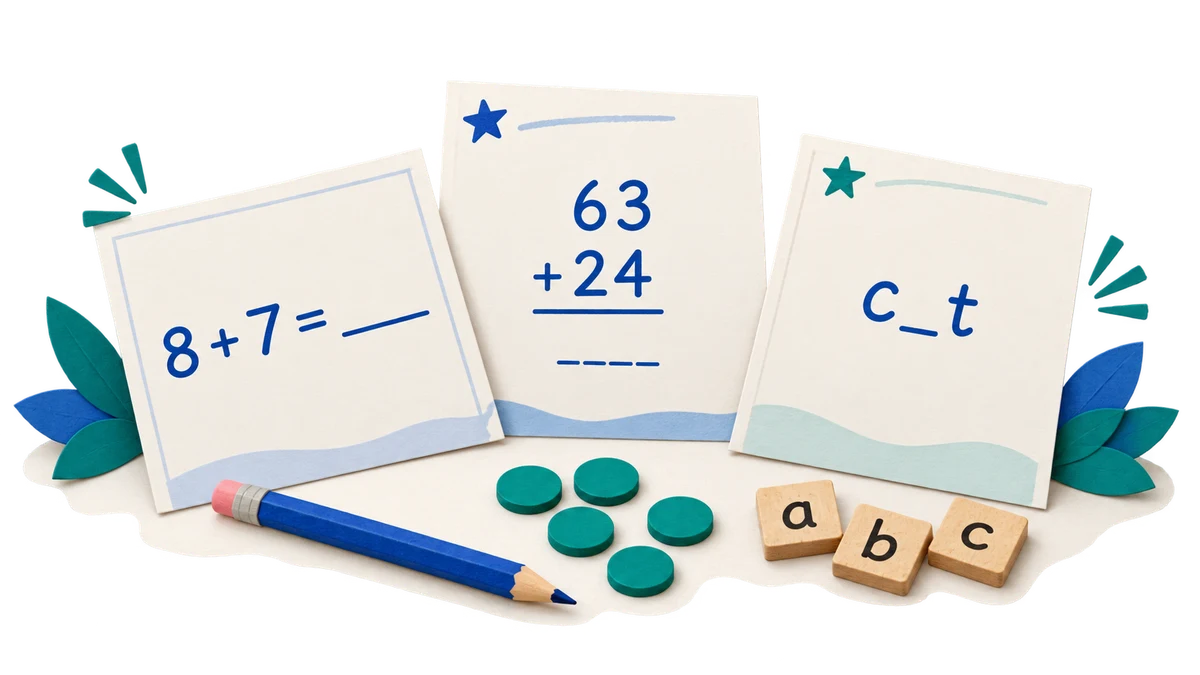
01Explore the collection
From worksheets and writing paper to planners, choose what you need to prepare today.
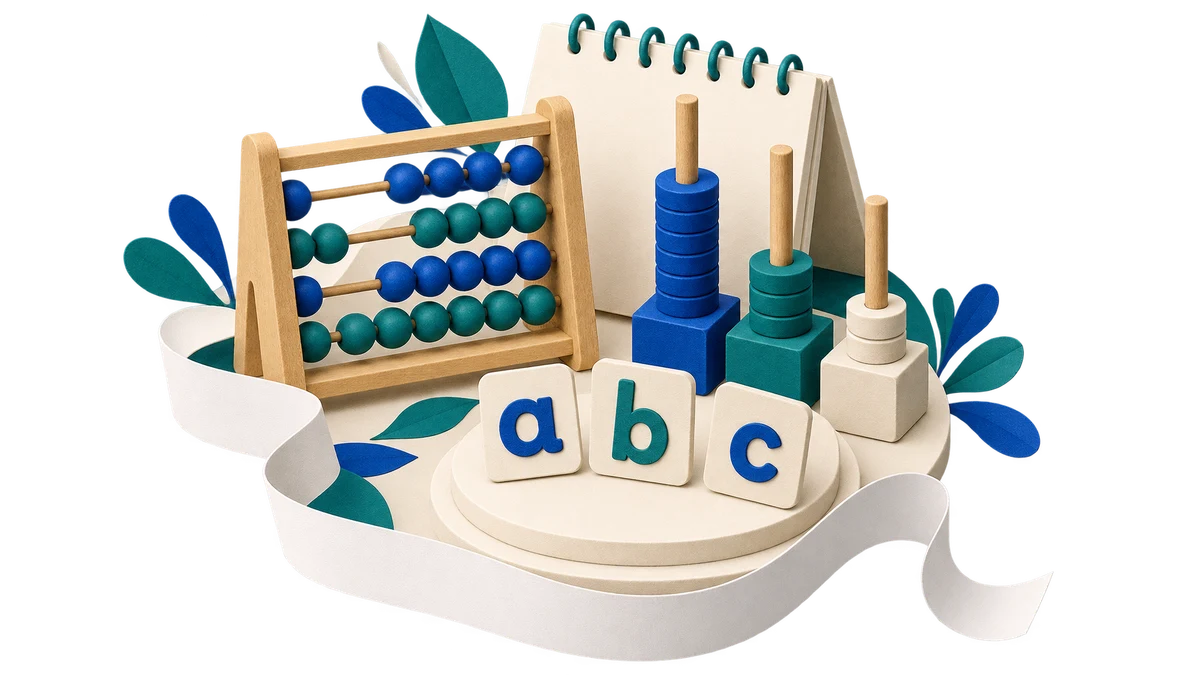
Practice, writing and everyday plans
Prepare calculation practice, from basic arithmetic to fractions, for the skills you are teaching.
Practice letter sounds, spelling and handwriting with the letters and words you are learning.
Prepare pinyin, character tracing and poem recall activities for Chinese language practice.
Explore pencil control, sudoku and mazes for hands-on practice, observation and problem solving.
Choose grids, lines and note layouts with space for writing, drawing and organizing ideas.
Organize learning and teaching tasks with printable planners and classroom certificates.
Looking for something else? Search all tools by name, subject or feature.
Browse all 54 tools02A clear preparation routine
A shared preparation routine for every tool in the collection.
Choose the job first: practise a skill, prepare writing space, make a puzzle or organize a routine. Then set the content and amount, such as a number range, word list, line spacing or planner entries. For learning activities, check a short sample against what has been taught. The tools use your settings; they do not automatically choose a curriculum or assess a learner's level.
Generate a small sample before preparing a longer set. Check questions, clues and answer copies where available. For paper, planners and classroom materials, review spacing, dates, names and page count instead. Use the editing controls offered by the selected tool, then inspect the updated preview before distributing or printing it.
Choose A4 or Letter and adjust the layout controls available in the tool. Use the actual print preview to check page count and writing space. Print the copy you need or save a PDF through the browser's print dialog. Download the data file as well when you want to reopen and edit the same material later.
03For everyday teaching
Prepare a short lesson activity, make paper for focused writing, organize a classroom week or help a family follow a routine. Choose a format that fits the task and leave enough space for the people who will use it.
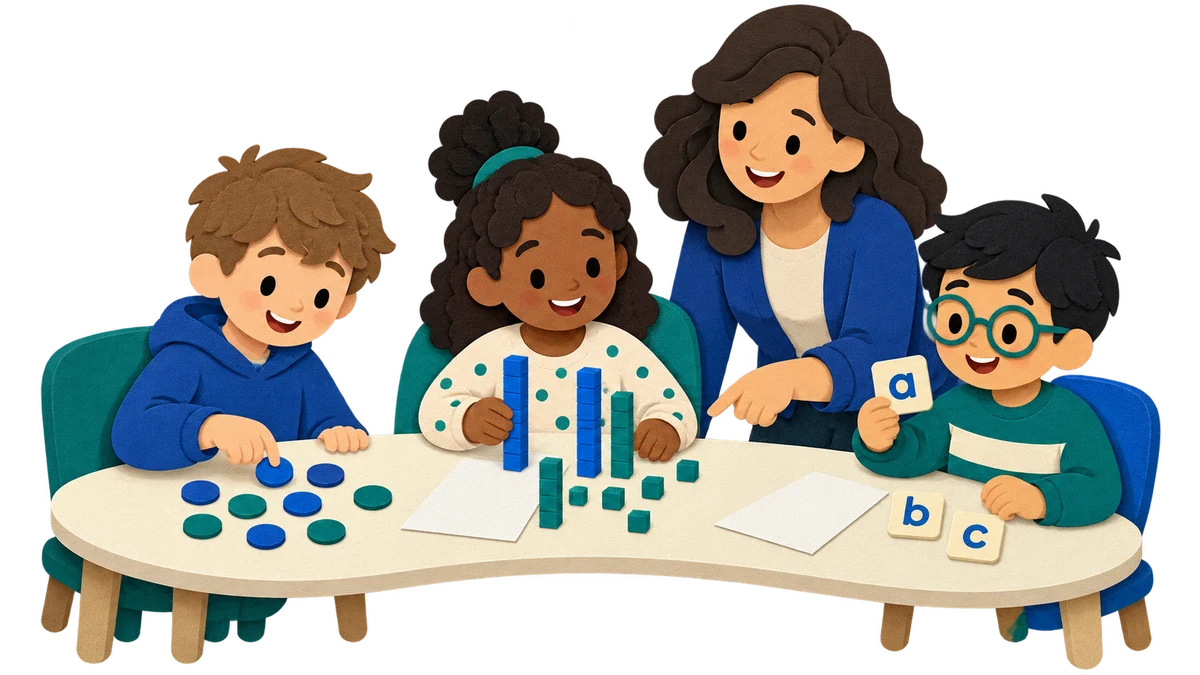
04Before you begin
Choose an activity, understand its settings and prepare the right copies.
Browse all 54 toolsThe collection covers math, English and Chinese language practice, handwriting and early learning, puzzles, printable paper, learning records, planners and classroom materials. Examples include fractions, pinyin, word search, lined paper, reading logs, chore charts and certificates. Open All tools for the complete current list and search by name, subject or feature.
Start with the task you want to support. Choose calculation tools for number practice, language tools for familiar words and texts, writing tools for letter or character formation, and planners for recording routines. Use the selected tool's controls to set the content and difficulty. Review a short sample with the learner before increasing the amount; the tools do not automatically assess grade readiness.
Many practice tools offer columns, writing space or item-size controls. Paper and planning tools have their own spacing and page settings. The available choices depend on the activity. Try a more compact layout for short responses and allow more room for long words, diagrams or written methods. Check the actual print layout and page count after changing these settings.
Tools with an answer key let you choose the student copy, answers or both. Keep the answer pages for checking the work, and review the selected output before sharing a PDF. Blank writing paper, planners, charts and other materials without questions do not need a separate answer copy; the tool shows the output available for that material.
A PDF preserves the printed result. To reopen the worksheet in its generator, download the worksheet data file as well. That file retains the specific questions and edits. Browser saving also keeps a worksheet locally on the device, but clearing browser data can remove it. Keep a downloaded data file when the exact material matters for a later lesson or another computer.
Start with the amount you actually need and print only the selected output. Where available, increase columns or reduce unused writing space, then check that words, diagrams and working areas remain readable. Automatic printing fits complete rows onto pages without stretching the remaining gaps. Some space may remain at the bottom when the next complete row does not fit. Review the actual print layout before making multiple copies.
The generators are free to use without an account. Questions are generated in the browser, and printing uses the browser’s print dialog. You can choose A4 or Letter and save a PDF when a printer is unavailable. On smaller screens, a wide worksheet preview may scroll sideways. Printing menus differ by device, so review the final paper layout before saving or sending it to a printer.
Your next teaching moment
Find a worksheet, writing page, puzzle or planner for the task ahead.
Open the tool, customize your material and check the layout before printing.
Learning activities · Printable paper · Classroom & home planning
A4 / Letter·PDF