RECORD · QUESTION · SUMMARIZE
Cornell Notes Template Room for questions and connections
Build a Cornell notes template around the way you write and review. Adjust the cue column and summary, choose a main note pattern, and print one full template or two smaller copies. Keep an editable master for the next topic.
A4 / Letter · Local saving · Complete pages

Set up Cornell notes
Edit the settings, generate, then review the complete preview. Generate again after changing settings or steps.
My worksheets
Drafts save automatically in this browser, including unfinished input. Keep up to 20 named worksheets across all tools. Large images may exceed browser storage; download data as a backup.
Worksheet preview
Notes template
Fit complete rows onto each page using the selected columns and writing space. Extra page space stays at the bottom; answer gaps are not stretched.
Generate or load the example to see the preview.
Print or save as PDF through your browser. Match the paper size, use Actual Size / 100% and disable browser headers and footers.
See the actual output before printing
These examples are rendered from the production layout.
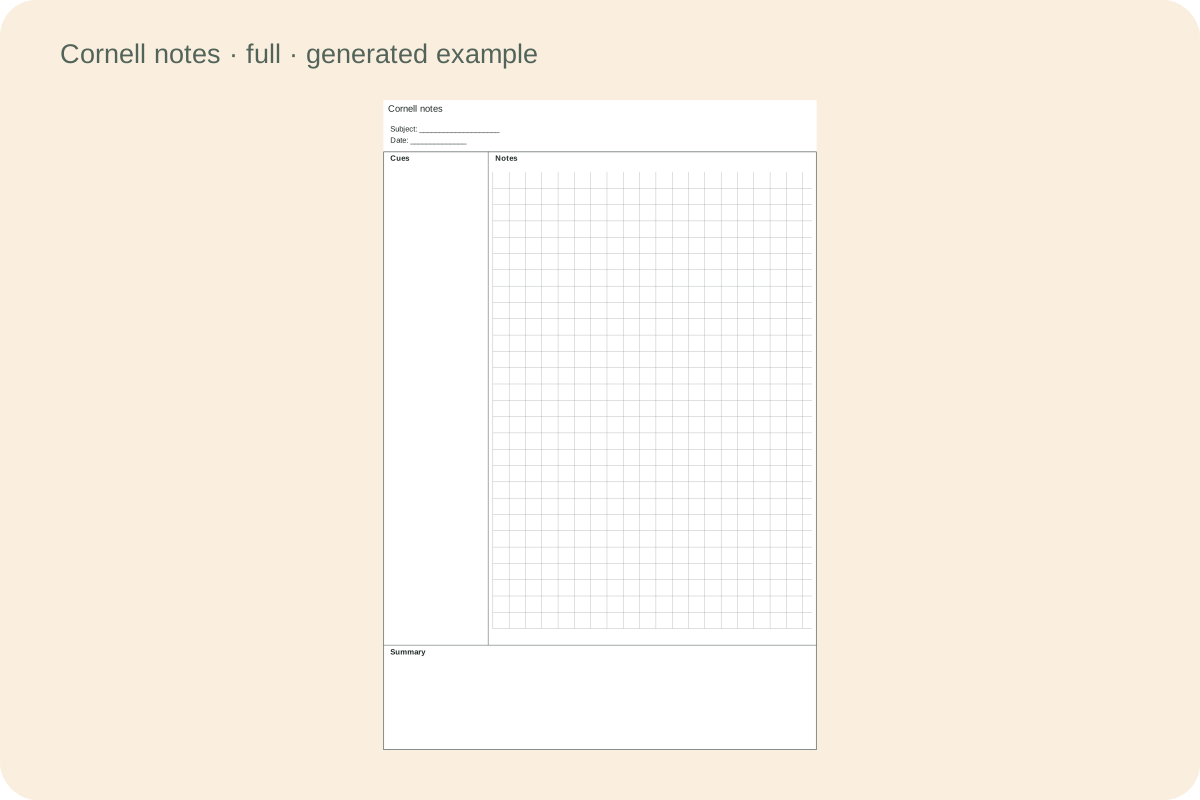
Three regions with adjustable space
Give cues and summaries enough room for the task. Measurements stay in millimetres, and the line count changes when the available writing height changes. Turning off a region label returns its actual space to the page.
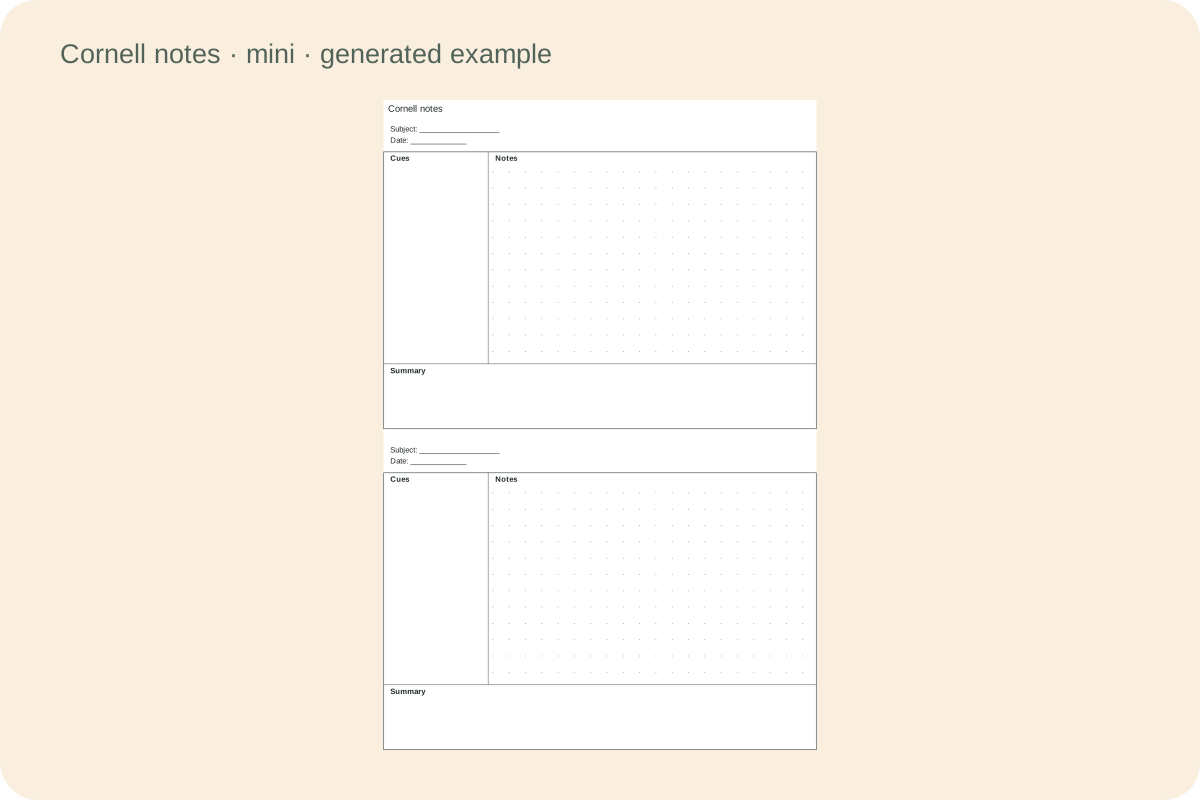
Two independent templates on one sheet
Use two smaller copies for a short lesson review or a paired activity. Each retains its own regions and optional subject and date details. The preview reports each copy’s actual dimensions, so the smaller format is visible before you print.
Make the layout fit the task
Work through the space, wording and print choices.
- 01
Give each region a different job
Start a Cornell notes template with one lesson, chapter or question in mind. The wide area holds the details you need while listening, reading or working through an example. Leave the narrow cue column available for a second pass. After the first notes are written, use that column for a question, a keyword or a short reminder that points back to the detail beside it. The summary belongs at the bottom and brings the main idea together in your own words.
For a lesson about evaporation, the main notes might include an observation and a labelled sketch. A cue could ask what changed during the experiment. The summary could describe the relationship you noticed and one uncertainty to discuss. These are examples of how to use the spaces, not answers generated by the tool. You decide what deserves to stay on the page.
- 02
Choose measurements for your handwriting
Cue width and summary height are entered in millimetres. Begin with the default page, then estimate the length of the questions you will put in the cue column. A wider column gives those questions more room, while reducing the main writing width by the same amount. A taller summary creates more space for reflection at the bottom, while reducing the height of both upper regions. The preview reports the resulting template dimensions and number of complete note lines.
There is no required educational ratio enforced here. A large handwriting style, a diagram-heavy subject and a short revision sheet may need different proportions. The generator checks that the main area retains at least fifty millimetres of width and thirty millimetres of usable height. If a combination is too crowded, reduce a region size or return to one template per sheet.
- 03
Match the ruling to the material
Horizontal lines suit continuous sentences and short explanations. A square grid can help you align a worked calculation, compare columns or sketch a small table. A dot grid supplies quieter position cues, while a blank main area leaves room for diagrams and freely arranged observations. The selected pattern applies to the main note area. The cue and summary regions remain open writing spaces, so their different purposes remain easy to recognize.
Changing the pattern does not check a calculation or arrange your notes for you. When using grid paper for mathematics, decide what one square represents before drawing a graph. For a larger coordinate diagram with numbered axes, follow the related graph paper tool instead. This template is designed for keeping a diagram beside your explanation and review questions.
- 04
Make the labels say what you mean
The three region labels are editable. You might keep Cues, Notes and Summary, or change them to Questions, Evidence and My explanation for a specific lesson. Short labels leave more writing room. Longer labels wrap at a readable size and take real space inside their region. Turning region labels off gives that space back to writing. It does not leave an invisible heading band above the first line.
The whole-page title, subject line and date line have separate switches. A class handout can print a topic and leave the date blank, while a reusable notebook insert can hide all three. Outer borders and internal dividers also have independent switches. Check the preview after hiding dividers, because the writing areas keep their positions even when the boundary lines are absent.
- 05
Move the cue column or print two smaller copies
Choose a left or right cue column to suit the way you arrange your page. The main notes move to the other side and the summary continues across the bottom. The width setting still refers to the cue column, whichever side you choose. Before printing a stack, write on one sample to check that your hand, a binder or the position of the page does not make the narrow column awkward to use.
Two-template mode places two independent templates vertically on the same sheet with a six millimetre gap. Each copy has its own subject and date area when enabled. The displayed dimensions describe one smaller template, not a full-size page scaled down without notice. Use a shorter summary or hide optional labels if the smaller format needs more space for a brief review activity.
- 06
Use the page for a second look
After recording the first notes, read them again and identify what you would want to recall later. Write a small number of useful cues next to the relevant details. A question that can be answered from the notes makes the column more purposeful than a list of disconnected words. If the notes contain an uncertainty, record that uncertainty clearly so that you can return to a teacher, text or worked example.
For review, cover the main area and try to explain the topic from the cues. Uncover the notes to check what you missed, then revise the summary if your understanding has changed. A template supplies a structure for this routine; it does not guarantee a grade or measure understanding. Keep a method only when it helps you work with the material.
- 07
Check A4 and Letter as separate layouts
A4 Cornell notes and Letter Cornell notes use different page heights and widths. Selecting another paper size recalculates the regions and number of complete ruled intervals. The summary remains at the bottom of each template. Unused fractions of an interval stay small and intentional; lines are not stretched to fill the remaining height. The layout reserves twelve millimetres on each side, eight at the top and bottom, and a two millimetre height allowance.
In the print dialog, select the same paper size, portrait orientation and actual size or one hundred percent scaling. Disable the browser header and footer. Measure a grid interval on a first print if exact spacing matters to your activity. Both automatic and manual pagination retain whole templates, and neither print mode is intended to resize a notebook insert to an unrelated paper size.
- 08
Keep an editable master for the next lesson
Generate the preview after changing the template settings. Saving stores the generated version in this browser, and downloading produces an editable JSON document. The file includes the region sizes, label choices and entered subject or date text. Import validates the document before replacing the current preview. A saved master can be reused for the next topic without rebuilding the measurements from memory.
To create a Cornell notes template PDF, use the browser print dialog and select its save-as-PDF destination. The JSON document and the PDF serve different purposes: one keeps editable settings and the other records the printed appearance. Browser storage can be cleared, so download the JSON when the master matters. Review any entered names or topics before sharing that editable file.
Questions before you print
Practical details about layout, saving and using the page.
Use the main area for the lesson details, the cue column for questions or keywords written during a second look, and the bottom for a short explanation in your own words. To review, cover the main notes and try to recall them from the cues, then uncover and check.
This generator treats the default sizes as a starting point. Adjust them for paper size, handwriting and subject matter. It does not present a particular inch ratio as a compulsory learning rule. If a setting would leave too little room in a region, the generator explains that the layout needs adjustment.
Yes. Choose a square grid in the main note area while keeping the cue and summary regions. You can align calculations or sketch a table there. The template does not check a formula, supply a scale for your diagram or mark an answer as correct.
Each has a real switch. Removing a region label gives its height back to writing; removing subject or date reduces the template header. The whole-page title is separate. Outer borders and region dividers can also be changed independently, so a blank-looking layout still retains its measured regions.
The preview reports the actual width and height of each copy after accounting for the page title and six millimetre gap. They are two smaller templates stacked vertically, not two full A4 pages. Your selected cue width and summary height remain millimetre values rather than percentages.
The summary takes space from the upper regions. The generator recalculates how many whole line intervals fit in the main note area, keeping the selected spacing unchanged. Hiding labels or subject details can return some space. It never stretches a final interval simply to fill the bottom.
Generate the page, choose Print, and select the save-as-PDF destination offered by your browser. Use the matching paper size and portrait orientation. The separate JSON download saves editable settings. It is not a PDF and should be imported into this tool to restore the template.
Yes. The generated document includes custom region labels, subject text, date text and the worksheet title. Local saving stays in the current browser; a downloaded JSON file can be imported elsewhere. Generate after changing settings so that the saved preview contains your latest choices.
Prepare your next copy
Choose the settings and check the complete page before printing.