SPACE · RULE · WRITE
Lined paper printable Make room for the way you write
Prepare lined paper printable in the spacing your writing needs. Choose exact inch presets or custom millimetres, arrange one to three columns and decide where margin lines belong. Keep a blank strip for binding, remove the heading when you do not need it and print a measured sample before making a full set.
A4 / Letter · Physical dimensions · Local saving
Set up your lined paper
Choose physical dimensions, generate the paper and review each complete sheet. Blank paper has a single output.
My worksheets
Drafts save automatically in this browser, including unfinished input. Keep up to 20 named worksheets across all tools. Large images may exceed browser storage; download data as a backup.
Worksheet preview
Blank paper (no answer key)
Fit complete rows onto each page using the selected columns and writing space. Extra page space stays at the bottom; answer gaps are not stretched.
Generate paper or load the default to see your preview.
Print or save as PDF through your browser. Match the paper size, use Actual Size / 100% and disable browser headers and footers.
Plan the paper around its measurements
Examples drawn from the actual paper geometry.
Ruling that stays at the selected interval
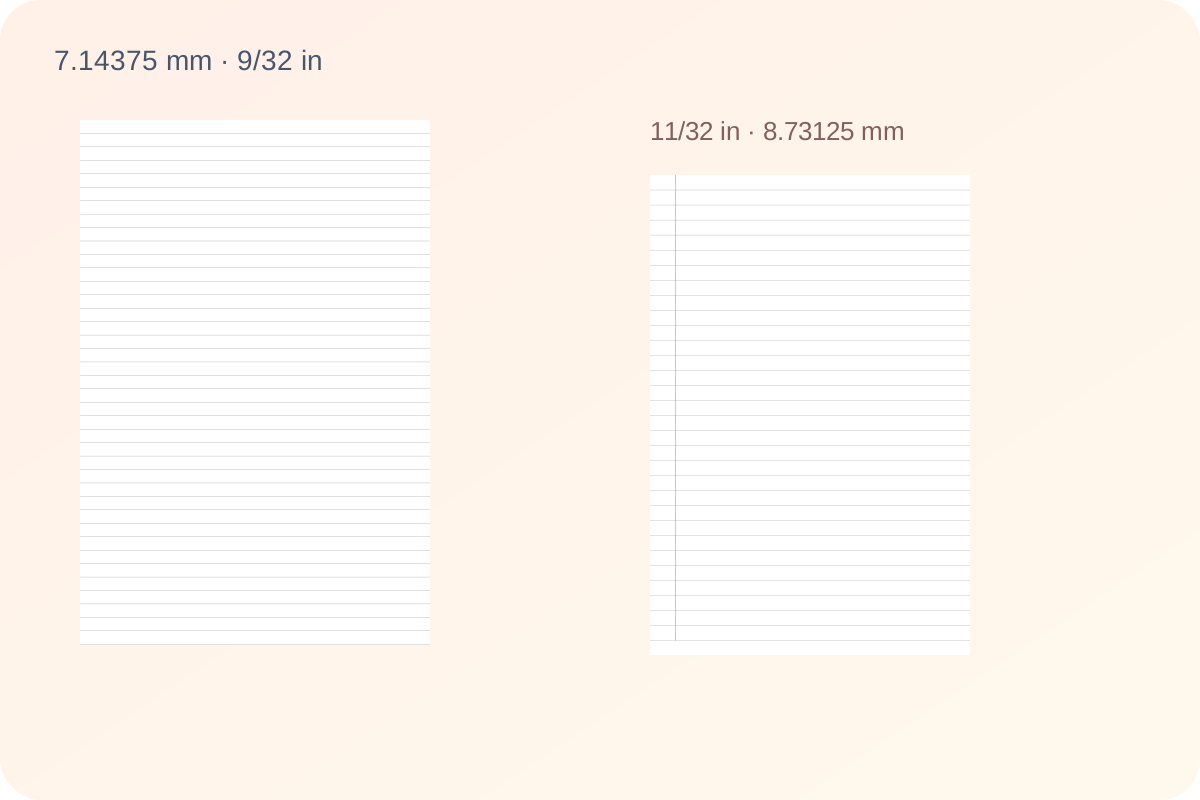
Horizontal lines are placed at whole intervals from a fixed starting point. The last line is not pulled toward the bottom to hide a small remainder. Exact inch presets remain exact when saved, while custom metric ruling uses tenths of a millimetre. Switching between A4 and Letter recalculates how many lines fit without changing the selected interval.
Clear columns and an intentional binding strip
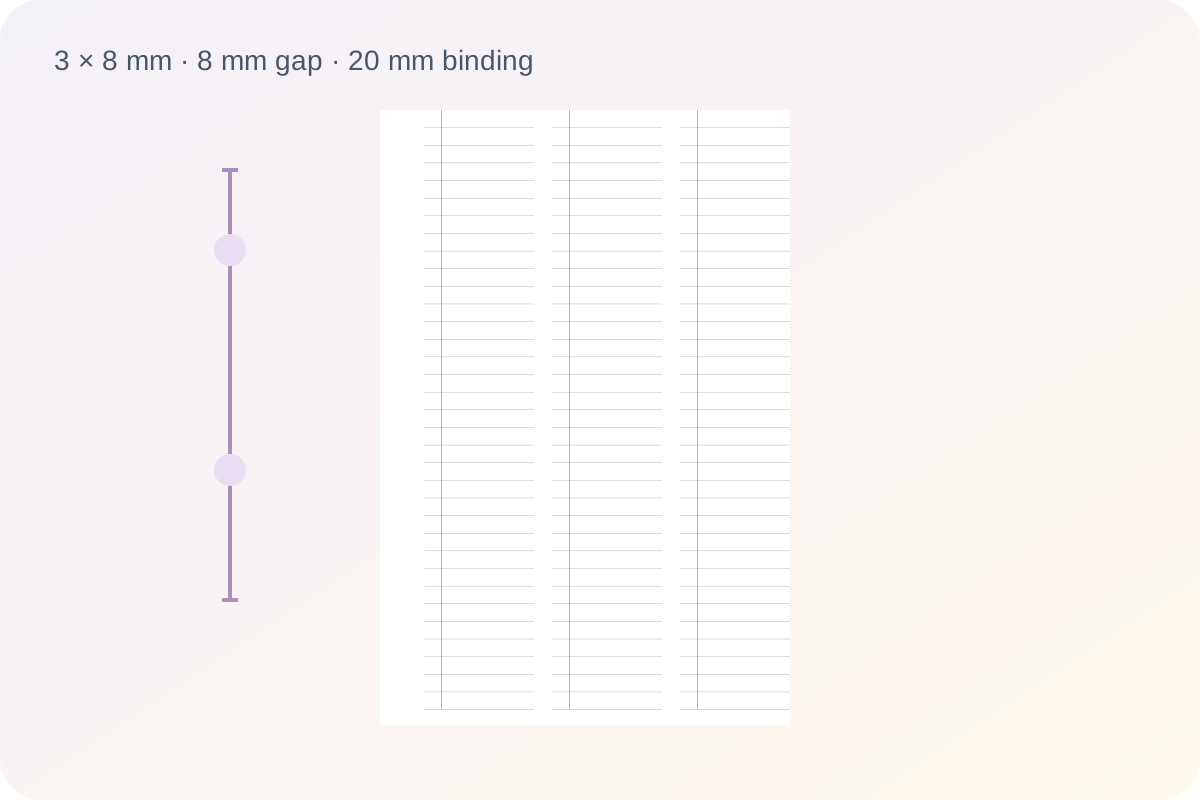
One broad column supports continuous writing; two or three columns organize shorter entries. Set a clear gap between columns and optionally draw a vertical rule inside each one. Extra binding space is a blank strip on the left of the page, separate from those rules. The generator checks the remaining writing width before accepting a crowded combination.
From a useful paper setup to a measured print
Choose the specification first, then check the preview and a physical sample.
- 01
Choose spacing by the handwriting, not only the preset name
Start by considering the size of the writing that will sit between the rules. Larger handwriting needs more vertical room, while compact notes can use closer lines. The seven, eight and ten millimetre presets give direct metric choices. They are convenient starting points rather than age or grade requirements. For a particular assignment, compare the teacher’s example or measure the existing notebook before deciding.
English ruling names are provided with their actual dimensions. Narrow uses one quarter inch, or 6.35 millimetres. College uses nine thirty-seconds of an inch, or 7.14375 millimetres. Wide uses eleven thirty-seconds of an inch, or 8.73125 millimetres. Labels and manufacturing conventions vary, so the numbers shown here are the reliable description of this generator’s settings. A preset name does not promise a match with every notebook sold under that name.
- 02
Use an exact preset or enter a custom metric value
For custom ruling, enter a spacing from five to sixteen millimetres in increments of one tenth. The spacing measures the vertical distance from one horizontal baseline to the next. It is not a font size and does not count the number of visible rules. If you switch from an exact inch preset to custom mode, enter a valid tenth-millimetre value before generating; the tool will not silently round your inch setting.
Each line is positioned from the same top baseline using the chosen interval. Repeated addition does not gradually widen the last lines, and a different paper size does not rescale the ruling. For example, ten spaces at eight millimetres span eighty millimetres. Count spaces rather than lines when measuring: the first through the eleventh line enclose ten intervals. Check several intervals together to make a small scaling error easier to notice.
- 03
Separate writing columns from the space between them
Choose one, two or three columns. A single column provides a broad writing line for sentences and extended notes. Two columns can hold short vocabulary entries or a question beside a response. Three columns suit compact lists when the remaining width is sufficient. Each column receives the same fixed line spacing, with a clear gap that you set independently from three to twenty millimetres.
The horizontal rules stop at each column edge; they do not run through the gap. Column width is calculated from the actual usable paper width after any extra binding space. Increasing the gap reduces the writing width, so check the result instead of assuming that three columns are always comfortable. The preview reports line count and column count separately. Changing columns affects the available line length, while the vertical distance between rules stays unchanged.
- 04
Place a margin line without confusing it with binding space
The optional vertical rule is drawn independently inside each column. Its offset is measured from that column’s left edge, not from the outside of the physical sheet. Choose red, gray or black, or switch the rule off entirely. A red margin can help organize comments on the page, but it is not required for using the horizontal writing lines. Removing it does not change the line spacing or shift the horizontal baselines.
Extra left binding space serves a different purpose: it leaves an unruled strip inside the standard twelve millimetre page margin. You may add up to thirty-five millimetres. This reduces the width available to all writing columns. The generator requires at least fifteen millimetres of writing width to the right of a margin rule and reports a conflict if the selected offset is too large. It does not mirror binding margins automatically for duplex printing.
- 05
Give the title only the space it needs
The paper starts without a printed title, so the ruling uses the full safe height. Turn the title on when you want to identify a subject or a lesson. It wraps conservatively into complete lines and reserves only those title lines plus a short separation. Turning it off removes the text itself and gives that height back to the paper. It does not hide a white title above an otherwise shortened ruled area.
Horizontal rules begin one writing interval below the top of the ruled area. This leaves a complete first writing space rather than placing a baseline directly against the upper boundary. The last line is the last whole interval that fits. A bottom remainder smaller than one spacing is normal and is not filled by stretching every line. The optional fifty millimetre calibration strip also uses its own short band, which is returned when you turn the strip off.
- 06
Print a measured sample and save the paper you prepared
Choose portrait A4 or Letter in the tool and use the same size in the browser or printer dialog. Print at actual size or one hundred percent and disable automatic browser headers and footers. Fit-to-page or driver scaling can change the physical line spacing even though the document geometry is correct. Measure the calibration line or several ruling intervals on the first printed sheet before preparing a larger stack.
You can generate one to twenty identical sheets. Automatic pagination and manual pagination both keep each complete ruled sheet together. The JSON download stores the paper settings, including exact preset values, colours, column arrangement and paper size. Importing a compatible file restores that configuration after validation. Browser saving remains local to that browser; use a downloaded file when moving to another device. To create a PDF, choose the browser’s save-as-PDF destination. Blank writing paper has no teacher answer key.
Questions about lined paper printable
Practical details about dimensions, space and restoring settings.
This tool defines narrow as one quarter inch, college as nine thirty-seconds and wide as eleven thirty-seconds. Their exact millimetre values are shown in the preset menu. Wider spacing offers more room for large handwriting; closer spacing accommodates denser notes. These names are preset labels, not universal school requirements.
Yes. Turn off the margin-line switch to print only horizontal rules. You can also keep the vertical line and choose gray or black instead of red. The horizontal spacing and line count do not change just because a margin line is removed or recoloured.
Increase the extra blank space at the left. It is added inside the standard twelve millimetre side margin, reducing the ruled width. Check your binder’s hole position on a sample before printing the full set. This setting does not automatically alternate sides for double-sided printing.
The generator places only complete writing intervals at the selected physical spacing. When another full interval will not fit, it leaves the remainder blank. That gap is smaller than the line spacing. Stretching the rows to reach the bottom would change the requested measurement.
Yes. Choose one to three writing columns and set the clear gap between them. Each column has the same line spacing and, when enabled, its own margin line. If a margin offset leaves too little writing width, reduce the offset, binding strip, gap or number of columns.
No. The saved college spacing is 7.14375 millimetres and wide spacing is 8.73125 millimetres. The narrow preset is 6.35 millimetres. Custom mode instead uses tenths of a millimetre, so enter a valid custom value if you deliberately want an approximate metric spacing.
Yes. The heading is off by default, and turning it off removes the text and recovers the reserved height. The calibration strip is optional too. This is blank writing paper, so the tool offers one paper output and does not duplicate it as a teacher answer sheet.
The JSON contains the paper size, ruling preset, exact interval, columns, gaps, colours and other settings needed to rebuild the paper. It is validated when imported into this tool. It is not a printable PDF; choose save as PDF in the browser print dialog for that format. Local browser saving is not cloud backup.
Prepare the next sheet
Choose a specification for the task and check it before printing.