A LETTER, THEN A LITTLE MORE CONFIDENCE
Handwriting worksheet generator give every letter room to take shape
Use this handwriting worksheet generator to make practice for short words, full names, a class list or selected letters. Add step-by-step letter formation with starting dots and arrows, or print blank four-line paper. Keep a fixed writing size, choose 1–6 blocks across A4 or Letter, and share pages or give each student or letter a separate sheet. Letter formation can also show an original picture and example word. A single name can now fill a page with complete practice blocks. Blank paper also fills complete pages with three or four lines, a fixed millimetre band height, separate group spacing and an optional drawing box. Name practice also supports landscape pages for long names at the original writing size.
Class names · Fixed writing size · A4 / Letter
Set up print handwriting practice
Set the content and paper layout independently.
My worksheets
Drafts save automatically in this browser, including unfinished input. Keep up to 20 named worksheets across all tools. Large images may exceed browser storage; download data as a backup.
Worksheet preview
Fit complete rows onto each page using the selected columns and writing space. Extra page space stays at the bottom; answer gaps are not stretched.
Requested columns, grid rows and space are independent. Actual capacity follows the content without replacing it.
Keep at least one tracing or blank band in text modes. Short-word sheets retain their original automatic column fitting. Names and selected letters keep your column choice and font scale: an unsuitable width is reported. Accents receive additional top clearance when needed.
Generate to review the content and matching reference.
Match A4 or Letter in the browser print dialog. Choose Save as PDF and review every student and answer page; switch off browser headers and footers if needed.
Trace, copy and try independently
Use a clear model without claiming a single universal handwriting style.
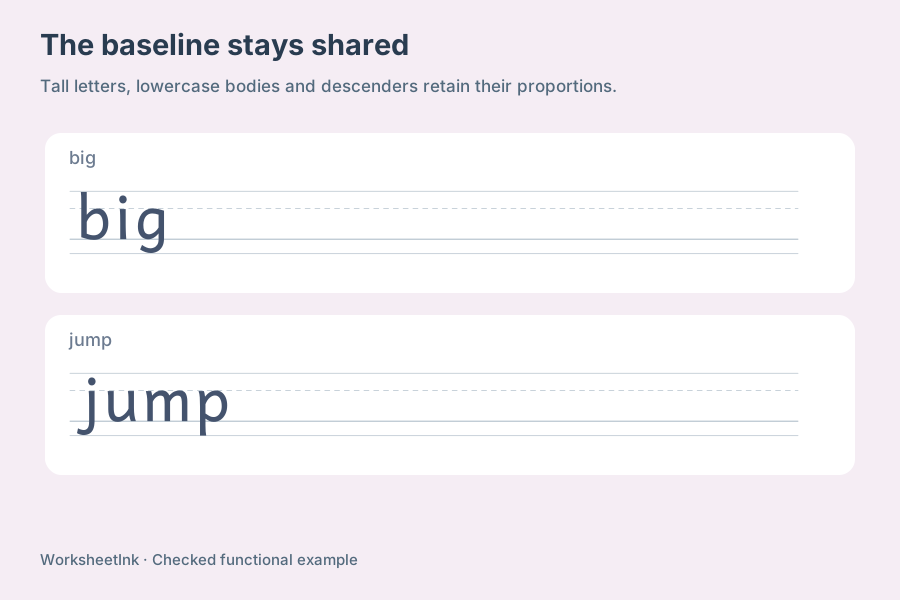
The letter shape stays consistent across devices
Word, name and ordinary alphabet practice uses bundled Andika Regular outlines, so forms stay stable across devices. Letter-formation mode adds a separate original manuscript model made from ordered writing strokes, with optional starting dots, numbers and arrows. Both models keep their proportions and writing guides. Compare the selected form with your classroom example before printing; this page supports unjoined writing rather than a universal school handwriting program.
Writing space is part of the task
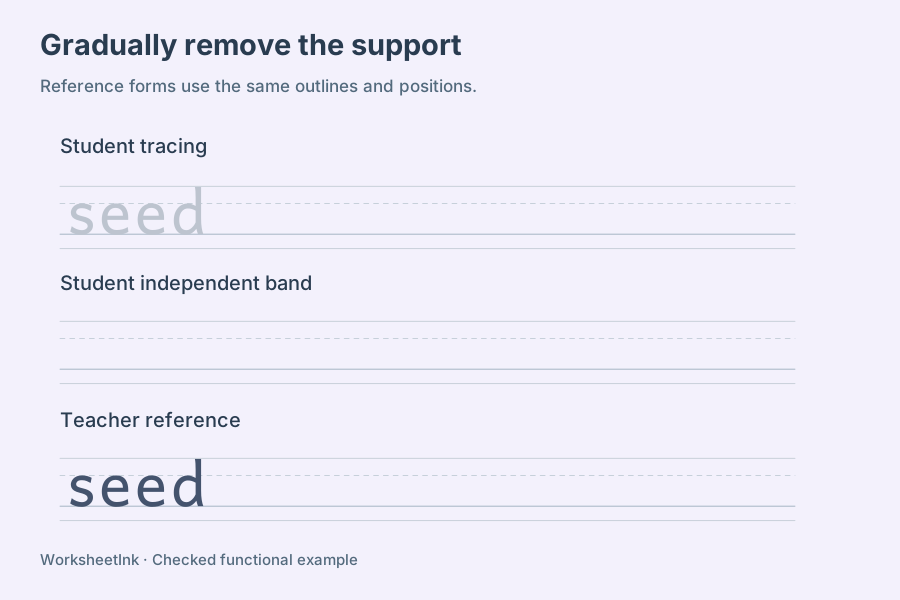
Choose zero to four pale tracing rows and zero to four independent rows, keeping at least one practice row for a word, name or selected letter. Add a dark model if useful. A separate blank-paper mode removes all text and task labels, then prints only the requested ruling. Long words retain the original automatic column fit; full names use explicit width checks so the selected letter scale and complete name stay intact.
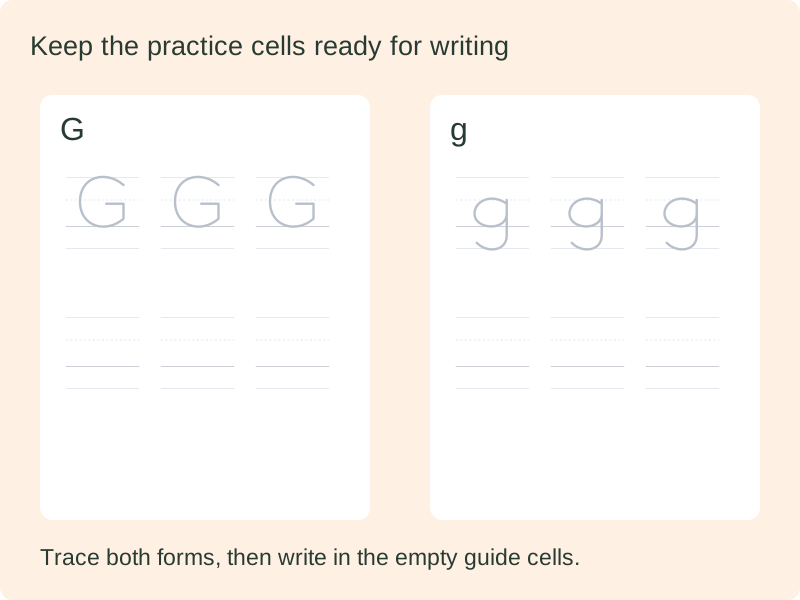
Compare the two forms
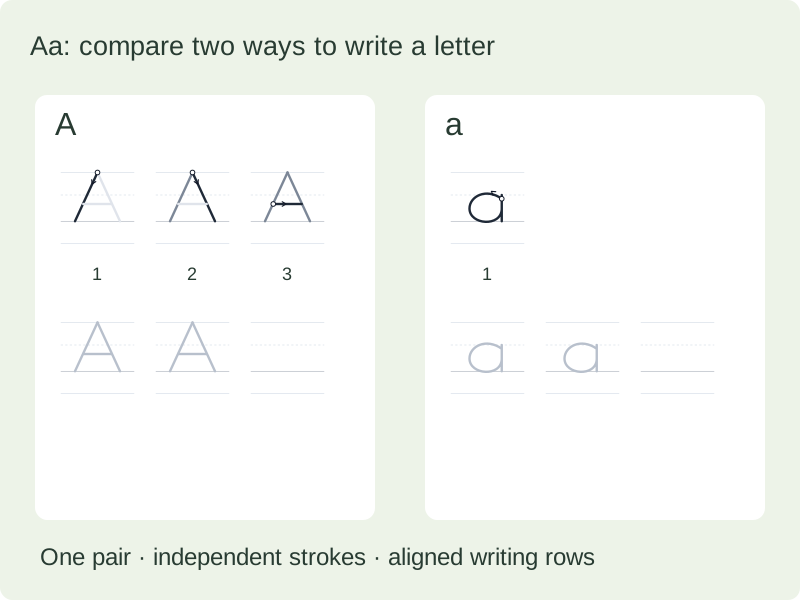
Actual A/a and B/b pen paths remain separate and use one shared practice block.
Trace both, then write both
The two forms share aligned tracing and blank rows; a blank student cell contains guides only.
Build alphabet tracing worksheets around the learner
Select the content, the support and the available writing space independently.
- 01
Use an alphabet preset or your own short list
Choose uppercase, lowercase or both alphabets, or enter custom words one per line. Presets do not erase the text waiting in the custom input. A preset sets a useful initial count of twenty-six or fifty-two items; you can change the count before generating. For custom words, enter up to 200 entries, each containing one to eighteen English letters with internal apostrophes or hyphens when needed.
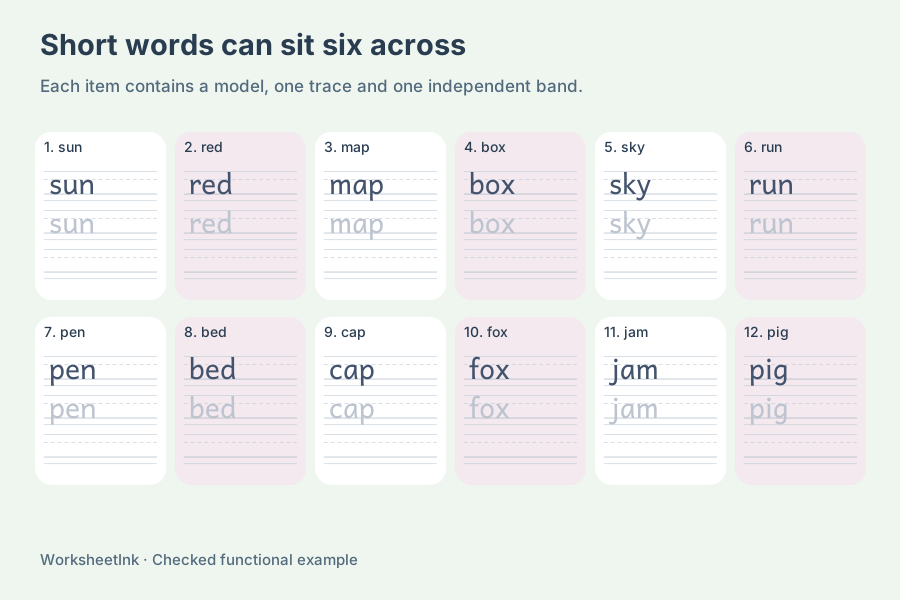
Keep the original short-word mode for ordinary spelling lists. It retains its 18-character ASCII input rules and previous saved files. Use the full-name mode when spaces or supported accents are needed, rather than removing a mark from a learner’s name to make it pass a word filter. Names use a separate, verified set of actual outlines from the same bundled font.
- 02
Keep the case meaningful
Preserve the supplied uppercase and lowercase letters, or deliberately convert the list to uppercase or lowercase. In word and letter modes, exact duplicates after conversion are used once and reported. Class-list mode keeps repeated names as separate students. Input order preserves your planned sequence; shuffled order rearranges the same accepted material.
For ordinary words and letters, the requested count selects from the available items; it does not invent extra content. A class list instead uses every nonempty name line, up to 200 students. Check the actual count before printing. Case conversion is a deliberate teaching choice, so preserve the spelling a learner uses unless you specifically want a different case exercise.
- 03
Choose a suitable writing-band height
For ordinary words, names and alphabet outlines, available band heights are eight, ten and twelve millimetres. These describe the complete band, including space above and below the baseline; they are not the capital-letter height. The font’s outline metrics place tall letters, lowercase bodies and descending parts consistently within it. Four reference lines mark the top, lowercase body, baseline and lower space, with a dashed body-height line.
The line spacing follows this particular print font rather than promising an exact match to a school’s equal-third ruled paper. Check the forms and proportions against the model your class uses. These outline modes do not add stroke order to font contours; choose the separate letter-formation mode for ordered writing paths. The original font and its open license are included locally.
- 04
Move from a model to less support
An optional dark model occupies its own band above the practice. Add one or more pale copies for tracing, then blank writing lines for copying or recall. At least one tracing or blank row must remain, even if you hide the dark model. The small task label continues to identify the selected word. Letter spacing can add zero, half a millimetre or one millimetre between glyphs.
The teacher reference fills the practice bands with dark examples, including the positions corresponding to student blank bands. It is a visual reference, not a unique answer to an open handwriting task or a handwriting grader. Encourage attention to a few well-formed copies instead of filling a page automatically; the repetition settings are a preparation choice, not a promised learning outcome.
- 05
Balance columns and rows without flattening the letters
Choose one to six items per row. The original short-word mode reduces actual columns when a long outline needs extra width. Name and selected-letter modes keep the requested column count and report a size conflict before producing an overflow. Full names stay on one band; no part is wrapped onto another line and no automatic scaling makes the handwriting unexpectedly smaller.
Automatic pagination packs complete practice groups into the available A4 or Letter height. When the next whole group does not fit, it moves to the next page; individual tracing bands within a group are kept together. For smaller leftover gaps, use fewer bands per group or less extra space. Manual mode also offers a requested number of grid rows. Blank-paper groups can contain one to twelve bands, independently of the total group count.
- 06
Edit and preserve the exact practice list
The editor replaces a selected word while respecting its accepted characters, length and case. Ordinary word and letter lists refuse a duplicate already present. In class mode, a name correction applies to that student’s repeated practice blocks, while a different student with the same name remains separate. Content edits update the revision; layout choices retain the practice content.
Browser saving is device-local. A JSON data download preserves the actual words and settings for import, while a PDF is saved through the browser print dialog. Student and teacher reference pages share the same version and word order. Import validates the list and questions; it does not trust a file to supply arbitrary glyph paths or change the bundled writing font.
- 07
Keep a full name and its accents together
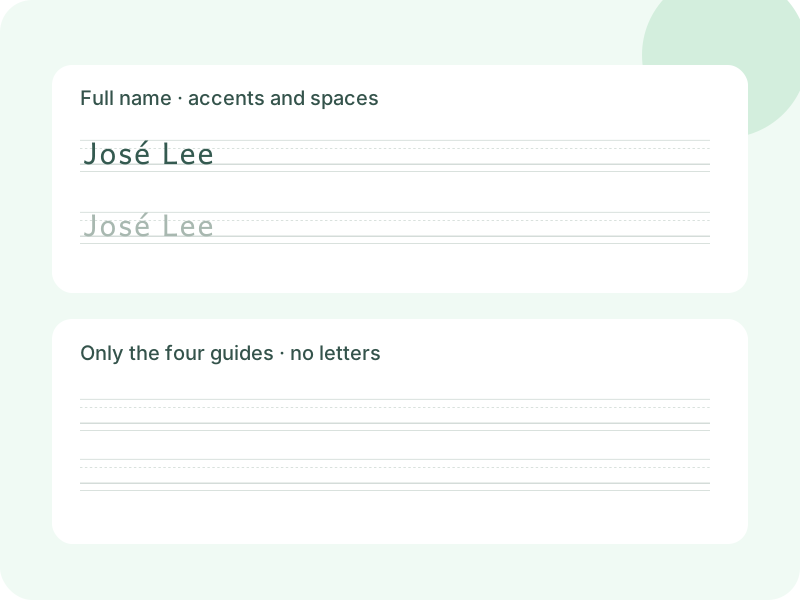
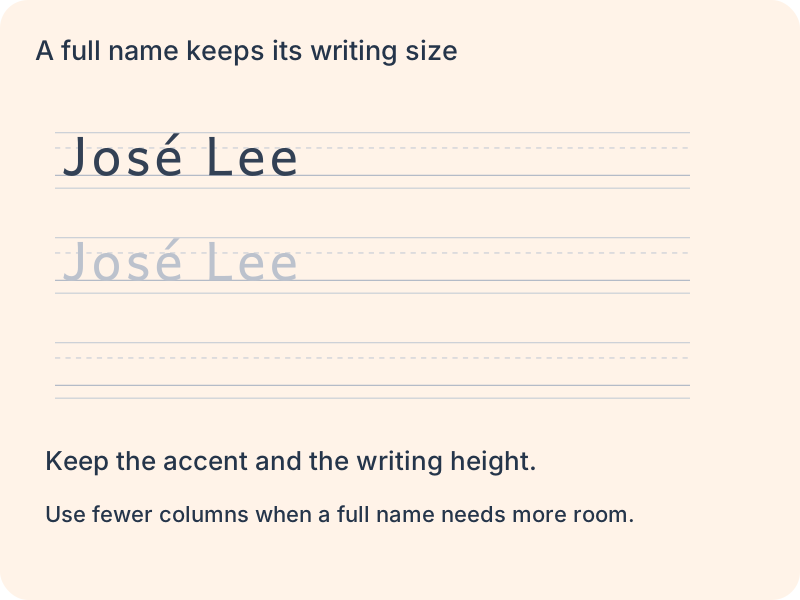
Use the name mode for one full name or select a class list. Each name can contain up to forty characters, including internal spaces. José Lee, Chloë Wang and Anne-Marie demonstrate supported accents, spaces and a hyphen. Leading and trailing spaces are removed; internal spaces remain. Equivalent combining accents are normalized before drawing, and case is preserved unless you choose otherwise.
The accepted characters are limited to the real letterforms available on this page. A digit or sentence punctuation is an input-format error; a letter without a supported form produces a missing-character message. The tool never removes an accent or replaces it with an empty box. Tall accents receive extra space while the selected writing size stays fixed. Review every full name before preparing a class set.
- 08
Choose the letters that need attention
The letter-group picker lets you select uppercase and lowercase letters individually. A short group such as b, d, p and q can be prepared without generating all twenty-six lowercase letters. Use the uppercase, lowercase or combined buttons to replace the selection quickly, then remove letters that are not part of this session. The order follows selection, unless you explicitly choose shuffled order.
Case conversion still applies after selection, so A and a become one entry if both are converted to lowercase. The count and duplicate notice explain the resulting sheet. Ordinary letter-group mode uses the same print outlines as word practice. For starting points, movement arrows and one step per stroke, choose letter formation and select a focused group there.
- 09
Keep the original fixed-block blank layout
In blank-paper mode, choose Fixed practice blocks to use the original layout. It needs no word, name or alphabet selection. Set one to 200 groups, each with one to twelve four-line bands. One column spans the available width; two through six columns create separate blocks. These original guides follow the handwriting font proportions, with configurable band height and extra working space. Saved files from before full-page paper was introduced still restore this layout.
Fixed blocks contain no letter paths, task numbers, name/date fields or headings. There is no duplicate answer copy. Their count means practice blocks rather than finished sheets, so the final page may be partly empty. The newer Full pages option instead asks for a page count and repeats complete rows at the selected physical spacing. Choose the workflow that matches the activity and save its data for reuse.
- 10
Prepare name tracing worksheets for a whole class
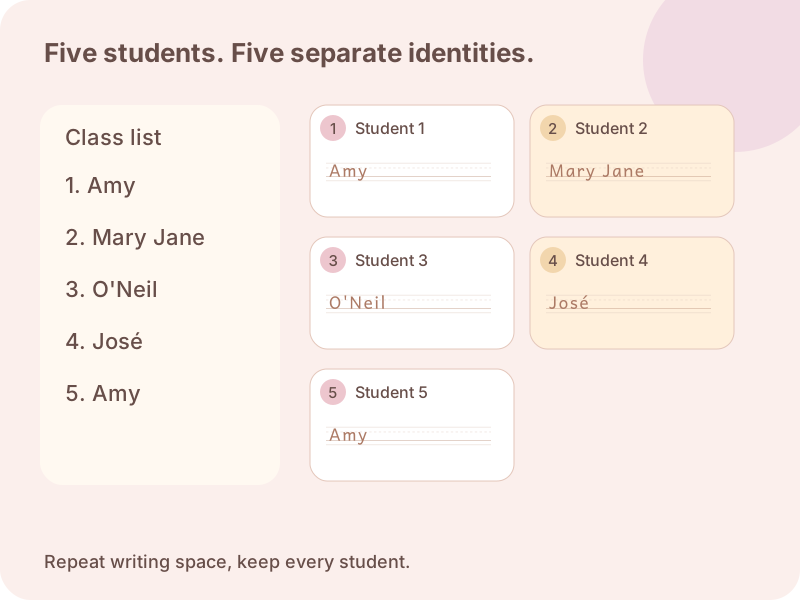
Choose the class-list input in name mode and paste one student per line. Empty lines are ignored, while two lines containing Amy remain two students. A first name, a full name such as Mary Jane, and an internal apostrophe such as O’Neil all belong on one line. Use the listed student count to compare the accepted roster with your source before generating.
Set one to twelve practice blocks per student. Each block uses your chosen model, pale tracing rows and blank writing rows; the repetition count does not mean twelve individual guide lines. A short routine might use a model, one trace and one independent line. For a longer activity, add blocks or bands intentionally rather than changing the letter size merely to fill a page.
If any nonempty line contains an invalid name or an unsupported letter, correct the listed lines before generating. The class is not printed as a silently shortened list. Check accents and punctuation in the source rather than replacing a learner’s name with a different spelling.
- 11
Choose shared pages or separate student sheets
Compact layout places complete practice blocks together and continues down the available page before moving on. Start each student on a new page when the sheets need to be handed out individually. That choice keeps students separate even when the preceding page has spare room. Several repeated blocks may require more than one page for a student; the next student still begins separately.
For one full practice sheet per student, turn on “Fill one page per student”. The chosen practice block repeats across complete rows that fit on the selected paper, while its writing-band height and letter size stay fixed. This mode gives each student a separate page and calculates repetitions from the available space. The editor shows one base block per student; the print-layout preview shows the full repeated page. Saving keeps the names and this layout choice, so changing paper size can change the number of repetitions without changing the roster.
Columns control how many practice blocks sit across the page, from one to six when the complete names fit. Keep the chosen writing-band height and reduce columns if a longer name needs more room. A page break does not make a narrow column wider. Choose the matching A4 or Letter paper and actual-size printing, then review the last row and the start of each student’s work.
Names are processed in this browser and are not placed in the page URL. Saving in the browser or downloading the data keeps the exact class list and repeated blocks for reuse. A downloaded file includes those names, so keep it with the teaching materials intended for that class. Sharing the page address opens the tool without transferring your roster.
- 12
Show where a letter starts and how each stroke moves
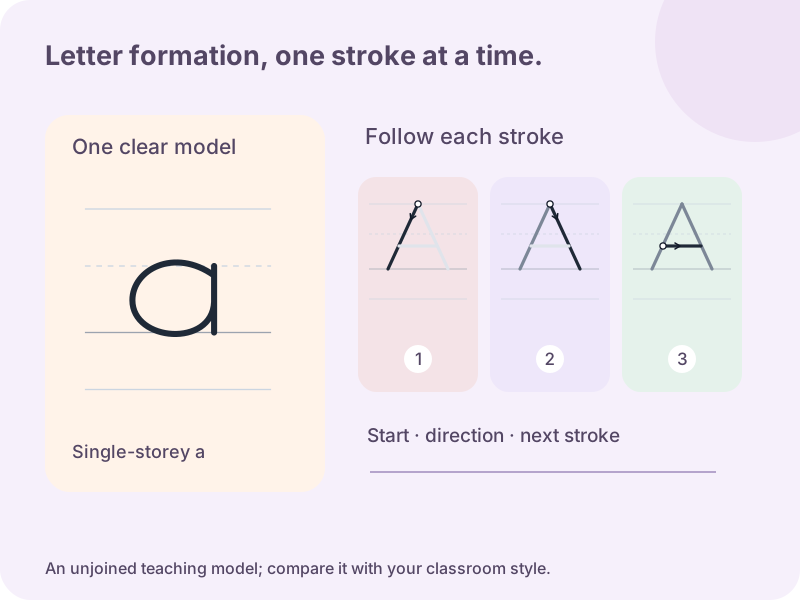
Select letter formation, then choose any of the 26 uppercase and 26 lowercase forms. Quick groups help select round movements, downward strokes, diagonals or b, d, p and q for comparison. You can still adjust the individual letters afterward. Start with the letters relevant to the current lesson instead of treating the group buttons as a compulsory teaching sequence.
Each step highlights the next writing stroke while keeping the rest of the form available for context. Optional numbers identify the order, dots mark starting points and arrows indicate direction. Demonstrate the whole letter first, then ask the learner to follow a single step and practise the completed form. The printed cues remain visible without an animation or a screen beside the paper.
The model uses original centreline paths for unjoined manuscript letters. Lowercase a and g are single-storey forms. This differs from merely adding a number to a font outline: an outline encloses the printed letter, whereas these paths describe a proposed pen movement. Schools and handwriting programs may use different forms or sequences, so compare the model before adopting it and keep instruction consistent.
- 13
Keep letter practice readable in a mixed sheet or a full page
Formation cells have a fixed width of 12, 15, 18 or 20 millimetres and a height 1.2 times that width. This is the cell size, not a promise that every letter is that tall. Choose tracing and blank practice, then one to six blocks per row when the selected size fits. Steps wrap within their block without reducing the writing scale.
Mixed layout places different letters together and fills the usable page with complete blocks. One full page per letter repeats that letter’s base block across complete rows until another row would not fit. Each selected letter then begins separately. The editor shows one base block for each letter; the print-layout preview shows the repeated page. Choose A4 or Letter before checking the last row.
Student blank cells contain guides without faint hidden letters. The teacher reference fills the matching practice positions using the same stroke model, while the student’s order and version stay fixed. Save the data to retain the selected letters, cue switches and page arrangement. Imported files use the bundled model and do not supply arbitrary paths. If a block is too wide or too tall, reduce columns, cell size or practice rows explicitly.
- 14
Add an optional picture and example word to letter formation
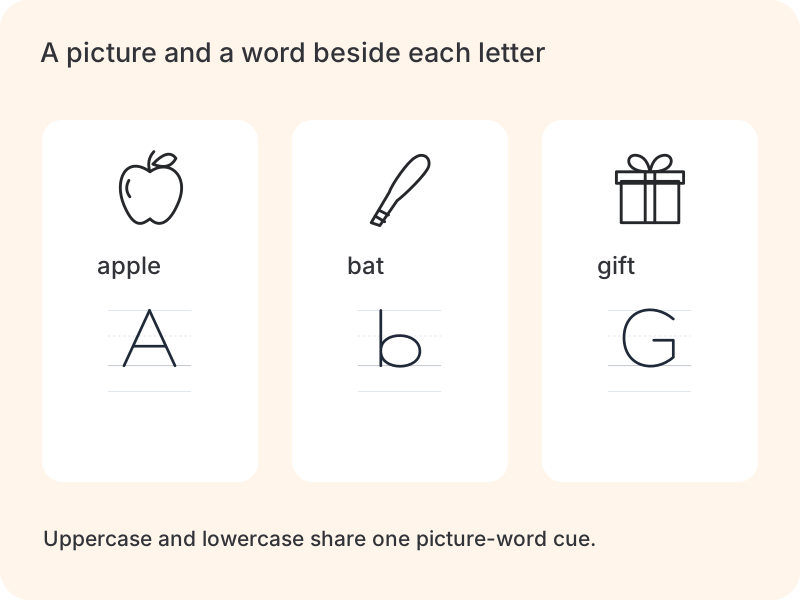
In letter formation, enable the picture and example-word switch to add a small illustration before the stroke sequence. A and a share apple; B and b share bat. The 52 uppercase and lowercase forms use 26 picture-word associations, while their distinct stroke demonstrations remain unchanged. Turning pictures on does not reselect letters or discard item edits. Turn them off whenever the current activity needs only movement and writing practice.
The picture area adds 26 millimetres to each complete block: an 18 millimetre drawing, a readable word label and spacing. Writing cells keep their selected dimensions, including in six-column layouts. Fewer complete rows may fit when pictures are enabled. One-page-per-letter mode repeats the whole illustrated block into the available space. Independent student writing cells still contain only their guides; the illustration never appears as a hidden tracing target inside them.
- 15
Treat example words as letter associations
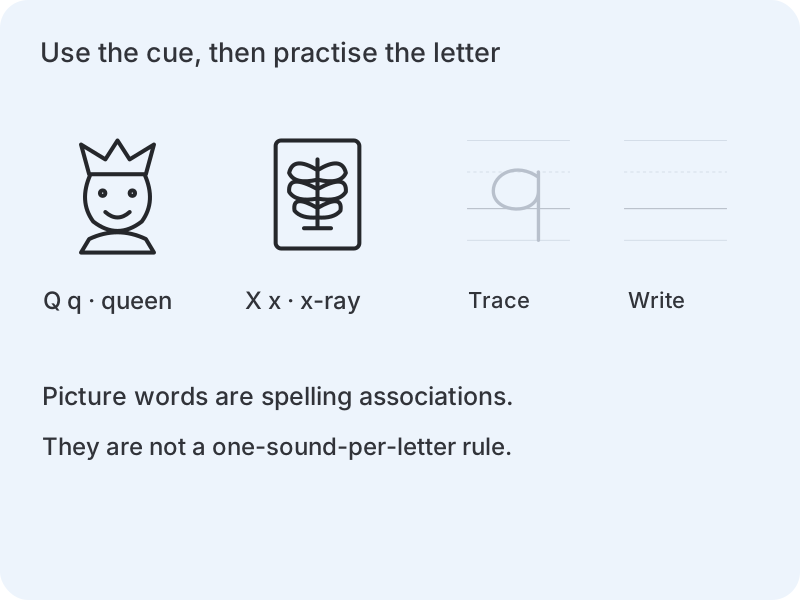
A picture word connects a visible letter with a familiar example; it does not assert that every initial letter always represents one sound. Queen begins with the spelling qu, and x-ray begins with the letter name. Do not turn those examples into a universal single-sound rule. Name and discuss the picture, then return attention to the letter’s shape and movement. Use the separate phonics tool when you need a reviewed short-vowel word pool, explicit sound partitions or picture-word choices.
Pictures are bundled vector drawings, so a saved worksheet can reproduce them offline without image uploads. The data file retains the display switch, while older files without that setting restore their original layout. Example words do not change stroke counts, model variants or direction cues, and the reference page does not assign a score to the learner’s drawing.
- 16
Fill a page for one learner
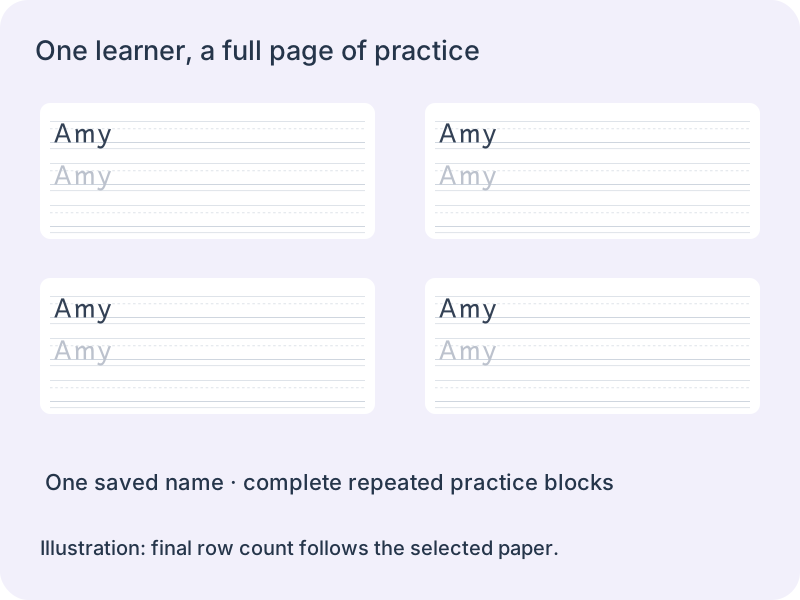
Choose name practice, keep the single-name input and enable Fill one page with this name. Enter the full supported name once. Generation keeps one real name in the saved document; the print layout repeats complete model, tracing and independent-writing blocks. A learner’s page does not need a class roster or several pasted copies of the same name. The reference output repeats the same name with dark practice outlines.
The page uses automatic pagination because the number of repeated blocks depends on the available print height. The editable source still shows one block. Read the preview notice and use the prepared print preview to inspect the filled page. A4 and Letter can fit different numbers of complete rows. Repeated blocks are practice space, not additional students or new numbered questions.
- 17
Keep the writing size when the name is long
Set one to six blocks across only when the whole name fits at the selected band height and spacing. Amy can use a compact layout; José Lee or a longer full name may need fewer columns. An invalid change leaves the last valid worksheet available. The name remains editable as one item, and an edit updates every derived repetition when the page is prepared again.
Choose the model, tracing and blank-row balance before printing. Each complete group stays together. The final leftover strip is expected when another complete row will not fit; it is not filled by stretching letters or squeezing the writing guides. Saved files retain the name, layout and fill choice. Older single-name files still restore without automatically enabling full-page filling.
- 18
Choose three lines or four lines for a full page
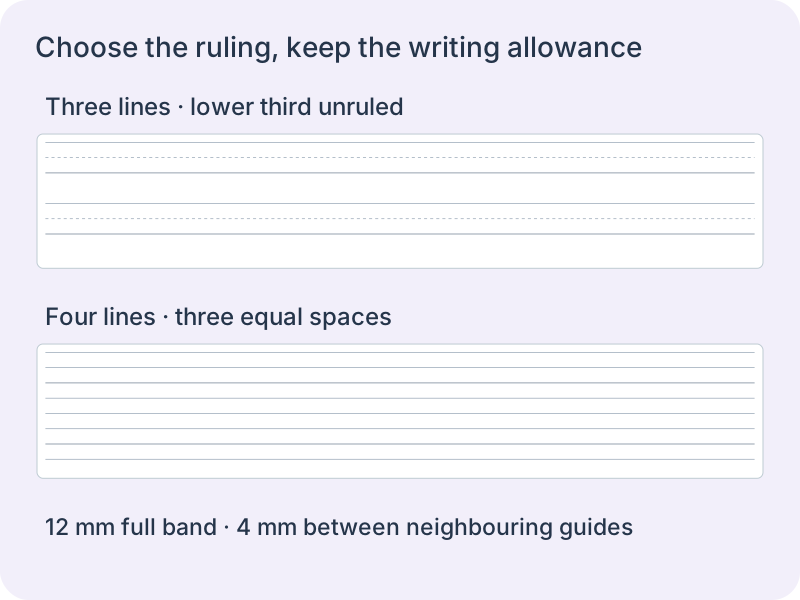
Choose Blank writing paper, keep Full pages selected and request one to twenty sheets. No text input is needed. Three-line paper has a top line, a dashed midline and a baseline. Its band also reserves an unruled lower third for descenders. Four-line paper adds that lower boundary, creating three equal spaces. Compare these formats with the model used in class; the names are not a guarantee that every school uses the same ruling.
The band-height choices are 6, 9, 12, 15 and 18 mm. This is the full top-to-bottom writing allowance, including the unruled descender area in three-line mode. At 12 mm the neighbouring guides are 4 mm apart. Group spacing is a separate 0–12 mm choice; changing it moves the next group without changing the guide positions inside the current one. Select one full-width strip or two to six shorter strips across the page.
- 19
Reserve drawing room without shrinking the writing
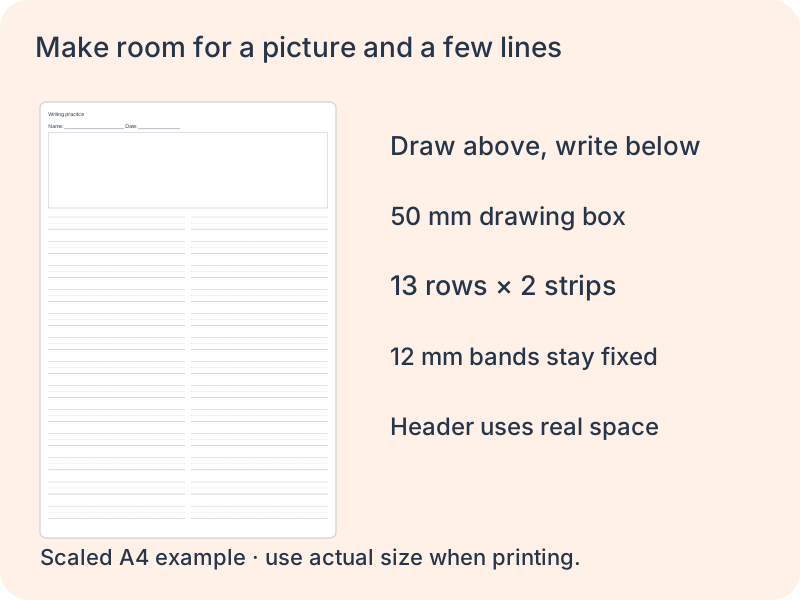
For a draw-and-write activity, add a top box of 30, 50, 70 or 90 mm, or leave it off. An optional header prints the sheet title and a name/date line. Both use real page space, so fewer writing rows fit. The tool repeats only complete groups below them, leaving the remainder at the foot of the sheet. It never stretches the last group to reach the edge.
Choose A4 or Letter in the workspace and match it in the print dialog. Use 100% or actual-size printing to retain millimetres. Blank paper produces only the requested blank sheets even if the previous task used both student and teacher copies. Downloading the data preserves the format, page count, paper size, drawing box and header choice. The print preview is the place to check all pages before saving a PDF or making classroom copies.
- 20
Give a long name more width before changing its writing size
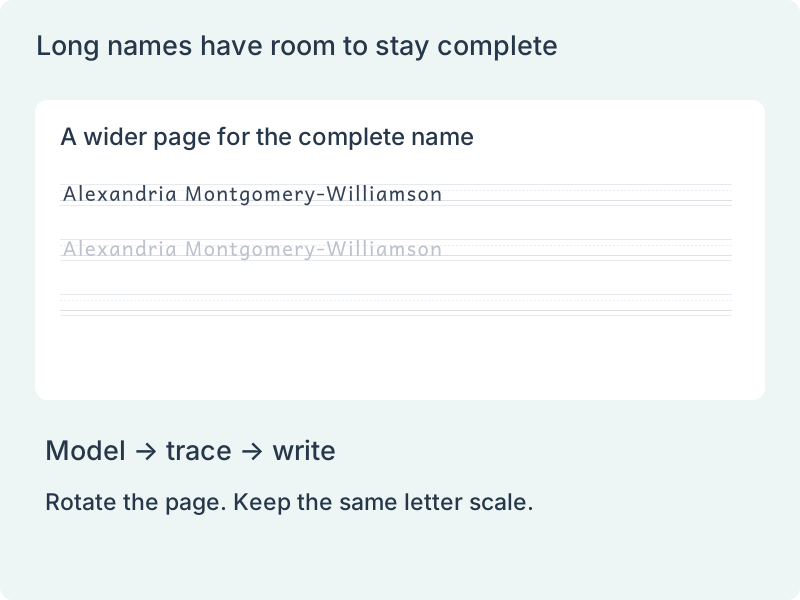
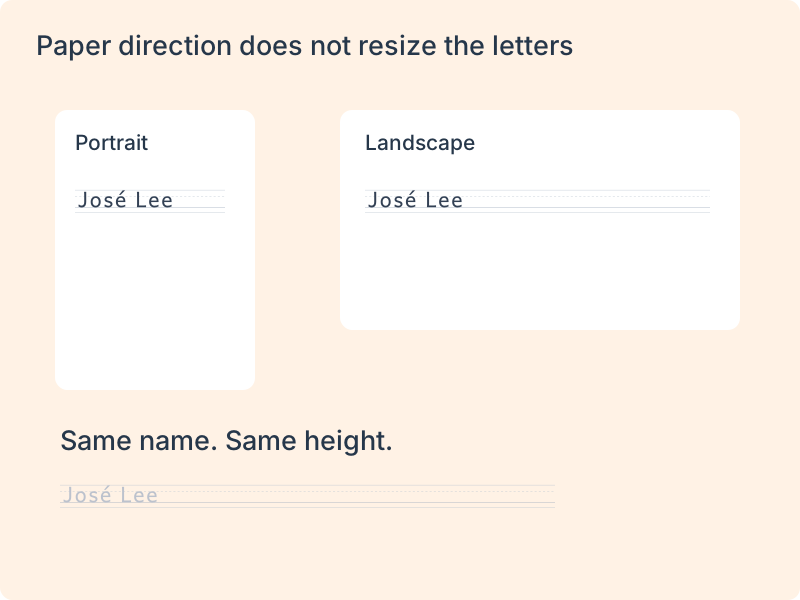
Choose landscape in the name layout controls for a single learner, a mixed class list or a page for each student. You can select the direction before generating a long name, or rearrange an existing sheet. Changing direction keeps the same names, duplicate students, order and practice settings. The letter outlines and selected writing height remain unchanged.
Landscape A4 is wider than landscape Letter. Select the paper before checking the longest name. If a paper change would make a name overflow, the previous layout remains available and a message explains the problem. Reduce the column count before considering a smaller writing band. Even one landscape column has a limit: an unusually wide name may still require less spacing or another deliberate setting change. Its final characters are never silently removed.
- 21
Expect fewer complete rows on a landscape page
Turning the sheet gives each row more width but leaves less height. Fill-page mode recalculates the number of complete practice groups that fit. A model, its tracing lines and its independent writing lines stay together. The saved data records the name-page direction and paper size so you can restore the same names and layout choices later.
Match both the paper and direction in the print dialog, then use actual size or 100% scaling. Older files without a direction setting still open in portrait. A name-page setting does not rotate ordinary word practice, letter formation or blank writing paper.
- 22
Keep uppercase and lowercase together
In letter formation mode, change Letter grouping to Uppercase + lowercase together. Selecting b then includes B and b in one indivisible practice block. Choose several letters or the full alphabet. Both forms use the existing checked pen-stroke models, with separate stroke numbers and direction cues. The pair is one item, so the full alphabet creates twenty-six items instead of fifty-two independent forms.
The two teaching sequences reserve the same height before the tracing rows begin, making the paired writing rows line up. The lowercase descender remains inside its original guide area. Changing columns preserves the millimetre cell size; a pair that cannot fit asks for fewer columns or smaller cells rather than shrinking silently. The one-item-per-page option repeats the complete pair. An optional picture and example word are shared once above it. Student blank cells contain no letter strokes, while the teacher reference supplies both forms. Saving retains the grouping, selected pairs and exact questions.
Questions before making a class set
Know what the content, reference copy and layout settings do.
Yes, using separate practice modes. Short-word lists keep one word per line. Name mode accepts a single full name or a class list, with one student per line. Each name can contain up to forty characters, including internal spaces, supported Latin accents, apostrophes and hyphens. The page keeps a full name together in its writing band.
Choose the uppercase, lowercase or combined preset. Your custom text is retained while switching presets. Case conversion is a separate choice: converting a combined alphabet to one case creates duplicates, which are used once and reported. The actual generated count can therefore be smaller than the requested number.
Yes. Select letter formation for ordered centreline strokes, optional numbers, starting dots and direction arrows. This uses an original unjoined manuscript model, including single-storey a and g. Ordinary words, names and letter groups continue to use pale filled Andika outlines. Neither mode provides joined cursive; choose the form that matches your intended classroom example.
Ordinary words and names use a shared baseline calculated from the font metrics. Letter formation uses its own fixed guides, with a lower area for descending strokes in letters such as g, j and y. Neither mode stretches every letter to fill the same height. Check the actual form and ruling in the print-layout preview.
The band includes the full writing area, including top and lower space. The font is scaled inside it, so capital height and lowercase body height are smaller than the total band. This leaves room for descenders and reference lines. The selected band size stays unchanged when actual columns are reduced for a long word.
It depends on the measured name width. The name mode checks the selected column count and band size, then refuses an arrangement that would overflow. Choose fewer columns, or intentionally choose a different band height. Single selected letters often fit six columns. The original short-word mode retains automatic column reduction for older saved layouts.
The student sheet combines the selected dark model, pale tracing and blank bands. The reference fills practice bands with dark forms in the same positions. Both copies use the same word order and version. It helps a teacher review shapes and layout, but it does not assess a child’s handwriting or declare one handwritten form uniquely correct.
Yes. Download the data to preserve exact words, edits and settings, then import it again. Browser-local saving works on the current device. Changing density, band size, spacing or support rows rearranges the same list. Use the browser print dialog to save a PDF or print A4/Letter, and check one real sample before making many copies.
Only letters with a bundled, verified Andika outline are accepted in name mode. Common composed accents are supported and equivalent combining input is normalized first. Remaining unsupported marks or letters are listed in the missing-glyph message. Invalid punctuation is reported separately. No missing form is silently replaced by another font.
Yes. Choose blank paper without entering words. Full pages repeats three-line or four-line groups across one to twenty sheets and allows a header and drawing box. Fixed practice blocks retains the old group-count layout without a header. Both contain empty writing guides and produce no reference-answer duplicate.
Use the individual letter picker. Select the letters you need, preserve case when the difference matters, and set the desired tracing and blank bands. Preset buttons select a complete case quickly, after which individual letters can be removed. Repeated letters created by case conversion are reported and used once.
Select name practice, then the class-list option. Paste one student per line, check the accepted count and choose the practice blocks per student. Compact layout shares paper; the separate-student layout starts each child on a new page. Up to 200 nonempty name lines are supported, and each full name must fit at the writing size you select.
Yes. Class mode preserves repeated name lines as separate students instead of deduplicating them. Empty lines are ignored. The input order stays intact unless you select shuffle. Check the roster count before printing, particularly when copying names from a spreadsheet.
A practice block includes the selected model, tracing bands and blank bands. Several blocks can be taller than one sheet. The separate-student setting starts each new student on a fresh page; it does not shrink writing or discard repetitions to guarantee exactly one page. Reduce blocks or bands if you want a shorter individual sheet.
No. Names are not added to the page address. Browser saving and downloaded data preserve the names for your own reuse; a downloaded data file therefore contains the roster. The plain page link opens the generator without carrying your students’ names.
Yes. Enable “Fill one page per student” in class mode. It repeats that student’s practice block across every complete row that fits, keeping the selected writing size. Each student gets a separate page. Use the print-layout preview to check the repeated sheet; the editor keeps one base block per student for name corrections. Switch the option off to choose a fixed number of practice blocks instead.
Letter forms vary between fonts and handwriting models. Formation mode uses single-storey a and g as part of its original unjoined manuscript set. It does not offer every school variant. Compare these forms and their stroke sequence with the teacher’s example before printing a practice set.
Yes. In letter formation choose One full page per letter. The same practice block repeats across complete rows that fit A4 or Letter, retaining the chosen cell size and columns. Different letters stay on separate pages. Use shared pages when you want several letters together.
Yes. Stroke numbers, starting dots and direction arrows are independent switches. Keep the support useful for this lesson, then reduce it deliberately. Pale tracing cells and empty independent-writing cells remain separate choices.
Use the sequence and models followed by your class. This generator lets you select either case or a small mixed group, and it does not prescribe one order for every learner. Preserve case when comparing A with a, and use a few focused examples before printing the whole alphabet.
No. The picture area adds 26 mm before the existing stroke and writing cells. Cell dimensions stay fixed. If a complete block becomes too tall, reduce practice rows or turn off the picture; the tool does not shrink the letters.
No. The word is an association for letter practice, and examples such as queen and x-ray do not follow a universal one-letter, one-initial-sound rule. This mode focuses on letter shape and writing; use phonics practice for controlled sound mapping.
Yes. Choose single-name practice and enable the full-page option. Only one name is saved, then complete writing blocks are repeated during automatic print layout.
No. The band height and letter geometry stay fixed. Reduce the number of columns when a long name does not fit; a rejected layout keeps the last valid worksheet.
No. It omits the bottom guide but retains the lower third of the selected band as unruled descender room. The top line, dashed midline and baseline are still spaced at one third of the full height. A 12 mm band remains a 12 mm writing allowance in either format.
The box, its separation from the writing area and any enabled header consume real page height. Complete groups fill what remains while band height and group spacing stay fixed. Choose a shorter box or turn off the header to fit more rows; the tool does not shrink the writing.
No. Choose landscape or fewer columns first. The letter scale follows the selected writing band. If the complete name still exceeds the available width, you receive a layout message instead of clipped letters or automatic shrinking.
Yes. Single names, mixed class pages and individual student pages support it. Saved data retains the paper, direction, student identities and order, including duplicate names. Direction changes the layout; fill-page repetition is recalculated from the available page height.
Yes. In letter formation mode, choose paired grouping and select A or a. Both forms appear together with aligned practice rows and their own stroke sequences. Printing keeps the pair together. For narrower layouts, reduce columns; the letter size stays fixed. Separate grouping remains available.
Make the next practice sheet useful
Review the content, then leave the space your learners need to write.
Browser print / Save PDF · No registration