FOLLOW · TURN · DRAW
Pencil control worksheets A clear path, with room to find your own line
Build pencil control worksheets around the movement you want to practise. Choose straight lines, waves, arcs or closed shapes, then decide whether learners follow dashes, stay inside a channel or copy a model into a genuinely empty space. Set the physical size and the number of blocks across before printing. A combined sequence lets you set model, tracing and blank counts separately, with adjustable line thickness and gaps between frames.
8 path types · 4 guide modes · Adjustable lines and stages
Pencil control worksheet generator
Choose continuous paths and their guides, then adjust the physical print size.
My worksheets
Drafts save automatically in this browser, including unfinished input. Keep up to 20 named worksheets across all tools. Large images may exceed browser storage; download data as a backup.
Worksheet preview
Fit complete rows onto each page using the selected columns and writing space. Extra page space stays at the bottom; answer gaps are not stretched.
Select 1–6 blocks across. Path dimensions stay fixed; complete rows paginate automatically.
Span and height describe the design envelope, not the distance along a curve. Cycles affect only waves and zigzags. Sizes are never reduced automatically; increase span or reduce cycles when a wide channel cannot follow a tight bend. Channel width is measured between the centres of the two 0.3 mm boundary strokes; the clear white space is 0.3 mm narrower.
Start and direction markers have separate switches. Closed shapes return to the start; all student blank frames contain no paths or markers.
Generate a sheet to inspect the paths, markers and teacher reference.
Match A4 or Letter in the browser print dialog. Choose Save as PDF and review every student and answer page; switch off browser headers and footers if needed.
Different guides for different drawing tasks
Keep the target obvious without making every page look the same.
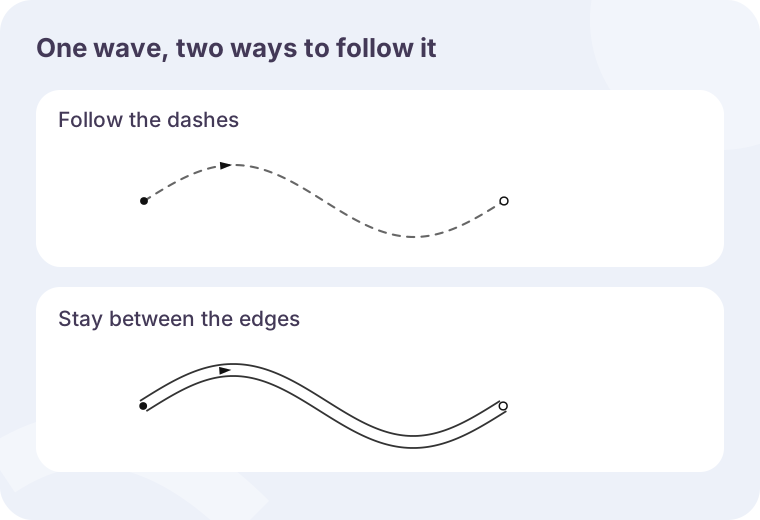
Trace a path or travel between its edges
Dashed mode prints one continuous design as evenly spaced strokes. Channel mode prints the two boundaries of that design, leaving the middle open for the learner’s line. These are two different tasks, so choose the guide deliberately. Channel width is measured across the path rather than vertically on the page. If a narrow bend cannot support the selected width without overlapping, the tool asks you to adjust the dimensions instead of producing a confusing crossing.
Give a model, then leave a real blank
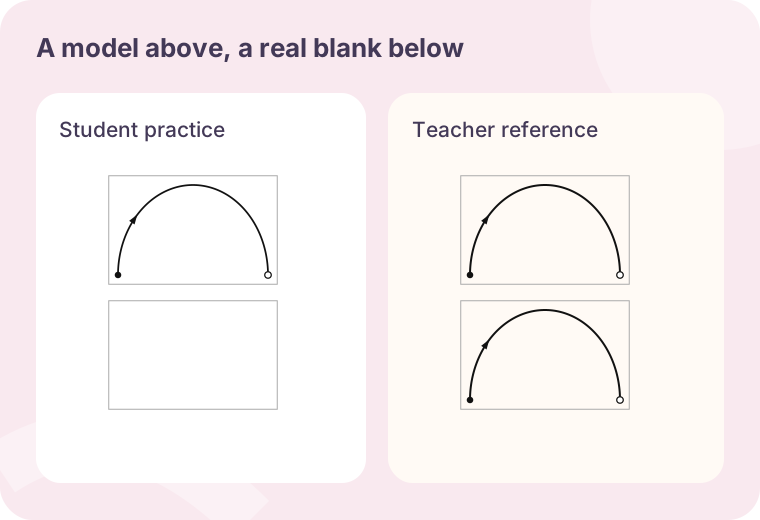
Copy mode places a dark model above a separate empty practice frame. The two spaces stay together as one block, with the same available width and height. The blank frame has no pale curve, hidden trace or direction marker inside it. On the separate teacher reference, both frames contain the model. That reference helps you explain the intended movement, but it does not score handwriting or declare every small departure from the model wrong.
Make a focused prewriting activity
Choose the movement first, then set the guide and the space on paper.
- 01
Choose the paths that belong in this activity
Select horizontal, vertical or diagonal straight lines, zigzags, waves, an open arc, an oval or a rectangle. You can select one type for repeated practice or combine several. Every block contains one continuous path; a new block is a separate attempt. A rectangle or oval returns to its starting point. The open paths have distinct starting and finishing points. These are drawing directions for the displayed pattern, not stroke-order lessons for letters or numerals.
A short straight path is a practical starting option when you want a simple task. Add a single turn or a gentle curve when that suits the work you observe. The generator does not assign a school grade to the number of bends, prescribe an age-based sequence or promise an improvement after a fixed number of pages. You decide which movement and amount of practice are useful.
- 02
Keep the sequence intentional and repeatable
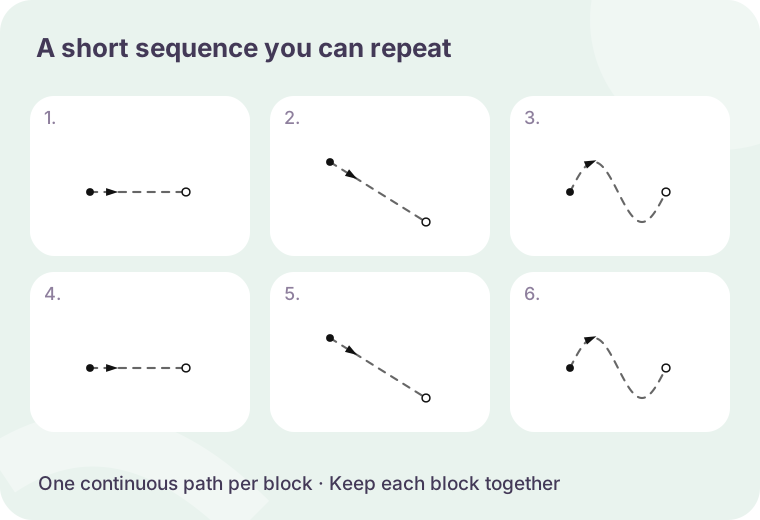
Selected patterns appear in the order you selected them, shown below the choices. Cycle order repeats that sequence until the requested total is reached. Grouped order puts copies of the first pattern together, then the next, distributing the requested blocks as evenly as possible. The count may be from one to 120. If the total is smaller than the number of selected types, only the types reached by that ordering appear; the preview shows the exact result.
For a first mixed sheet, choose horizontal, diagonal and wave paths and request twelve blocks. Cycle order alternates the three designs four times. Grouped order produces four of each together. A new seed changes the version identifier, but it does not randomly reorder the selection or invent extra paths. Save the prepared worksheet when you want the same sequence again.
- 03
Choose line following, a channel, copying or a sequence
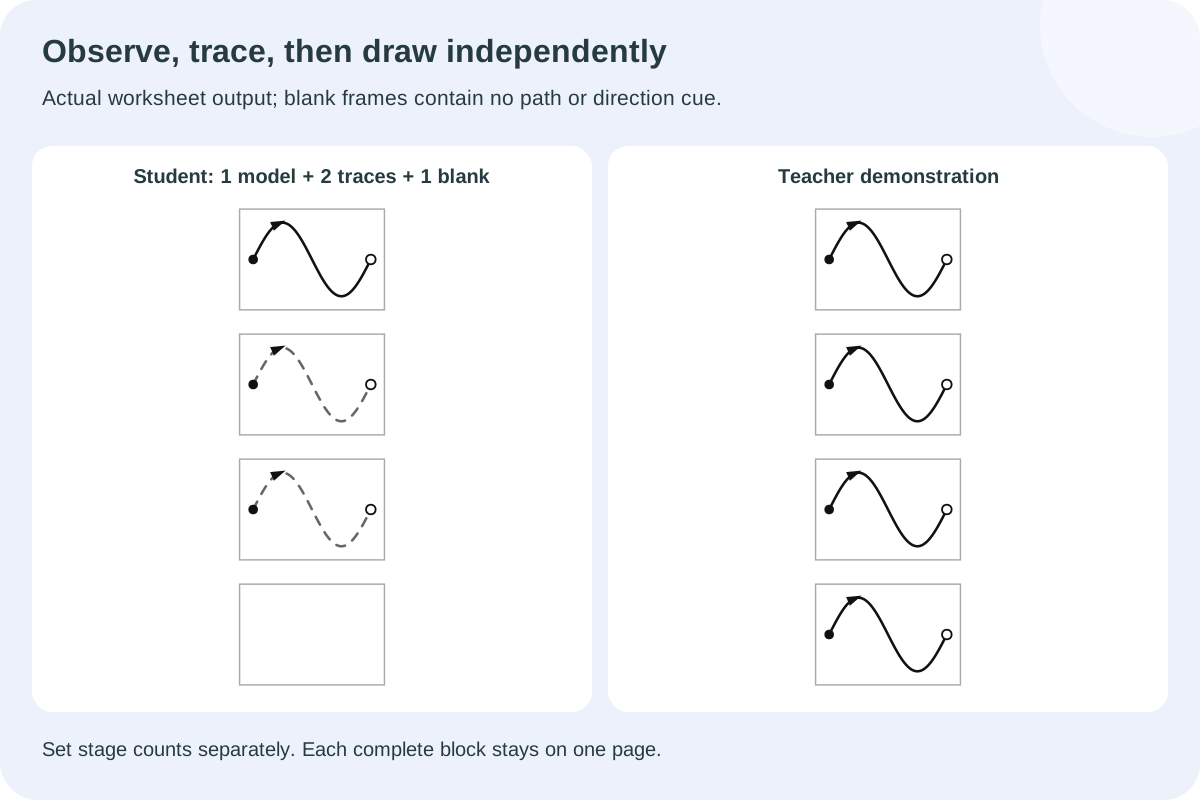
Line following can use either a gray solid line or dashes. For dashes, the setting controls both the stroke length and following gap in millimetres. Solid lines ignore that dash setting while keeping the same path. Starting dots and direction arrows have separate switches. The combined sequence uses the same design in dark models, gray tracing frames and empty frames, in that order.
For a two-line channel, choose a physical width from one to six millimetres. The printed edges follow the same centre path at equal offsets. Tight curves can make wide offsets overlap, so some combinations are rejected. A narrower channel, a longer wave, fewer repetitions or a gentler height can resolve that conflict. In copy mode, use the dark example as a visual prompt and draw in the frame underneath. That frame contains no tracing path. The width setting measures between the centres of the two 0.3 millimetre boundary strokes, so the clear white space is 0.3 millimetres narrower.
- 04
Understand length, height and repeated turns
Horizontal span controls the design envelope from left to right, from eight to 160 millimetres. Height controls its vertical envelope, from six to fifty millimetres. These are bounding dimensions, not the distance a pencil travels along a curve. A horizontal line uses the selected span and sits halfway down the envelope; a vertical line uses the selected height and sits in its centre. Changing the span does not tilt the vertical line.
The wave and zigzag repetition setting chooses one, two or three cycles within the same envelope. More cycles make the bends closer together, so the spacing may require a longer span or a narrower channel. Arcs and closed shapes are not multiplied by this control. The oval follows the selected width and height; set them equal when you want a circle. Every accepted design stays continuous, with no jump between separate strokes disguised as one path.
- 05
Choose columns without changing the intended size
The default is three blocks across, and you can select one through six. Short default paths fit six columns. For a long design, use the full-row button to select one column, then increase its span deliberately. The button changes the column count only: it does not lengthen a path on its own. A narrower column keeps your selected dimensions and channel width. When the complete block cannot fit, the current valid layout remains and an explanation tells you what to change.
Automatic pagination adds complete rows until another full row will not fit. Copy mode needs two frames per block, so it naturally uses more vertical room than a single dashed path. Extra space below each block is optional. Choose zero extra space for a compact sheet, but keep the actual practice area large enough for the task. A small remainder at the bottom is reasonable when the next complete row is taller; no path or practice frame is split between pages.
- 06
Check markers and use the teacher reference appropriately
A filled dot marks the start. Open paths finish at a small hollow circle; closed shapes return to the starting dot and do not add a competing finish marker. The arrow follows the local direction of the centre path. Starting dots and arrows have separate switches, allowing you to remove either while keeping the selected guide style. In copy mode they appear on the model only, never inside the student’s empty frame.
The teacher reference uses the same numbered paths as the student sheet. It shows a solid centre line inside channels and replaces dashed traces with solid models. In copy mode it also completes the lower frame. This is one visual reference for discussion, not an automatic assessment of pressure, fluency or pencil grip. Keep expectations tied to the particular activity you demonstrated.
- 07
Review, change and retain the exact worksheet
Preview the student sheet, teacher reference or both. When both are selected, all student pages come first, followed by their corresponding references. The item editor can replace one block’s pattern while retaining its number and the rest of the sequence. Its replacement must still fit the current dimensions and channel rules. Layout changes preserve those manual edits; generating a new worksheet replaces them after confirmation.
Use browser saving for a quick return, or download the data file to retain the complete pattern list, dimensions, guide settings and edits. Import checks the version and consistency of the saved data. For printing, select A4 or Letter and match that size in the browser dialog. Use actual-size printing when the millimetre measurements matter, and inspect all pages before a large batch. The same browser dialog can save a PDF; the tool does not send the worksheet to a print service.
- 08
Build a model, trace and independent drawing sequence
Choose the combined sequence to print zero to two models, zero to six traces and zero to four blank attempts. For example, show one wave, trace it twice, then draw it once independently. Remove models when you have demonstrated the movement separately, or remove tracing when you want model copying only. At least one tracing or blank stage must remain, so a block cannot consist solely of examples.
A student blank contains only its fine frame. There is no faint target, starting dot or arrow inside it. The teacher reference fills every selected stage with a solid model for discussion. Stage counts do not create extra question numbers or replace manually edited paths. The whole sequence stays together on one page, even when that leaves room below the last complete row.
- 09
Separate line thickness from frame spacing
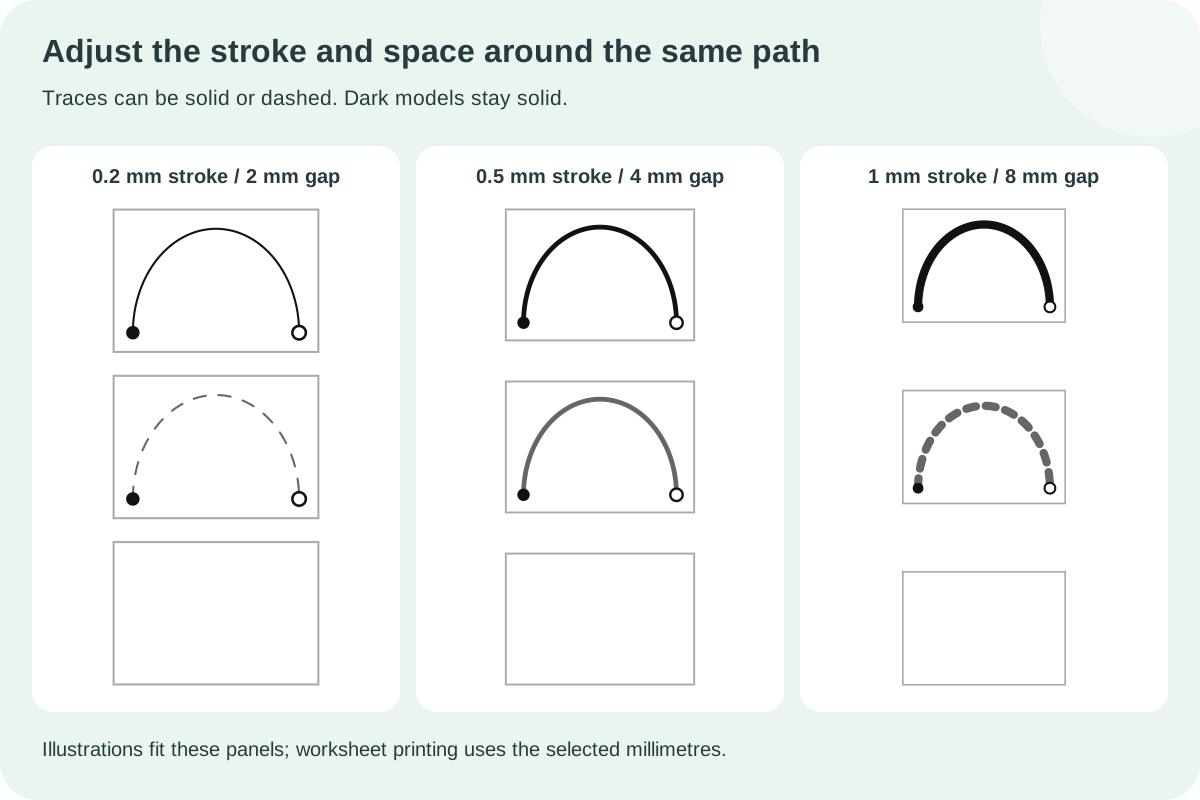
Trace and model thickness can range from 0.2 to 1 millimetre. This changes the printed stroke without changing the path span, height or bends. Channel boundaries retain their separate fixed thickness of 0.3 millimetre. In copying and combined sequences, the gap between adjacent frames ranges from two to ten millimetres. That gap belongs inside a question; the separate extra-space control adds room below the complete block.
A larger gap or more attempts makes each block taller. If the complete block cannot fit, the previous valid layout remains visible and the message asks you to reduce counts, height or gaps. The generator does not shrink a path or discard a blank to force it onto paper. Save the data file after adjusting the layout to retain these settings. Older saved worksheets still restore their original guides and spacing.
Questions about lines, guides and page space
Practical choices for the next worksheet.
You can begin with a short straight line and one clear direction, then add a turn or curve when it suits the learner’s current work. There is no mandatory age ladder in this generator. Select fewer patterns and a small number of blocks if you want to observe one movement before preparing a larger sheet.
A tracing activity gives the route in advance. The learner follows that route, draws between its boundaries or copies the model. A maze also asks the learner to choose a route through branching passages. Use the separate maze tool when route finding is part of your lesson.
Select the combined sequence and set each stage count separately. One model, two traces and one blank is one possible arrangement. Keep at least one trace or blank. Student blanks have no hidden path or cue; the separate teacher reference fills them with a model.
Yes, provided the selected dimensions fit. The default short paths support six columns. Larger spans or wider channels can need fewer columns. The tool preserves the physical size and explains a conflict instead of silently squeezing the lines or reducing the column count.
The inner edge of a very tight curve can fold over itself when its offset is too large. The generator checks this geometry before producing the sheet. Reduce the channel width, reduce the number of wave or zigzag cycles, or increase the span. A tall narrow oval may also need a different proportion.
It is a matching demonstration reference, not a grading key. It shows solid paths, channel centre lines and completed copy frames. There is no automatic score or claim that every handwritten line must coincide perfectly with the printed model. Use your activity’s own expectations when reviewing the work.
No. Columns, spacing, dimensions and marker switches preserve the current pattern sequence and item edits. The data file stores those settings with the worksheet. Generating again uses the selected pattern order and count, and asks before replacing an edited version.
Thickness changes the ink stroke. Frame gaps separate stages within one block, while extra space adds room below the block. Choose the setting that matches the space you need. Complete sequences are never split across pages, so some space can remain below the last row.
Prepare a few paths worth following
Choose the movement, set its space and keep a matching demonstration copy.
Browser printing & PDF · No registration