GRID · SCALE · DRAW
Graph paper generator Keep the scale in your hands
Use this graph paper generator to prepare a physical spacing you can check. Choose square grids, coordinate planes or isometric triangles; arrange several coordinate tasks on one sheet while keeping the millimetres and mathematical scale separate. Review the complete layout, save the setup and print through your browser.
A4 / Letter · Physical dimensions · Local saving
Set up your graph paper
Choose physical dimensions, generate the paper and review each complete sheet. Blank paper has a single output.
My worksheets
Drafts save automatically in this browser, including unfinished input. Keep up to 20 named worksheets across all tools. Large images may exceed browser storage; download data as a backup.
Worksheet preview
Blank paper (no answer key)
Fit complete rows onto each page using the selected columns and writing space. Extra page space stays at the bottom; answer gaps are not stretched.
Generate paper or load the default to see your preview.
Print or save as PDF through your browser. Match the paper size, use Actual Size / 100% and disable browser headers and footers.
Plan the paper around its measurements
Examples drawn from the actual paper geometry.
Complete cells at the chosen physical size
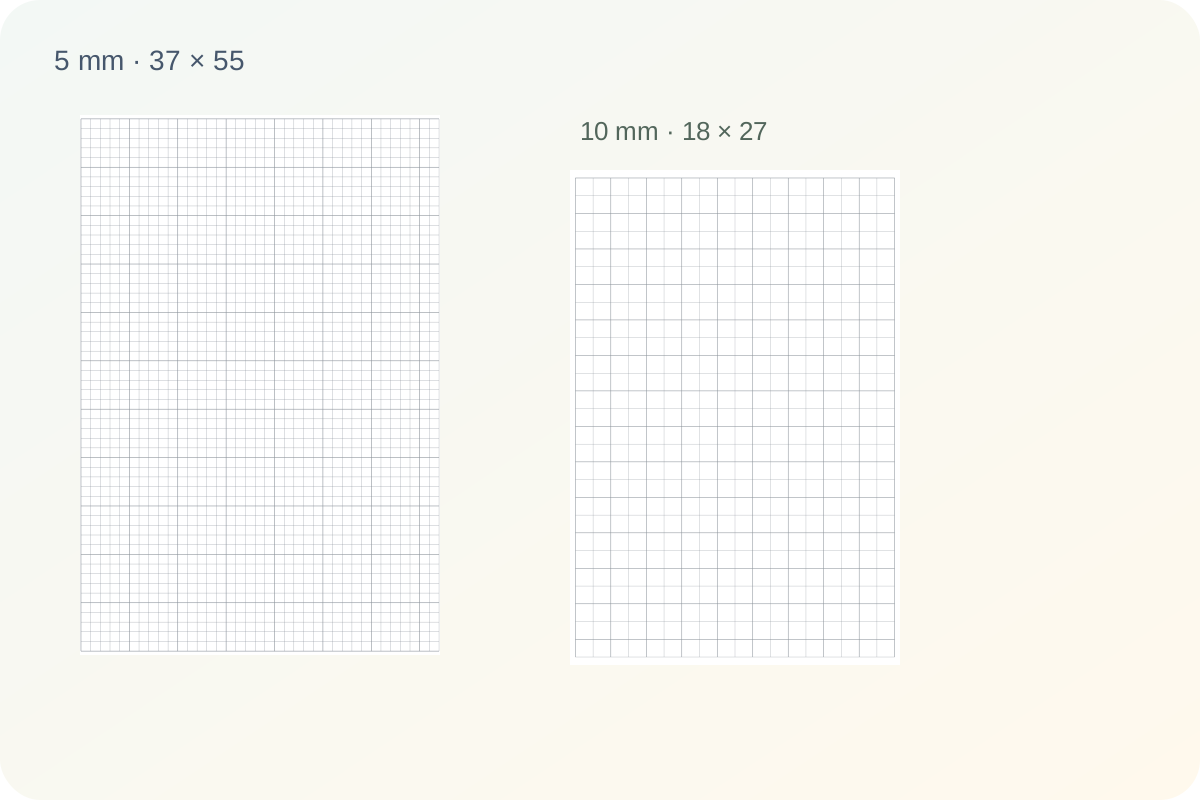
The default five millimetre grid fits thirty-seven columns and fifty-five rows of complete squares inside the safe A4 drawing area. The remaining band is smaller than another cell. Change the grid spacing or heavier-line interval without asking the browser to stretch a picture. Extra title, calibration and binding space are accounted for before the geometry is drawn.
Several coordinate panels with a consistent scale
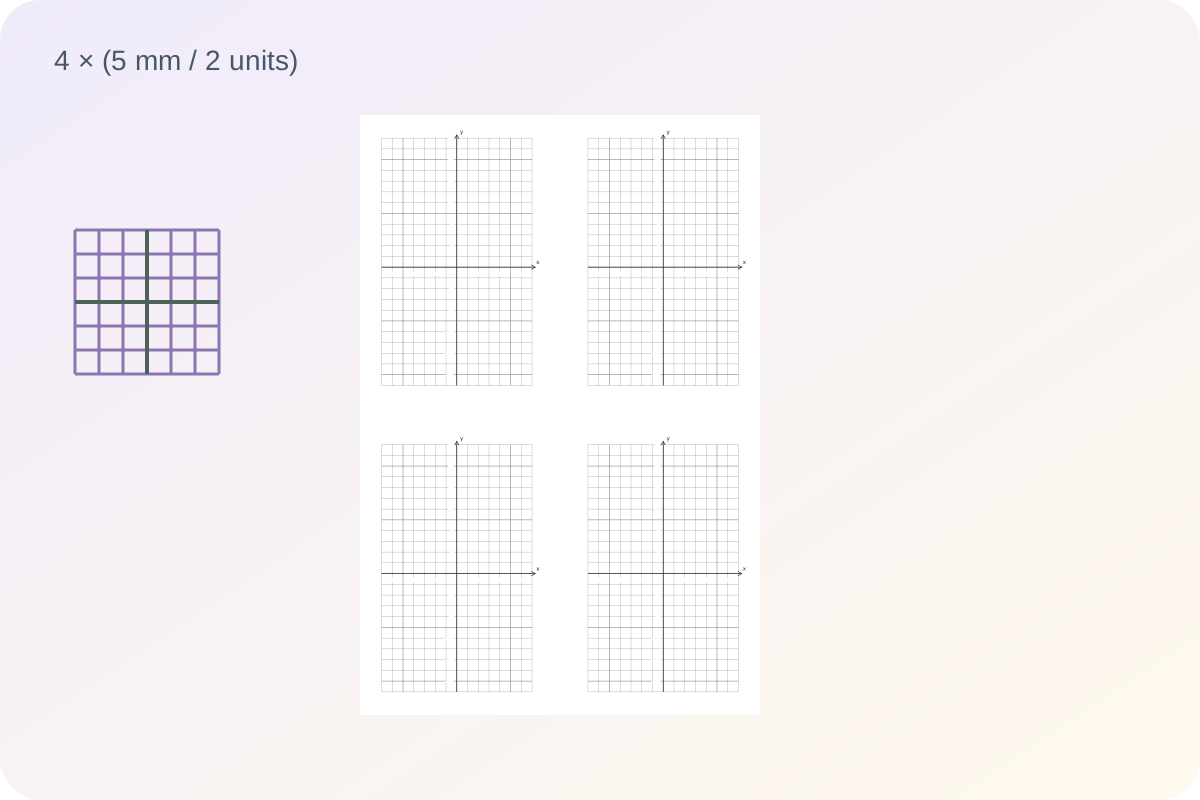
Give each small square a mathematical value independently of its printed size. A single sheet can hold one, two, four or six coordinate panels. Every panel uses the same physical spacing, with a separate border for labels. Requested numbering may become less frequent when labels need more room, and the preview reports the interval actually used.
From a useful paper setup to a measured print
Choose the specification first, then check the preview and a physical sample.
- 01
Choose a grid for the work on the page
Start with square paper for tables, area models, measured sketches or graphs whose axes you will draw by hand. Coordinate mode adds horizontal and vertical axes with optional numbers. Isometric mode uses three families of lines meeting at sixty degrees, giving you equal-sided triangles for drawing block structures. These are different physical guides, so choose the mode before adjusting density. The generator does not plot equations, solve geometry problems or turn a sketch into a perspective drawing.
For an ordinary classroom sheet, the default five millimetre squares are a useful starting point. A one millimetre grid gives much finer divisions but prints many more lines. Ten millimetre squares leave more room for handwritten values. Ask for the spacing your activity requires; the size of the paper does not determine what one square means mathematically.
- 02
Keep millimetres separate from coordinate values
The grid spacing controls the physical distance between adjacent lines. Choose one, two, five or ten millimetres, the exact quarter-inch preset, or a custom value from one to twenty millimetres in tenths. A quarter inch is 6.35 millimetres, so it is deliberately kept separate from five millimetres. The generator does not replace that exact preset with a rounded metric approximation when you save or reopen the file.
In coordinate mode, the value per small square is a second setting. Five millimetres can represent one unit, half a unit or ten units without changing the printed grid. Set that value before writing a problem. The heavier-line interval counts small squares rather than coordinate values. Setting it to five with a two-unit scale places heavier lines ten coordinate units apart; setting it to zero removes those heavier lines.
- 03
Place the axes and leave readable numbering
Choose one quadrant for a grid beginning at the bottom left, or four quadrants for positive and negative coordinates. Four-quadrant paper begins with a centred origin. You may instead enter its distance in whole squares from the left and bottom edges. A custom origin must stay inside every panel; a position that no longer fits after changing spacing or paper size produces a correction message.
Numbering is optional, and the zero label has its own switch. The requested numbering interval counts grid spaces. When labels would crowd together, the output increases that interval to a whole multiple and reports the actual value beside the preview. The underlying scale stays the same. Blank intermediate squares still represent the selected units, even when they do not carry a printed number. Labels have a reserved border so negative signs and larger values remain on the sheet.
- 04
Arrange several coordinate tasks without shrinking the squares
Coordinate mode offers one, two, four or six panels per sheet and one to three panels across. These settings determine how the printable rectangle is divided. Six panels in three columns make two rows; six in two columns make three rows. If the last row is incomplete, its unused panel space stays empty rather than inventing another graph. A six millimetre gap separates neighbouring panels.
The generator fits a whole number of grid cells inside each panel after reserving room for axis labels. It keeps the chosen spacing in every panel and rejects a layout with fewer than two cells in either direction. Reduce the number of panels or choose smaller squares to resolve that conflict. This is different from printing six reduced copies of a full page, which would shrink the physical spacing along with the picture.
- 05
Understand full-page coverage and the small unused edge
With A4, no title, no calibration strip and no extra binding space, the safe drawing area is 186 by 279 millimetres. A five millimetre square grid therefore contains thirty-seven columns and fifty-five rows of complete squares. The remaining width and height are smaller than another square. You can centre that leftover space or keep the grid at the top-left starting point. Neither choice changes the dimensions of a square.
Letter paper is recalculated using its own dimensions. Extra left binding space reduces the drawing width, while a visible title or calibration strip reduces the drawing height. Turning either off returns that space. Isometric spacing describes a triangle edge, not the vertical distance between rows; the vertical pitch follows the equilateral-triangle geometry. A small remaining band is expected because the final complete row must fit without stretching.
- 06
Check the physical print and preserve the setup
Select the same A4 or Letter size in the generator and print dialog, disable the browser’s own headers and footers, and choose actual size or one hundred percent scaling. If the driver offers fit-to-page, it may change the grid dimensions. The optional calibration strip prints a fifty millimetre reference. Measure that line or ten adjacent grid intervals on a test sheet before making a classroom set.
Generate one to twenty identical sheets, or use the printer’s copy control for additional copies. Save the JSON data to retain the exact settings, paper size and version label; browser saving stays on the same device and is not cloud synchronization. Printing to PDF uses the browser dialog and is separate from downloading the JSON file. There is no answer page because blank graph paper contains no questions to mark. Both automatic and manual pagination keep each prepared paper sheet intact.
Questions about graph paper generator
Practical details about dimensions, space and restoring settings.
Check that the printer and generator use the same paper size. Turn off fit-to-page and print at actual size or one hundred percent. Disable browser headers and footers too. Measure ten adjacent spaces: a five millimetre grid should span fifty millimetres across those ten intervals. The calibration line helps diagnose scaling but cannot change your printer driver.
No. One quarter inch is exactly 6.35 millimetres. The preset retains that value, while the five millimetre option remains five millimetres. Choose the specification required by the activity; changing between the two changes the physical grid and the number of complete squares that fit.
Yes. Choose coordinate mode, then one, two, four or six panels and one to three panels across. Each panel keeps the chosen millimetre spacing. If the cells or labels cannot fit, adjust the spacing or panel arrangement. The tool does not shrink the entire page to squeeze graphs into place.
Choose coordinate paper for points and graphs with numbered axes, or plain square paper when you will add your own axes. Isometric paper provides equal-sided triangles for block sketches. It is a drawing guide, not an automatic graph plotter or a tool that corrects perspective.
Small squares can fit more closely than their labels. The generator uses a readable numbering interval that is a whole multiple of your request and shows that interval beside the preview. Every square still represents the selected coordinate value. Skipped printed numbers do not remove intermediate positions.
Yes. They have separate switches. With both off, no title or calibration mark is printed and their reserved height is returned to the grid. The small leftover band from fitting complete cells remains; the generator never stretches the squares to eliminate it.
No. This tool generates blank paper, so it does not invent questions or answers. The version label identifies your saved setup. The visible grid depends on the paper settings, and generating several sheets repeats the same prepared paper rather than randomizing the axes.
Save in the current browser or download the JSON data. Import that file into this graph-paper tool to restore its validated settings and paper size. The file is not a PDF or a cloud link. Use the print dialog when you want a printable PDF, and keep the data file when you want to edit the setup later.
Prepare the next sheet
Choose a specification for the task and check it before printing.