PLAN · COMPLETE · SUBMIT
Create a Student Planner Printable Give the next task a clear place
Build a student planner printable for the work you actually intend to do. Arrange subjects, concrete tasks, due dates and planned times in a daily list or weekly grid. Keep completed and submitted separate, save your editable plan locally, and print the amount of space your notes need.
A4 / Letter · Local saving · Complete records

Set up your student planner
Start with a blank template or enter your own records. Generate a preview, then select any record to edit it.
My worksheets
Drafts save automatically in this browser, including unfinished input. Keep up to 20 named worksheets across all tools. Large images may exceed browser storage; download data as a backup.
Worksheet preview
Records / planner (no answer key)
Fit complete rows onto each page using the selected columns and writing space. Extra page space stays at the bottom; answer gaps are not stretched.
Generate a document or load the example to see its layout.
Print or save as PDF in your browser. Match the displayed paper size and orientation, use 100% scale and turn off browser headers and footers. Both pagination modes retain complete laid-out pages.
See the layouts you can make
Example images use the generator’s actual page model.
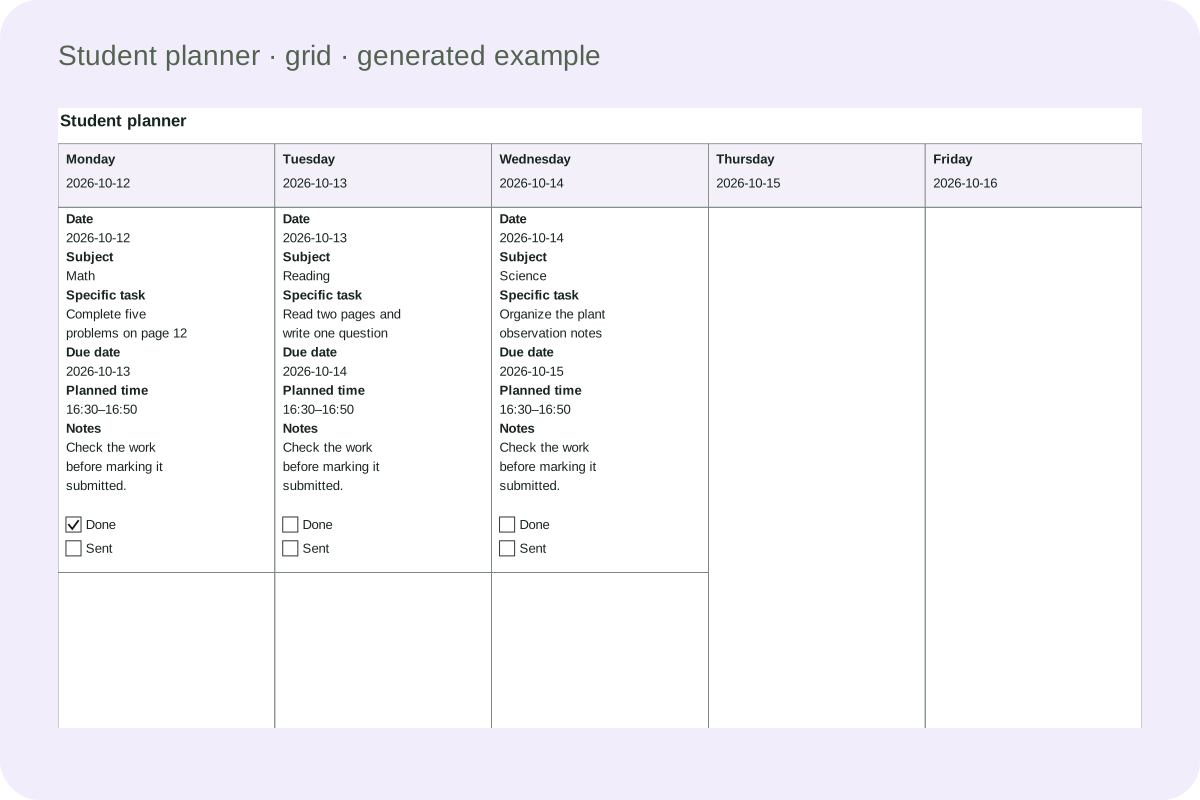
A week with room for each day
This landscape example is drawn from the real weekly layout. Each task belongs to its study date, with its own subject and status boxes. Choose five or seven days and Monday or Sunday as the start. Tasks outside the displayed dates stay printable in an appendix rather than being discarded.
Compact task faces, full details retained
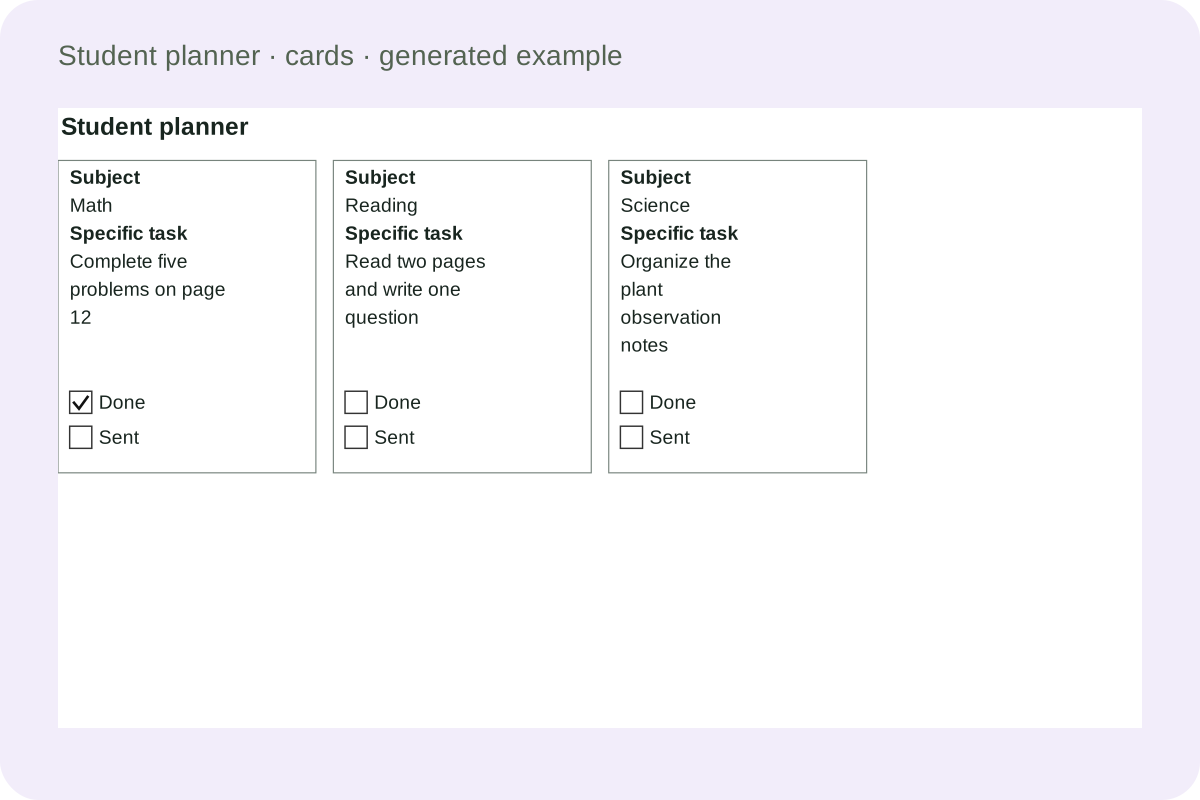
These short cards show the subject, task and two independent status boxes. Four to six columns use this compact face. When an entry includes scheduling information or notes, a full-detail appendix follows it. The document keeps those original fields, so switching to a broader list restores their full presentation.
Make a document that fits the task
Choose the information and layout first, then review the generated preview.
- 01
Choose a daily list or a weekly view
A student planner printable starts with the span of time you need to see. A daily list gives several tasks room on one page, while a weekly view makes it easier to compare the days you have available. The weekly grid uses landscape paper with five or seven day columns. Lists work in one, two or three columns, and separate task cards can be arranged more densely when their content is short.
The view is a presentation choice, not a filter that quietly deletes assignments. Lists retain all entered tasks with their study dates. A weekly grid groups tasks within the displayed dates; tasks outside that range, including a hidden weekend, remain in a clearly labelled appendix. If you switch to a daily view, the grid becomes a list. Your subjects, task descriptions, notes and status values remain available for further editing.
- 02
Turn a general intention into a visible action
A study planner is easier to use when a task describes something you can recognize as finished. Instead of writing ‘do mathematics’, try ‘complete five problems on page twelve and check the units’. Instead of ‘study reading’, try ‘read two pages and write one question’. These are examples of specific actions, not a required workload. Choose the size of a task with the learner and the teacher’s instructions in mind.
Enter the subject beside the action, then add a planned time if that helps. A short note can name the materials to bring or the question to ask. An optional goal block keeps a broader term or study goal in view without turning it into another daily checkbox. The vacation and exam presets add one editable starting task and select a weekly grid. They preserve existing records, so you can adapt a plan without rebuilding it.
- 03
Keep the study date separate from the due date
The study date says when you intend to work on an assignment. The due date says when the work is expected to be handed in. Those can be different days, and both can matter. For example, a report due on Friday might have a reading task on Tuesday and a revision task on Thursday. The time field can describe an approximate session such as after lunch or a short clock range.
This homework planner printable does not calculate how long an assignment should take or automatically move unfinished work. Review the plan when your schedule changes. Several short entries can describe stages of one larger project, each with its own study date. Keep the final deadline visible on the relevant entries. If a task belongs outside the selected week, the grid’s appendix preserves it so that changing a week does not make it disappear.
- 04
Track completed and submitted work independently
Finishing an assignment and submitting it are different events. The assignment tracker gives each task two independent status boxes. Mark completed when the work itself is done, and mark submitted when it has been handed in through the expected channel. Checking one box does not check the other. Both values remain separate when the file is saved, downloaded, imported or rearranged into a different print layout.
On paper, the compact labels are Done and Sent; they refer to the same completed and submitted fields in the editor. A learner can finish work in the afternoon and still leave the submission box empty until the next morning. The tool does not verify that a teacher received an assignment. That check belongs to the learner’s normal classroom process. Use the two boxes as a reminder to review the actual submission step.
- 05
Build a weekly study schedule across calendar changes
Select Monday or Sunday as the start of the week, then choose a date inside the week you want. The calendar calculation keeps the full dates when a week crosses a month or year boundary. Showing weekends adds Saturday and Sunday to the grid. Hiding them leaves five visible day columns. Tasks already scheduled for those hidden days are retained in the appendix rather than being reassigned to an unrelated weekday.
Undated mode leaves fixed dates off the printed plan and uses each task’s weekday for the grid. This is useful for a reusable routine, but it does not erase stored date values. The copy-to-next-week action shifts both study dates and due dates by seven days while clearing completed and submitted independently. It keeps subjects, task text and notes. Review the shifted deadlines before generating, especially when a school break changes the ordinary schedule.
- 06
Reorder tasks and add practice tool names
Use the move-up and move-down buttons to arrange tasks in the order you want to see them. The buttons work with a keyboard as well as a pointer. List and card layouts follow that order; a weekly grid keeps the order within each day. You can also select a WorksheetInk tool name as the starting text of a new task. Then add the concrete practice instruction that belongs in your own plan.
Adding a tool name does not copy exercise questions or create a worksheet behind the scenes. For example, you might add the arithmetic generator name and change the task to describe the practice sheet you already prepared. The planner organizes the action, while the exercise tool prepares its separate printable material. Names, notes and entered records stay in the local document workflow; they are not added to a shareable page URL.
- 07
Use more columns without losing long notes
One-column lists give long descriptions the widest reading area. Two or three columns suit shorter assignments. Task cards support one through six columns; four to six use a compact face containing the subject, task and two status boxes. If those entries also contain dates, time or notes, the complete details follow in an appendix. The saved file retains every field, including information that the compact face does not display.
Text keeps the same readable size as the layout changes. Longer content increases row height, and an entry that exceeds a page continues in another block. The page count therefore depends on actual content, not simply the number of tasks. Thirty assignments with lengthy notes may need several sheets. The preview reports the completed layout and rows per page, so you can choose more writing space or fewer columns before printing a class set.
- 08
Prepare a blank master and save the editable plan
Blank mode creates empty tasks with the selected dates or weekdays, without printing the hidden example assignments. Use it when students will write their own plans. Prefilled mode provides editable entries and independent status boxes. Changing a layout keeps the draft data. After changing draft fields, generate again before saving, downloading or printing. The generated preview is the document that those actions use, and its entries can also be selected for editing.
For printing, match A4 or Letter and the displayed orientation in the browser, use one hundred percent scale and turn off automatic headers and footers. Weekly grids require landscape. Local save keeps the document in this browser; the JSON download is the editable transfer format and is validated on import. Use the browser’s save-as-PDF destination for a printable file. There is no answer key, because this tool records a learner’s own tasks and decisions.
Practical questions
Details about records, layouts, saving and printing.
Write a specific action, its subject, a planned time and a due date when needed. For example, name the page or set of notes you intend to work on instead of writing only “study”. The tool helps arrange the task; it does not decide an appropriate workload or assess learning.
Yes. The two boxes are independent in the editor, printed sheet and saved JSON. A task can be completed while its submission remains pending. Mark the second box only after the real hand-in step. The planner does not confirm receipt through a classroom system or send work to a teacher.
Yes. Undated mode hides fixed dates and uses the weekday selected for each task in the weekly grid. Copy to next week retains subjects and task text, shifts stored study and due dates by seven days, and clears both status fields. Review deadlines before generating the copied plan.
Try two or three list columns, or short task cards with up to six columns. Dense cards keep the subject, task and status boxes, while existing scheduling details and notes appear in an appendix. Longer content continues onto additional pages. The text does not become arbitrarily smaller to force a single page.
The grid shows five day columns. Entered weekend tasks and tasks outside the selected week remain in a labelled appendix with their original dates. They are not deleted or moved to Monday. Showing the relevant dates again places those records back into the weekly grid without changing their content.
Yes. Select a tool name to add it as a task, then edit the description to state the practice you actually intend to complete. This adds a name only. It does not copy questions or automatically create a worksheet; prepare the exercise separately in the relevant tool.
The small planning presets append an editable starter task, select a weekly grid and set a goal, keeping existing entries. Loading the full example is different and asks for confirmation when there is current work. Review the resulting task list, adjust the dates and generate before saving the new version.
The save action stores the generated plan in this browser. Download JSON for an editable copy that can be imported elsewhere after validation. No account is required for those actions, and local storage can be cleared by the browser. To make a printable PDF, use the browser print dialog instead.
Prepare your next study plan
Choose what matters for this task and check one printed sample before making a full set.