CUSTOM QUIZZES · TEACHER-PROVIDED CONTENT

Quiz maker Your questions, one clear paper

Prepare custom questions with points, or combine eight activity families: arithmetic, vertical math, missing letters, quizzes, fractions, number lines, word problems and clocks. Add an activity directly from its source, edit questions inside the packet and arrange each section’s columns and page breaks. Student questions and teacher answers stay together in the saved data.

Custom quizzes · Mixed activity packets · A4 / Letter

An apricot spiral paper sculpture with different quiz response marks and a coral seal

Worksheet mode

Switch modes without losing either draft. Packets save automatically in this browser; download workspace data to move them to another device.

Quiz maker

Choose the content, generate a set and review both copies.

You provide the questions and key. Short answers require a reference and scoring guidance; no automatic subject checking or grading.

My worksheets

Drafts save automatically in this browser, including unfinished input. Keep up to 20 named worksheets across all tools. Large images may exceed browser storage; download data as a backup.

Worksheet preview

Fit complete rows onto each page using the selected columns and writing space. Extra page space stays at the bottom; answer gaps are not stretched.

Request 1–6 questions across and 1–12 rows. Longer prompts or worked references can reduce the actual grid.

Generate to review the content and matching reference.

Match A4 or Letter in the browser print dialog. Choose Save as PDF and review every student and answer page; switch off browser headers and footers if needed.

A small assessment deserves a clear structure

Keep the question, response and marking decision connected.

Mix response types with a purpose

A printable quiz maker is useful when the lesson needs more than a row of identical questions. A choice can check a distinction; a written response can reveal how a learner explains it. Put the types in one list and give each item a point value that reflects what you intend to assess. The test maker preserves your input and produces a matching teacher key. It does not check factual accuracy or infer curriculum coverage. Review the distribution yourself: a shuffled subset can omit an important skill, and several polished-looking questions can still test the same narrow idea.

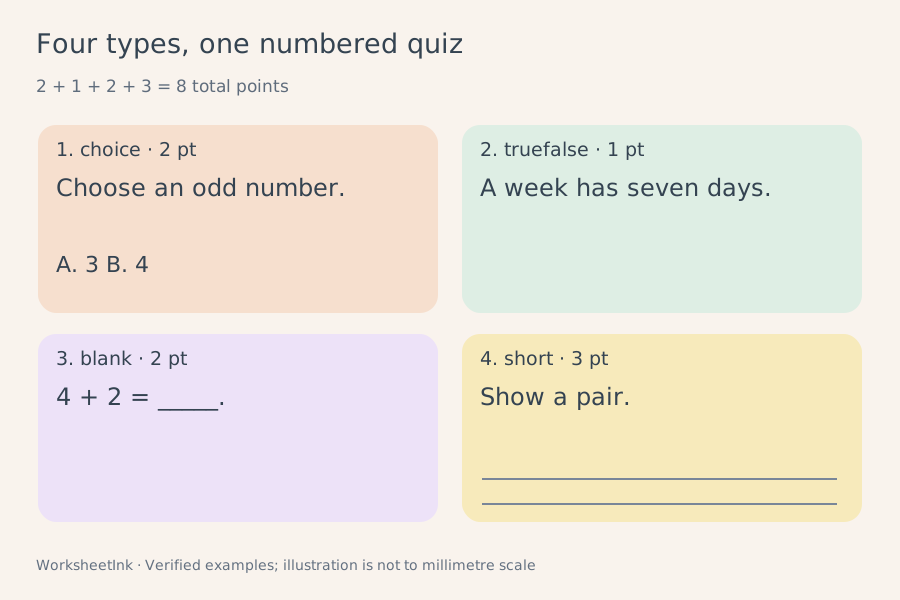
Four quiz types with point values of two, one, two and three

Keep a reference and a marking decision together

Short-answer questions can have several sound responses. Supply a model response and separate scoring guidance so the teacher copy records what matters, including any intended partial credit. The answer key also identifies each choice by letter and text, preventing confusion when a question has been edited. The displayed total follows the actual selected items. No answer is sent to an automatic grader, and no student response is collected. Use the key as a reviewed marking aid, with room for professional judgment about equivalent wording and alternative reasoning.

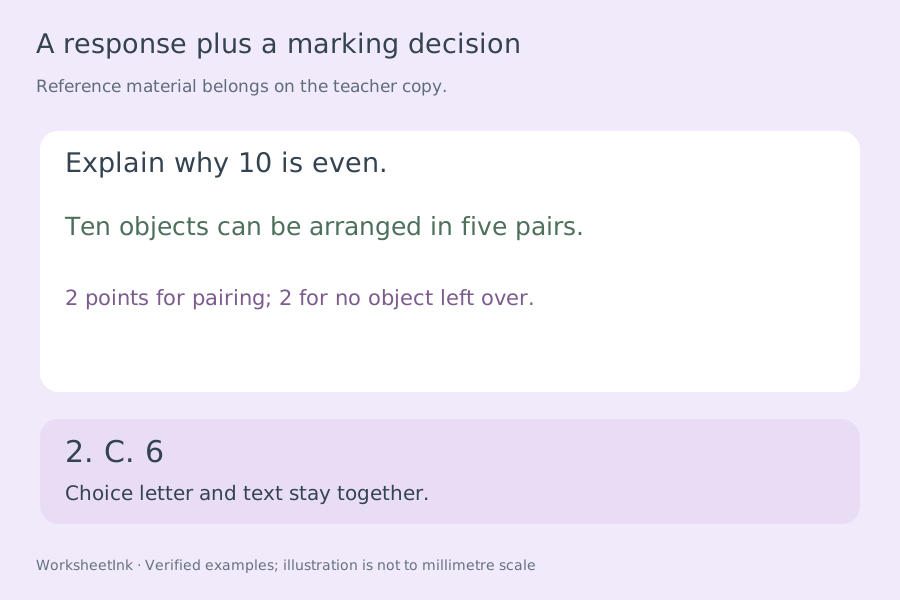
A four-point explanation and a separate two-point choice key

From your question list to a reusable handout

Choose the learning goal, review the references and fit the paper to the work.

  1. 01

    Start from questions you have checked

    Start in the quiz mode when you want to arrange your own choice, true/false, fill-in and short-answer questions. Choose the learning goal first and use questions you have written or have permission to reuse. The mixed packet mode brings several supported activities together; it is useful for a review with an arithmetic warm-up, a spelling section and a short check.

    Put one complete question on each line using the format shown above. The list can contain up to 200 nonempty lines and 60,000 characters. Prompts can contain up to 240 characters. Avoid the reserved vertical-bar and tilde separators inside ordinary text, and keep each question self-contained. An item that needs a long reading passage, image, equation editor or shared stimulus should be prepared in a more suitable format.

  2. 02

    Match each type to a clear response

    For a choice item, provide two to six different options separated by tildes and identify one correct letter from A to F. Make each distractor plausible without depending on ambiguous wording. A true/false item accepts the literal value true or false. The print labels follow the current page language.

    A blank item uses exactly one double-bracketed answer within its prompt. A short-answer item requires a reference response plus scoring guidance. Keep those two fields distinct: the response illustrates an acceptable answer, while the guidance explains what earns credit. The software checks their presence and lengths, but cannot determine whether your criteria are fair or whether alternative explanations should be accepted.

  3. 03

    Set points before you select a subset

    Assign one to 100 whole points to each item. The total is calculated from the selected questions, not from the whole input pool. A request for four questions from a twelve-question list therefore produces the sum of those four items. No automatic scaling or conversion to percentages is applied.

    You can preserve input order or use a seeded shuffled selection. Shuffling changes question selection and order; it does not shuffle the answer options or create several simultaneous exam versions. If you need a different paper, generate and save it as a separate set, keeping its matching key. Read every shortage and conflict warning, because omitted entries can change both coverage and total score.

  4. 04

    Review the key as carefully as the student paper

    Check a few details on every type: the intended choice letter still identifies the correct option, true/false uses your intended interpretation, and the marked gap removes only the text you wanted hidden. On short answers, read the reference and the scoring guidance together. Neither is an automated grading rule.

    Use the numbered item editor to correct an individual prompt, its points or its supporting fields. A successful edit updates the reference and total together and creates a new revision. It cannot introduce an exact duplicate of another stored question. Subject knowledge remains your responsibility; use the preview to catch unclear negatives, unintentional clues and questions whose acceptable answers are broader than your key.

  5. 05

    Balance paper economy with useful writing space

    Request one, two, three, four, five or six questions per row and up to twelve rows. Compact spacing adds no extra height; normal adds eight millimetres per question; extra adds sixteen. Short-answer items already have three visible writing lines before that extra space is added. The writing gap grows with the answer and continues on extra lines when necessary.

    The capacity planner reserves enough width for the longest item on either copy, including options, reference responses and scoring guidance. Long material can reduce effective columns without shrinking the text. Automatic pagination then places complete rows into the usable page height; it only moves to the next page when another whole row will not fit. Manual row choices are available when you need a deliberate shorter layout.

  6. 06

    Keep a dependable copy for the next lesson

    Choose student, answers or both, then match the A4 or Letter setting in your browser print dialog. The total shown in the repeated header is for the whole quiz. Compare version identifiers when you save the student paper and the teacher key separately, and inspect all pages before printing a class set.

    Save locally for convenient reuse on the same browser, or download JSON to keep the exact input pool, selected questions, points, manual revisions and layout. Import validates the derived material before restoration. Local browser storage can be cleared, so a downloaded data file is useful for work you want to keep. This page does not offer cloud accounts, online student submissions or automatic grading.

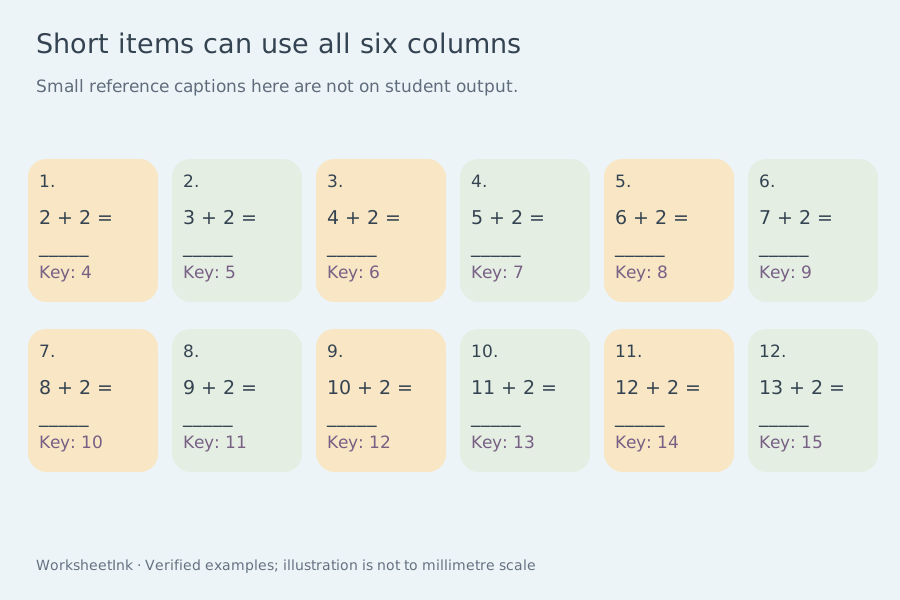
    Twelve short addition gaps arranged six across with labeled reference answers
  7. 07

    Combine supported activities into a worksheet packet

    Choose one of eight activities in packet mode, or select Add to practice packet in a source tool. When arriving from another page, restore the draft you want to continue and append the incoming activity. Existing sections remain in the packet.

    The supported families are arithmetic, vertical math, missing letters, custom quizzes, fractions, number lines, word problems and clocks. A packet contains up to twenty sections and five hundred questions. Edit a question beside its preview; the source activity’s range, uniqueness and answer rules still apply. Successful edits update the answer key without replacing other questions. Compatible data files can also be imported; PDF and Word documents are not converted into questions.

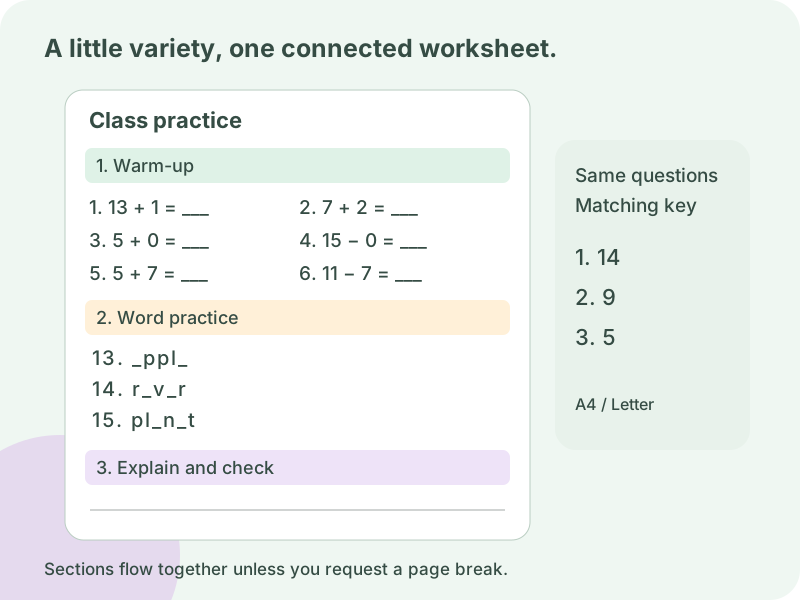
    One worksheet packet with arithmetic, missing-letter, quiz, fraction and number-line sections and a corresponding separate answer page
  8. 08

    Reorder sections while keeping their answers attached

    Move a section up or down to change the lesson sequence, or remove a section that no longer serves the activity. Choose continuous question numbering across the packet, or restart numbering within each section. The teacher copy follows the same section order and numbering, so moving spelling before arithmetic does not leave the old numbers attached to the key.

    Adding a section creates only that new set of questions. It does not generate the earlier sections again. Saved packets retain the actual selected problems and their references, including any edits made before import. After a reorder, review the section headings and first and last question in each part rather than relying on page numbers from an earlier printout.

  9. 09

    Let short sections share the remaining page space

    A new activity normally continues after the preceding section. It does not require a new sheet simply because its title or column count is different. Keep arithmetic compact with one to six questions across, use one to six columns for missing letters, and request one to six for quiz questions when the content fits. Longer quiz items may need fewer effective columns.

    When a section must stand alone, turn on its start-new-page setting. Otherwise, complete rows continue into the available space and a section title stays with its first row. The next page starts only when a whole row cannot fit. Student and teacher content can take different amounts of space, so their page breaks may differ; section titles and question numbers provide the matching reference.

  10. 10

    Save the packet you actually reviewed

    Automatic drafts retain the packet, paper size, output choice and unfinished inputs for the next activity. Keep several named packets or download complete workspace data to continue elsewhere. Restoring or importing asks before replacing current work, and earlier packet files remain importable.

    Print student pages, the teacher key or both from the same saved packet. When you choose both, keep the reference pages separate before handing out the activity. A packet groups supported exercises; it does not add automatic grading, infer a shared score for unrelated activities, or convert a scanned page into editable questions. Keep any marking instructions in the relevant quiz items and review their references before use.

  11. 11

    Connect shaded fractions with positions and explanations

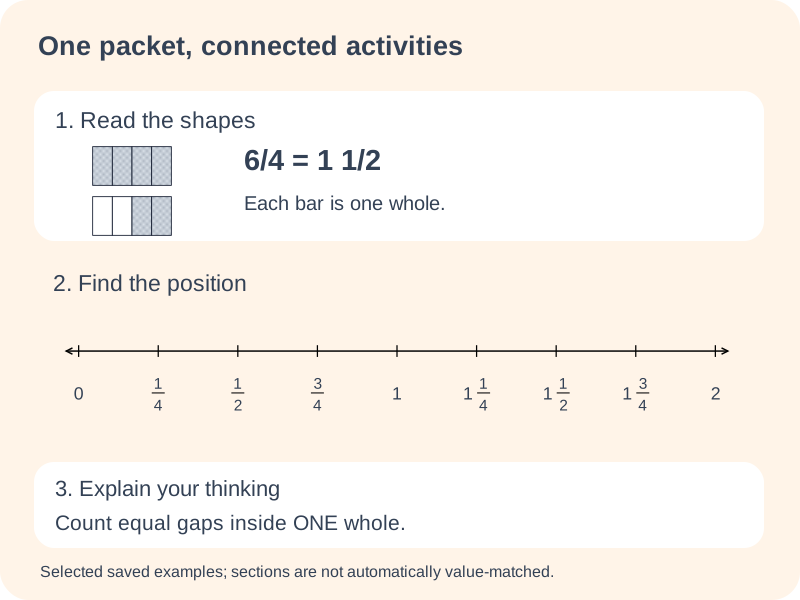
    Start with a shaded-fraction section, add a number-line section using the same denominator, then include a short-answer question asking learners to explain the connection. Quick fraction settings use 24 mm bars and one to three wholes. Quick number-line settings use eight intervals from zero. For circles, rectangular grids, negative starting points, fraction calculations or a different answer format, prepare the source worksheet first and import its data.

    Imported activities retain the exact selected questions, answers, diagram parts and jumps. Reordering, renaming or changing columns does not draw a fresh random set. Matching denominators helps you plan a connected lesson, but sections are not automatically paired to show identical values. If a question must compare one particular picture and one particular location, review those exact source questions before assembling the packet.

    Each section keeps its own layout. Number-line sections can reduce the effective columns to protect tick spacing. Fraction sections reject a column setting that would squeeze the physical diagrams beyond their supported size. Keep the geometry readable and let automatic pagination fill the available height with complete rows. The answer copy may occupy more pages because its explanations take space; the section title and question number remain the reliable match.

    The student copy preserves missing labels, equation gaps and unshaded areas where learners must respond. The teacher copy supplies the original fraction results, a reference shading pattern and a written number-line explanation. Shading can have several valid arrangements, so judge the number of equal parts rather than demanding the exact pictured positions. Mixed-number and original-partition answer requirements remain those chosen in the source worksheet.

    The packet still allows up to twenty sections, five hundred questions and a two-megabyte data file. A number-line section contains at most twenty-four questions. If a finite source pool is smaller than the requested count, the section reports the actual count. Earlier three-family packets remain importable. Download the assembled data after review and use the browser print dialog to print or save a PDF.

    A packet example composed from actual shaded-fraction, number-line and explanation-question snapshots
  12. 12

    Fit short arithmetic into five or six columns

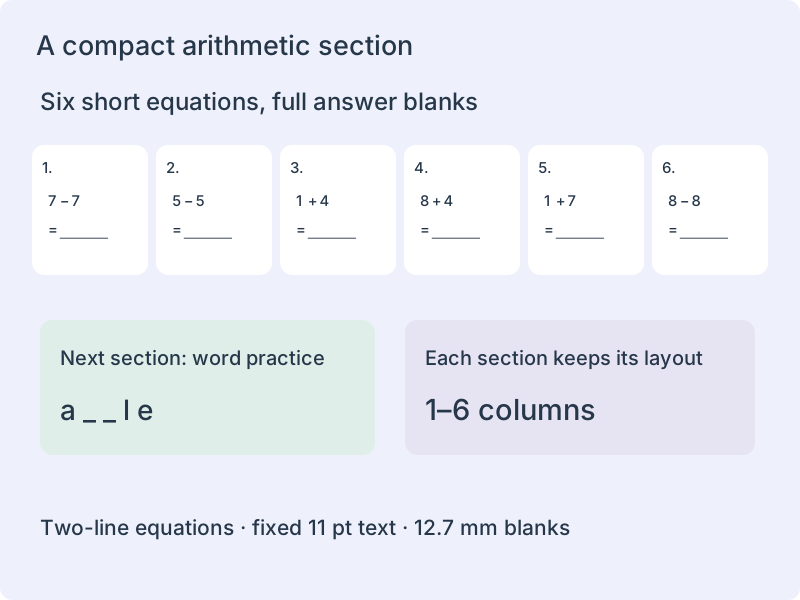
    Choose one to six columns when adding an arithmetic section, rearranging an existing section or importing a saved arithmetic worksheet. At five or six columns, the operands and operation occupy the first line; the equals sign and result occupy the second. This remains one arithmetic equation, not a stacked written-calculation exercise. The answer blank keeps its 12.7 mm width and the text uses 11 pt.

    Each section keeps its own density. A six-column arithmetic warm-up can be followed by wider word practice, quiz questions, fractions or number lines. Complete rows share the remaining page space when they fit, while an explicit start-new-page choice still creates a section boundary. More columns therefore change the arrangement of the same questions rather than adding new questions to the lesson.

    Six actual arithmetic questions arranged with separate operand and answer lines
  13. 13

    Check the width of missing-operand questions

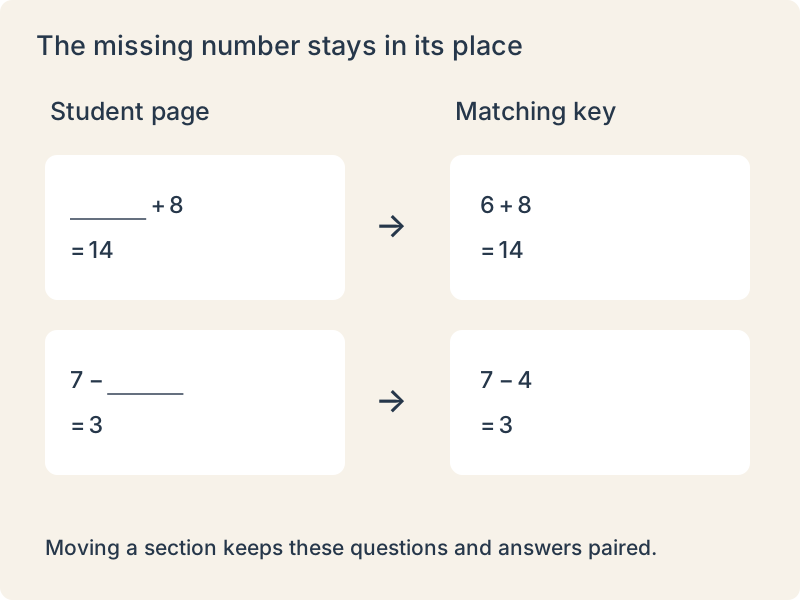
    Prepare missing-operand questions in Arithmetic, save their data and import the worksheet into the packet. The selected left, right or result blank stays in its original position. A long number beside a full writing blank may not fit six columns. In that case, the layout change is rejected with a message; the current packet remains intact. Try five columns or a wider layout before changing the source activity.

    Moving sections, changing columns and switching between continuous and section numbering never draw a fresh set of questions. The student page retains the required blank and the teacher copy fills it from the same saved problem. Their displayed numbers follow the current section order. Save the reviewed packet to restore those actual questions later.

    Missing left and right operands with their matching completed teacher equations

Questions before you print

Practical details about input, answers and page space.

Can I make a printable quiz with several question types?

Yes. Mix single-answer multiple choice, true/false, a single marked fill-in gap and short answer in one input list. Each line carries its own type and whole-number point value. Questions keep continuous numbering after selection. The tool formats the material you provide; it does not write subject questions from a topic, search a textbook or validate the factual truth of your answer key.

How do I set points and the total score?

Enter an integer from one to 100 for each item. The displayed total is the sum of the questions actually selected, including any individual edits. It is not forced to 100, and selecting fewer items can change it. Read that total after generation, especially if invalid, repeated or conflicting entries were removed. Both output copies identify the total for the complete quiz.

Can I print the student quiz without the answers?

Choose student output before printing. The teacher copy is separate and uses the same question numbering and version identifier. Multiple-choice keys include both the letter and its option text; true/false keys use the page language. Blank answers, short-answer references and scoring guidance appear only on the answer copy. Review your original wording for clues that you may have included yourself.

How should I enter a fill-in-the-blank question?

Use the blank type and enclose exactly one answer occurrence in double square brackets within the question. The student copy replaces that marked occurrence with a visible writing line. The teacher copy supplies the extracted text. This format supports one gap per item, with an answer of up to eighty characters. For several gaps in one passage, use the separate cloze worksheet tool.

Does the maker grade short answers automatically?

No. Supply both a reference response and scoring guidance for each short-answer item. The teacher copy preserves both so you can judge equivalent wording and partial credit using your own criteria. For example, a four-point explanation can describe two ideas worth two points each. The software totals the item's assigned points; it does not interpret the scoring text or mark student work.

Can I put six questions across an A4 page?

You can request one through six columns, one through twelve rows and three levels of extra space. Actual capacity depends on prompts, options, references and scoring guidance. Long material can reduce columns or rows so it remains readable. The displayed grid describes the resulting capacity. Choose a wider format for written explanations, and inspect every page in your own print preview before making class copies.

Why were some questions skipped?

Malformed lines are reported by input position. Exact duplicates are removed. If the same type and visible prompt occur with different answers, options or points, both conflicting records are omitted until you resolve them. A request larger than the valid pool returns the actual count. These checks concern structure and consistency; you still need to review the subject matter and each distractor.

Can I save an edited quiz and use it again?

Yes. Save in the current browser or download the current JSON data. Importing that data validates the question structure and the derived key, points and version. Layout adjustments preserve the content version, while editing an item creates a revision. Keep the data file for edited work: a seed alone does not store manual changes. Browser storage belongs to that device and is not cloud backup.

Can I combine arithmetic, spelling and quiz activities on one worksheet?

Yes. Combine arithmetic, vertical math, missing letters, quizzes, fractions, number lines, word problems and clocks. Add directly from a source page or import compatible data. A packet supports twenty sections and five hundred questions with continuous page flow. Other activities are not yet supported as packet sections.

Does the answer key follow when I reorder sections?

Yes. Sections keep their actual questions and references when moved. Choose continuous numbering or numbering that restarts in each section; the student and teacher copies use the same choice and order. Adding another section does not regenerate the sections already in your packet.

Does every activity need to start on a new printed page?

No. Sections continue on the current page by default, using their own column settings. A section title stays with its first row, and complete rows move to the next page when needed. Select start-new-page only for the sections you want to keep separate.

Can I upload a PDF or Word document and edit its questions?

No. Packet import accepts supported worksheet data files from this site and saved packets, with a two-megabyte limit. It does not extract questions from a PDF, Word file, photo or scan. For an individual correction, edit in the original generator, download its data and import the corrected section.

Will a saved packet change its random questions when I reopen it?

No. The data stores the selected questions and their matching references. Reopening the saved packet restores those contents. Adding a new section makes only that new section, while moving, deleting or changing the layout of existing sections preserves the remaining questions.

Can I create fraction and number-line sections inside the packet?

Yes. Quick controls create read-or-shade fraction bars with a chosen denominator and one to three wholes, or eight-interval fraction number lines with missing labels or jumps. For other settings, create the activity in its own tool and add its downloaded data. The importer reads supported structured worksheet files, not scans.

Will moving a fraction section generate different questions?

No. Each section stores its selected questions and references. Order, title, columns and extra-space changes preserve that snapshot. Removing one section preserves the others and does not reuse its question identities. Student and teacher numbering is calculated from the same current section order.

Can packet arithmetic use five or six columns?

Yes, through section creation, layout controls or saved arithmetic data. Dense layouts use two-line equations and preserve the answer blank. If the numbers and blank cannot fit, choose fewer columns. Other sections can keep different densities.

Do column changes or section moves regenerate the questions?

No. Existing problems, blank positions and answers remain attached, and displayed numbering follows the current section order. Restoring a saved packet uses that same question data. To change the operation range or task type, prepare a new source worksheet and import it.

Can I edit a question inside a packet?

Yes. Select the edit button beside a question. The source section’s rules are checked again and its teacher answer updates with the question. An invalid, duplicate or unprintable edit leaves the original intact. Number-line questions use a variation value to create a new question under the same rules.

Prepare the next useful practice sheet

Review the content and give learners room to show their thinking.

Browser printing & PDF · No registration