SPECIFIC RECOGNITION · CLASS SETS
Classroom Certificate Maker Make the words personal
Use the classroom certificate maker to recognize a real contribution with a name, an award and a specific reason. Prepare one recipient or a class list, personalize each message and print full-page awards or two per sheet. Original frames and a black-and-white option keep the focus on the student’s work.
Create your classroom awards
Start with an example, edit the details, then generate the complete set.
My worksheets
Drafts save automatically in this browser, including unfinished input. Keep up to 20 named worksheets across all tools. Large images may exceed browser storage; download data as a backup.
Worksheet preview
Classroom certificates
Fit complete rows onto each page using the selected columns and writing space. Extra page space stays at the bottom; answer gaps are not stretched.
Generate an example or enter your own details to begin.
Print or save as PDF through the browser. Match paper and orientation, use 100%, and turn browser headers and footers off.
See the finished layouts
Examples rendered by this generator.
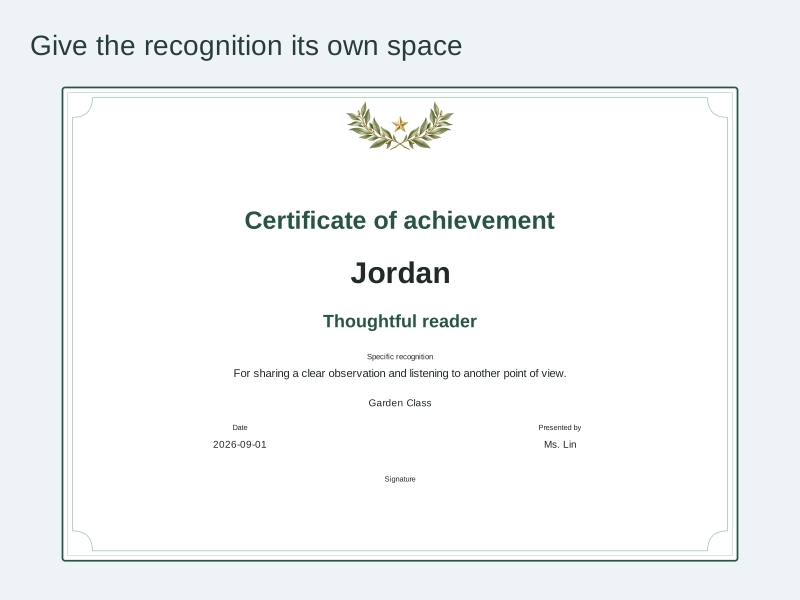
Names and reasons take the main stage
A real full-page award shows the recipient, achievement and specific recognition inside an original frame.
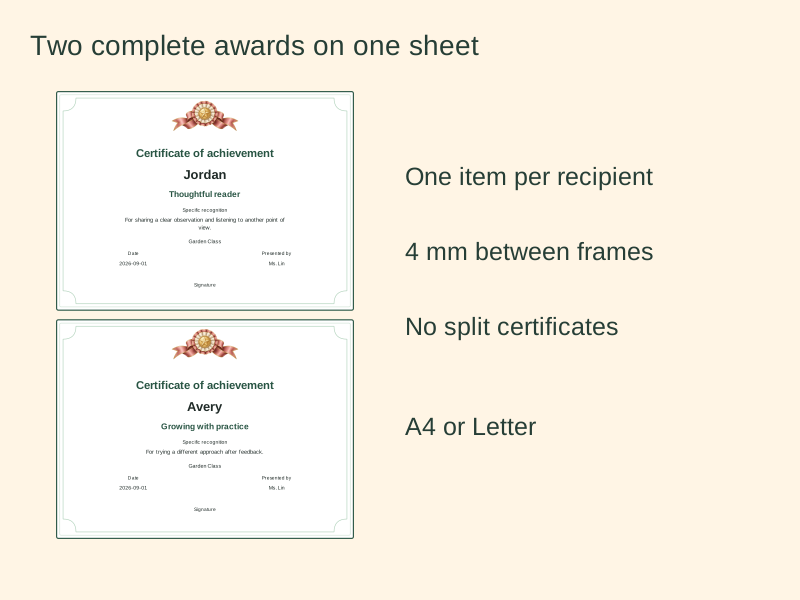
Two awards, one sheet
The real two-per-sheet layout keeps each certificate intact and leaves a small cutting gap.
Prepare a useful editable master
Choose the words, layout and paper with the finished page in mind.
- 01
Recognize a specific contribution
A classroom certificate maker turns a teacher’s wording into a printable keepsake for a student. Begin with the award title and a short reason based on something you observed. “For revising the ending of your story after feedback” is more concrete than an unexplained label such as “the best.” Progress, careful practice, helpful participation and creative work can each be recognized. The tool does not rank students, inspect grades or decide who deserves an award. You supply both the recipient and the reason.
The example names and statements are fictional. Replace them with wording appropriate for your class. These pages are classroom recognition awards; the designs do not include an official institution’s seal or claim accreditation.
Back to the tool - 02
Set the heading and award wording separately
The printed heading is the main line at the top, such as “Certificate of achievement.” Each item also has an award title, such as “Thoughtful reader,” which appears below the recipient’s name. The preview’s document title names the saved file and does not become a second heading on the award. Keeping these roles separate lets a class set share one heading while each student receives a different award.
The progress, kindness and reading presets provide editable starting wording. Applying a certificate wording preset asks for confirmation because it replaces the award title and recognition text for every current item. A frame change only changes the decoration. Edit individual items after applying a shared preset when their reasons should differ.
Back to the tool - 03
Write a reason that belongs to this student
Use the recognition field for a complete, specific sentence. You can refer to a project, a habit of revision or a contribution to a group. Keep the focus on the action you want to acknowledge. Two students can receive the same award title with different reasons. Line breaks are accepted in the recognition text, and the printed paragraphs wrap without deleting the remaining words. The field accepts up to three hundred and sixty characters, but the physical layout may require a shorter message.
A character limit is not a promise that every combination of text will fit the smallest format. A long name, a long heading and a long reason compete for the same space. If the tool reports a fit problem, choose one certificate per sheet, use the explicit compact text option or revise the wording. It never reduces the font by itself.
Back to the tool - 04
Build a class list without merging matching names
Create one item at a time or use the class-list box. Each item stores its name, award, reason, school or class, date and presenter. The tool supports one to sixty recipients and keeps duplicate names as distinct items. Select the item number to check which matching name you are editing. Up and down buttons change the print order while keeping that person’s details attached. Deletion asks for confirmation and leaves at least one item available.
To create a batch, select the item containing your shared starting details and paste one plain name per line. Confirm the replacement to create a new set. Every resulting item copies the selected award, reason and date. You can then personalize each reason. This workflow uses pasted text rather than a spreadsheet upload, and it does not remove repeated names.
Back to the tool - 05
Choose a frame and a readable amount of colour
Three illustrated frames offer different ways to celebrate. Laurel pairs finely detailed leaves with a small gold star. Ribbon combines a pleated rosette with softly folded ribbon tails. Star celebration brings together small stars, curling ribbons and light confetti. Each design sits above the wording, leaving the name and achievement clearly visible.
Choose sage, plum, amber or blue for the text and border; the illustration keeps its own coordinated colours. Black-and-white mode converts the decoration to grayscale and keeps the wording, frame and signature area clear. Changing the design or colour does not change anyone’s name, award or comments, so you can compare the same class list across the three styles.
Back to the tool - 06
Choose full-page awards or two on one sheet
A full-page award gives a long name and a detailed reason more room. Two-per-sheet mode makes smaller awards with a four-millimetre gap between their frames. Portrait sheets stack the two certificates vertically; landscape sheets place them side by side. The last sheet can contain a single award when the class count is odd. No extra student is invented to fill that space, and an award is never divided across two pages.
Both A4 and US Letter are supported in portrait and landscape. Each format has fixed standard text sizes, with an explicit compact option at eighty-five percent. Two-per-sheet uses smaller planned sizes than full-page output. Formal awards need room for names and messages, so this tool does not squeeze them into a six-column worksheet grid.
Back to the tool - 07
Decide what to print and what to write by hand
Name and award title remain selected for certificates. The reason, school or class, date and presenter can be shown or hidden. Hiding a field does not erase its saved content. An empty selected field leaves open space, which is useful when names or dates will be filled by hand. The optional signature area provides extra unruled space; the tool does not create a handwritten signature. A typed presenter name and an actual signature serve different purposes.
Enter a valid date or leave it blank. The calendar input does not assume the ceremony date from the computer clock. Check the school name and presenter spelling before generating the final set. Keeping these details editable also lets a tutoring group or homeschool activity use the same certificate format.
Back to the tool - 08
Preview, print and keep the editable file
After editing, generate the current set and open the print-layout preview. Check the item order, every name, the complete reason and the page count. If a draft is invalid, the previous valid output remains visible while the tool explains what needs attention; generating the draft successfully is required before printing new content. Print one test sheet with the correct paper and orientation at actual size, and disable browser headers and footers.
The browser print dialog can save a PDF for distribution. Download JSON separately to keep an editable master with all recipients and settings. Local Save and Restore work in this browser; import validates a downloaded file and rejects a file from another tool. Names are processed on the device, with no cloud account or automatic sharing. Clearing browser storage removes its local copy, so keep a downloaded backup for records you need later.
Back to the tool
Questions before printing
Practical choices and the limits of this tool.
Yes. Select each item and edit its award title and specific reason. The page heading and frame remain shared. You can start from a batch with common wording, then personalize recipients individually without rebuilding the entire class list.
No. Each name line becomes a separate item with its own position and details. Duplicate names remain distinct through editing, reordering, saving and importing. Use the item number in the selector to choose the intended person.
Describe a real action, contribution or improvement in clear language. For example, mention revising a draft or explaining a method to a partner. The tool supplies editable examples, but you decide whether the wording accurately reflects the student’s work.
Yes. Portrait sheets stack them, and landscape sheets place them side by side with a four-millimetre gap. Odd counts leave one space unused on the final sheet. Long content may need full-page output or the explicitly selected compact text size.
It can print a presenter’s typed name and leave a separate unruled signature area. It does not generate a handwritten signature. Hide or show the signature area independently, and sign the printed certificate yourself when appropriate.
Yes. Keep the selected fields empty to leave open spaces. Name and award title remain selected; other details can be hidden. The heading must have text. An empty date is allowed, and a filled date must be a real calendar date.
The tool names the item that needs attention and retains the previous valid output. Shorten the heading or reason, switch to one per sheet, change orientation or choose compact text. Words are not cut off and the type is not silently reduced.
Yes. Local Save and Restore keep the set in this browser, and JSON download provides a portable editable backup. Import restores the checked file, including hidden fields and order. Print through the browser for paper or PDF; this is separate from the editable backup.
Keep the next version editable
Save the data, check one sheet, then print the set.