AGREE · RECORD · RECOGNIZE
Reward Chart Printable Make the agreement visible
Build a reward chart printable around clearly agreed actions. Choose dated stars, measured sticker boxes or a numbered goal path, keep each person’s progress separate, and print a chart you can review together.
A4 / Letter · Local saving · Physical dimensions

Set up your reward chart
Edit, generate and review the complete preview. Generate again after changing the draft.
My worksheets
Drafts save automatically in this browser, including unfinished input. Keep up to 20 named worksheets across all tools. Large images may exceed browser storage; download data as a backup.
Worksheet preview
Reward chart
Fit complete rows onto each page using the selected columns and writing space. Extra page space stays at the bottom; answer gaps are not stretched.
Generate or load the example to see the preview.
Print or save as PDF through your browser. Match the paper size, use Actual Size / 100% and disable browser headers and footers.
See the generated paper
Examples rendered from the production layout.
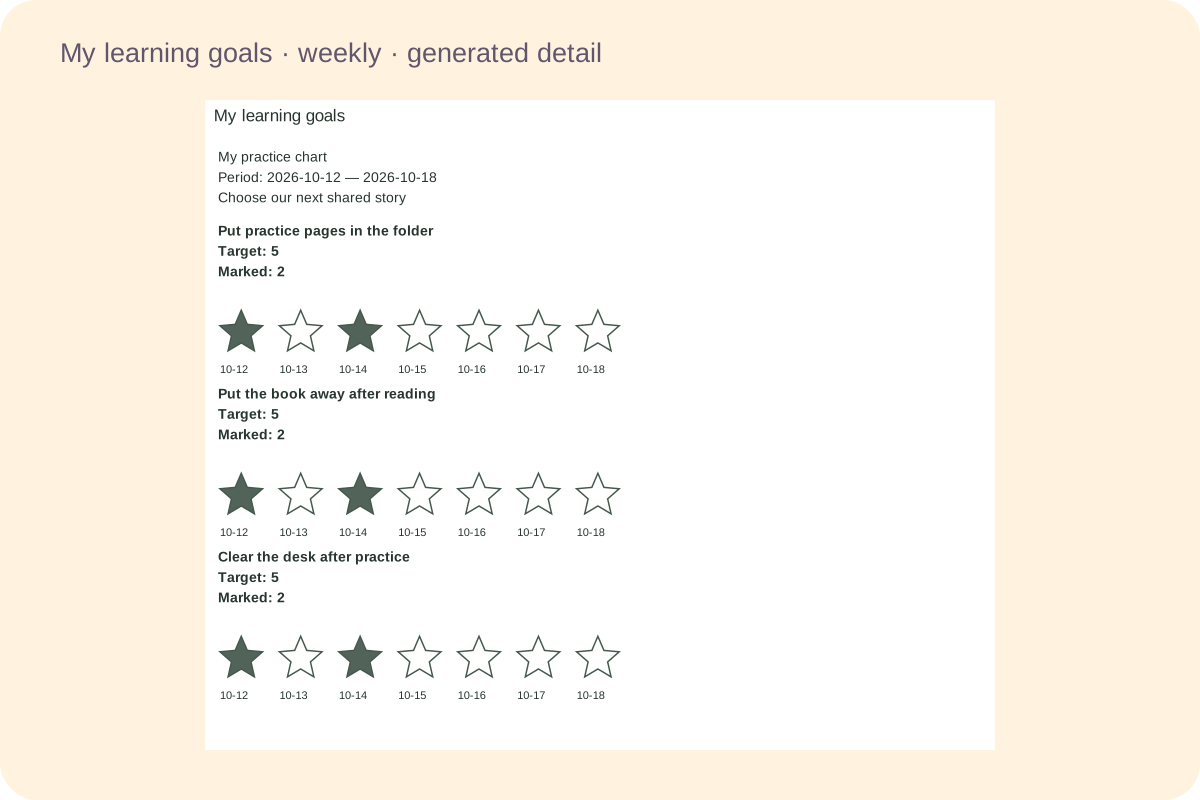
Separate goals with real dates
Create one chart for each agreement, with independent goals, targets and recognition. Calendar months use their real dates, including leap-year February, and the final row remains short when fewer days are left. A batch keeps each person’s records separate.
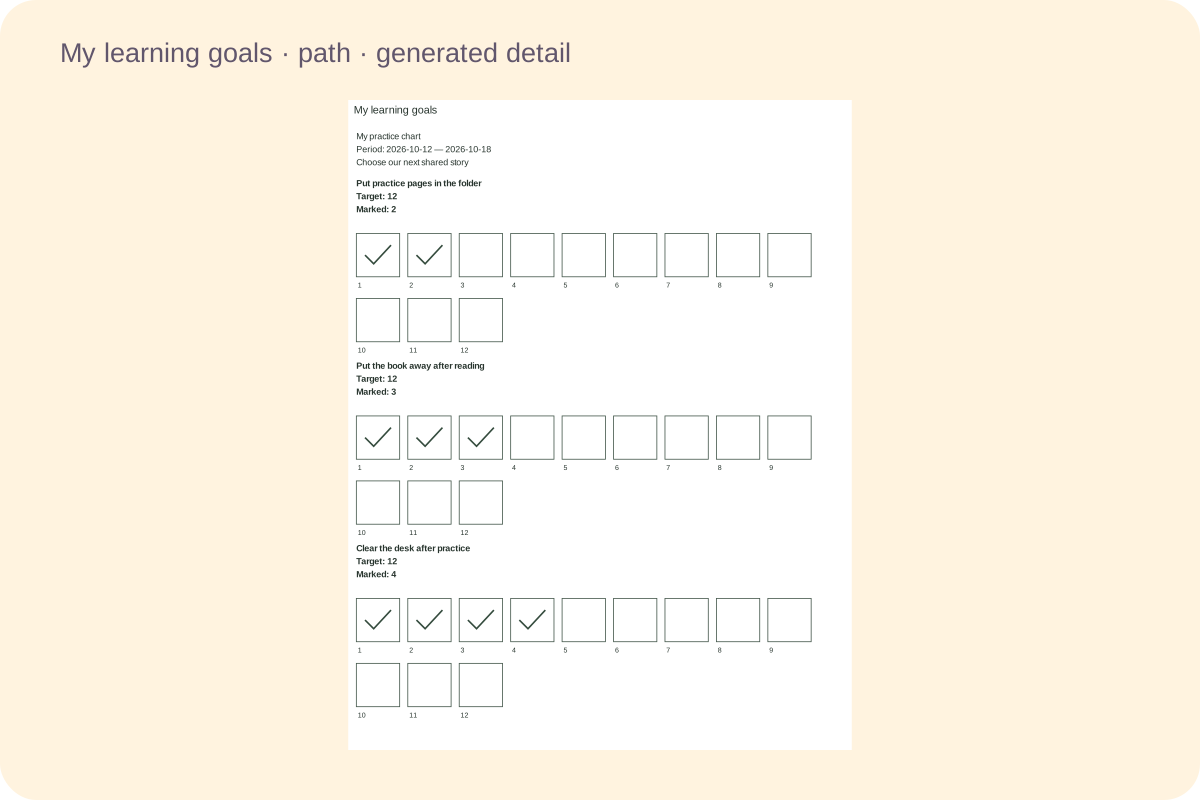
A path sized for the marks you use
Numbered paths print exactly the chosen number of spaces. Sticker boxes keep enough room for the entered diameter, while tick boxes support narrower cards. A crowded arrangement asks for more width rather than shrinking a physical sticker space.
Choose the settings for your task
Check the content and measurements before printing the first copy.
- 01
Describe an action you can both recognize
A reward chart printable starts with a clear agreement about what one mark means. Write an action that can be observed, such as returning a practice sheet to its folder or placing the reading book beside the school bag. A phrase such as do better leaves too much room for different interpretations. Read the wording together before printing and change it if the action is difficult to identify. The tool supplies editable examples, while you decide what belongs on the chart.
Choose a manageable number of goals for the current situation. Each personal chart can hold one to three, but the available rows are not a recommendation to use all three immediately. A single specific action can be easier to review than several vague requirements. The chart does not assess a child, prescribe a routine or guarantee a change in behaviour.
- 02
Keep the target separate from the available spaces
The target is the number of marks you agree to recognize. In a dated grid, the available spaces come from the real dates in the selected period, and the target cannot exceed that number. A seven-day chart can therefore have a target of five without requiring every day to be marked. In a goal path, the number of printed spaces is exactly the target, from one to one hundred. Each goal has its own count.
For example, two goals on the same sheet might have different targets because the actions happen at different frequencies. Discuss the meaning of each mark rather than assuming that two filled stars represent the same amount of effort. The generator labels the target and current recorded total. It does not rank the people in a batch or convert one goal into another kind of score.
- 03
Choose a dated grid or a numbered path
The dated layout starts from a selected week, calendar month or custom run of up to thirty-one days. Weekly periods can begin on Monday or Sunday. A monthly period uses the actual number of days in that month, including February in a leap year. Dates are printed beside their marking spaces, so a short final row does not pretend that another day exists. A period crossing December continues into January with the correct year.
The path layout prints numbered spaces toward a target and shows the chosen period as context. It is useful when the action does not happen once per day. Keep a record of the number already earned in the path field. The dated layout instead uses individual date checkboxes, because a cumulative total alone cannot tell the tool which day an action happened.
- 04
Select stars, flowers, smiley faces, hearts or boxes
Outline stars, flowers, smiley faces and hearts provide spaces to colour or stamp. Recording progress fills the shapes, with the smiley face keeping its eyes and smile clearly visible, while square sticker boxes leave room for an actual adhesive sticker. Enter the sticker diameter in millimetres before arranging several cards across the sheet. The box includes extra room around that diameter, and the preview reports the physical marking size. A fifteen-millimetre sticker therefore receives a box with at least fifteen millimetres of clear space, rather than a decorative square that only looks large on screen.
Tick boxes are smaller and are useful for short personal cards. They support up to six columns; stars, flowers, smiley faces, hearts and stickers support up to three. A crowded sticker setting produces a helpful layout error instead of shrinking the sticker space. Reduce the columns, choose landscape or use the full-width format. Always test one printed box with the actual sticker before printing a large batch.
- 05
Give each person an independent agreement
Add up to twenty personal charts in one document. Each person has an optional name or nickname, a recognition line and separate goals. Adding a person starts with an editable example and empty progress. It does not copy another person’s earned marks. You can make a team chart by entering a team name and explicitly agreeing on shared actions, but the generator does not silently combine individual totals.
For siblings, two short charts might use different wording and different targets even when they are printed together. The recognition line can describe choosing a story or a shared activity that has already been agreed. Keep the wording practical and specific. No public leaderboard is created, and names are not required in order to generate, save or print the document.
- 06
Preserve progress when the presentation changes
Changing the paper, orientation, marker or number of columns preserves the entered goals and progress. Date checkboxes and the numbered path total are stored separately. Switching between those views does not manufacture dates from a total or remove earlier entries. Date marks outside the currently displayed period remain in the editable file; they are not counted as marks in the visible period. Return to the earlier period to see them again.
The tool does not automatically subtract earned marks. You can correct a path total or uncheck a mistakenly selected date yourself. Removing a goal or person asks for confirmation because it removes that record. After editing the draft, generate again before saving, downloading or printing. This makes the generated preview the version that is actually preserved and shared.
- 07
Read the page count before making a batch
Full-width mode gives each personal chart its own page, with continuation pages when its content needs more space. Personal-card mode arranges complete cards across the paper and continues below while another complete row fits. Long labels wrap at a fixed readable font size. A chart with many dates or a large sticker diameter may need several continuation cards, each retaining the person’s identifying details and the current goal.
The preview reports paper size, orientation, card width, marking size and the actual page count. A4 and Letter are measured separately. The layout reserves twelve millimetres at the sides, eight at the top and bottom, and a small height allowance. Those measurements are part of the printable, so increasing browser margins or choosing fit-to-page scaling can change the physical result.
- 08
Keep the editable file and print a sample
Save stores the generated chart in this browser. Download creates a JSON file containing the people, goals, progress and layout, which can later be imported and checked before replacement. Browser storage is not a cloud backup and may be cleared. Keep a downloaded copy when you want a durable editable master, and review the names and goals before giving the file to another person.
To make a PDF, use Print and choose the browser’s save-as-PDF destination. Select the matching paper size and orientation, use actual size or one hundred percent scaling, and turn off browser headers and footers. Print a single sample before making a set. A reward chart records an agreed goal and recognition; a visual routine chart, available among the related tools, shows the sequence of actions instead.
Questions before you print
Practical choices about content, size, saving and printing.
Choose observable actions that you can describe together, such as putting practice pages in a folder. Avoid relying on a broad label such as be good. The examples in the editor are starting points, and each person’s wording can be changed before printing.
Start with a small number that makes sense for the situation. The editor supports one to three goals per person, with independent targets. Those limits describe the form, not a universal recommendation for children. Leave the chart focused on the agreement you actually want to review.
Sticker mode adds clearance around the diameter you enter. A 15 mm setting therefore has at least 15 mm of usable space inside the border. Print at actual size, then test one box with the real sticker. If a narrow card cannot fit it, use fewer columns or landscape.
Yes. Add another person and edit the optional name, recognition and goals independently. New personal charts start with empty progress. Printing them in one batch does not merge scores or create a ranking. You can also deliberately make a named team chart when the agreement is shared.
No. The dated layout uses the selected month’s actual 28, 29, 30 or 31 days. Weekly and custom periods also use real dates across month and year boundaries. The last row can contain fewer spaces instead of adding a false date.
They are stored separately. Date checkboxes say when an action happened, while the path total records how many marks have been earned. Switching views preserves both without guessing dates from a total. Date marks outside the visible period remain in the saved file.
No. Paper and layout changes retain progress. Correct an incorrect total or date explicitly if necessary. Deleting a goal or person requires confirmation. The tool does not apply a penalty when a date is left blank or an unrelated action happens.
Download JSON for the editable people, goals, progress and layout. Import checks that document before replacing the current one. Use the browser print dialog’s save-as-PDF destination for a printable copy. Generate after changing the draft so that both outputs use the reviewed version.
Prepare your next printable
Generate, review the preview and print at actual size.