SCHOOL MILESTONES · YOUR DETAILS
First Day of School Sign Maker A moment worth remembering
Use the first day of school sign maker to record a new beginning with a name, grade and a few details you want to remember. Choose an original frame, prepare one sign or a class set, and print a complete page for each person. Keep an editable master for the last day or the next term.
Create your photo signs
Start with an example, edit the details, then generate the complete set.
My worksheets
Drafts save automatically in this browser, including unfinished input. Keep up to 20 named worksheets across all tools. Large images may exceed browser storage; download data as a backup.
Worksheet preview
Photo signs
Fit complete rows onto each page using the selected columns and writing space. Extra page space stays at the bottom; answer gaps are not stretched.
Generate an example or enter your own details to begin.
Print or save as PDF through the browser. Match paper and orientation, use 100%, and turn browser headers and footers off.
See the finished layouts
Examples rendered by this generator.
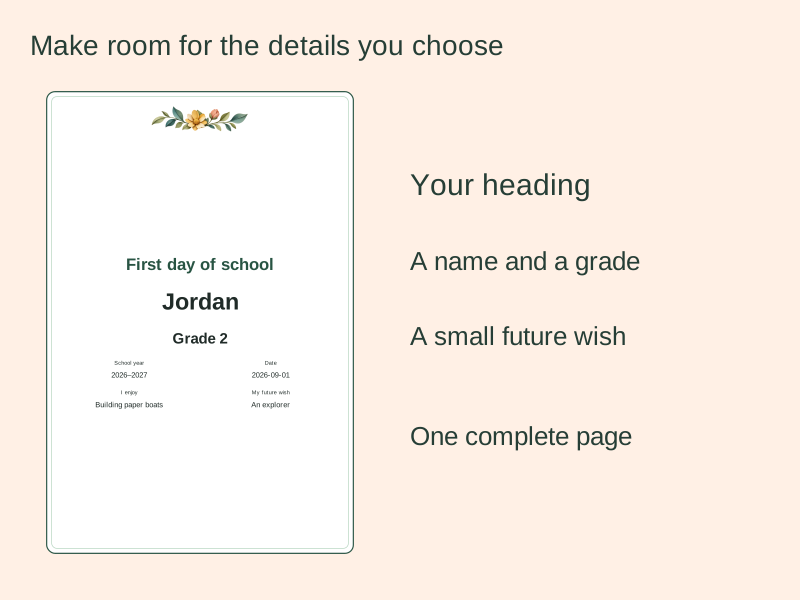
A complete sign for the moment
The selected details form one whole page, with a frame that leaves the wording clear.
Keep separate people in order
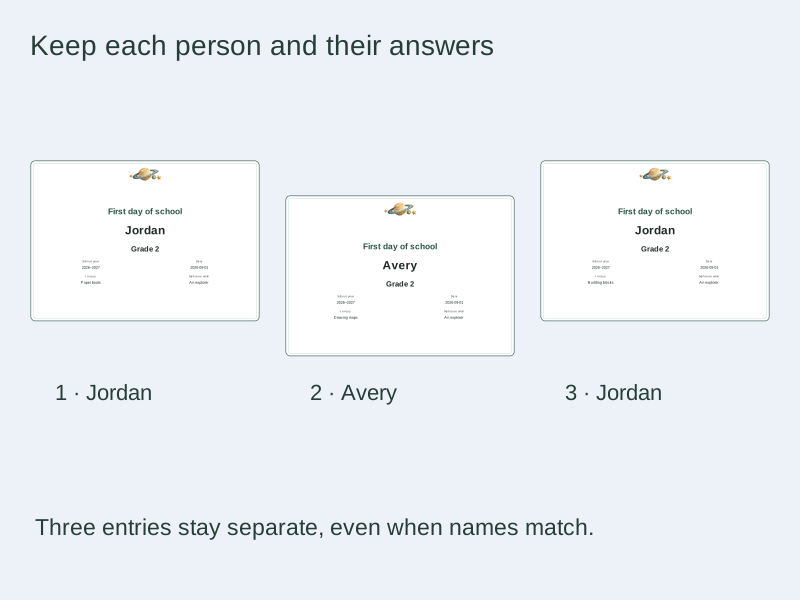
The class list creates independent pages, including repeated names, with each person’s own answers.
Prepare a useful editable master
Choose the words, layout and paper with the finished page in mind.
- 01
Start with the moment you want to remember
A first day of school sign maker gives a photograph a clear date and context without requiring a design editor. Begin with the printed heading, a name or initials, and the grade or class. The example is a fictional starting point, so replace its details before using it. The grade is free text: preschool, a local class name, a homeschool stage or an adult course can all be written in the same field. The school year is also editable text rather than an inferred academic calendar. A September start is not assumed for your family.
The large heading is separate from the document title in the preview controls. The heading appears on the sign. The document title names your editable saved copy, which is useful when keeping several children or several years apart.
Back to the tool - 02
Choose first day, last day or your own heading
Use a wording preset for the first day, last day or a new term, then adjust the printed heading. Changing that heading keeps every person and their details. For a before-and-after pair, save a first-day master, make a separate copy for the last day, and update the grade, date and answers deliberately. The generator does not calculate how much time has passed or age a child automatically. This makes it possible to record the actual moment instead of accidentally carrying an old date into a new photograph.
A short heading usually reads more clearly from camera distance. A longer heading wraps at the selected type size; it does not silently become smaller. If the complete design no longer fits, shorten the heading or choose the compact text option.
Back to the tool - 03
Keep the memory fields that matter
Select the fields you want on the finished sign. Name, grade, school year, school or class, date, age, a favourite activity and a future wish can be shown or hidden. A hidden field stays in the editable document and returns when selected again. This is useful when a private family version includes more information than a version intended for a classroom display. A sign can omit the name entirely if you prefer a general welcome message. At least one detail field must remain selected.
Keep optional answers short and specific. “Building cardboard rockets” is easier to read in a photograph than a whole story about the project. You may leave a selected answer empty to leave open space for handwriting. Leaving the date empty makes an undated sign; entering a date requires a real calendar date.
Back to the tool - 04
Pick an original frame that suits the photograph
Three paper-inspired illustrations give the sign a warm, personal character. Celebration pennants hang softly folded flags along a fine cord. Orbit explorer pairs a ringed planet with tiny stars and a moon. Growing garden combines young leaves with a small flower and bud. The illustration sits above the heading, leaving room for the name and answers. Switch the design without replacing the words. Four palettes color the text and border; each illustration keeps its own coordinated colors, and the paper stays white.
Black-and-white mode converts the illustration to grayscale while keeping the border and complete wording clear. It preserves the order of the fields and every answer. This option is helpful when the printer has only black ink or when several matching classroom signs will be printed together.
Back to the tool - 05
Make one sign or a small class set
Each item has its own name and answers. Add a blank item, choose the item in the list, and fill in its details. Move it up or down to change printing order. Duplicate names remain separate people, with independent entries and positions. Removing an item asks for confirmation, and the last remaining item cannot be removed. The list supports up to sixty items. Every item receives its own complete sheet rather than sharing a small card with another child.
For a class set, first prepare the shared details on one selected item. Paste plain names, one per line, in the class-list box. Applying that list replaces the current items after confirmation and copies the selected item’s other fields to each name. Review each favourite or wish afterwards; the batch action does not invent individual answers.
Back to the tool - 06
Match the physical page to the job
Choose A4 or US Letter to match your printer and select portrait or landscape. Landscape makes a wide sign; portrait provides a taller arrangement. The tool rebuilds the layout for the selected sheet rather than stretching a fixed picture. Standard and compact are explicit text-size choices. The compact setting uses eighty-five percent of the standard sizes; it is not an automatic response to a long name. Decorations stay inside the printable frame.
Long names and answers wrap in full. If the selected fields need more vertical space than the sheet provides, generation identifies the item that does not fit and preserves the last valid preview. Try a shorter answer, fewer visible details, another orientation or compact text. No part of the overflowing item is silently dropped.
Back to the tool - 07
Check the preview before printing the set
Generate the signs after changing content, then inspect the page count and the print-layout preview. The preview copy is the generated version; new edits need to be generated before printing. Confirm every name, grade, date and spelling. The layout keeps a complete sign together and reserves the shared printer margins. There is no answer sheet for a photo prop. The automatic and manual print-preview controls both keep these full-page designs intact.
Use the browser print dialog to print or save as PDF. Select the matching paper, actual size or one hundred percent, and turn browser headers and footers off. Print one test sheet before a class set. Printer drivers and fonts can differ from a screen, so check that the outer frame and the last detail line are complete.
Back to the tool - 08
Save an editable master for another year
Local Save and Restore keep a copy in this browser. Download the editable JSON file when you want a portable backup or a second version with a different date. Import validates the file and restores its people, wording, field visibility, paper, colours and frame. It is a data file for this generator, not a photograph or a PDF. A file from the certificate tool cannot be imported as a sign.
Typed personal details are processed on the device and are not added to the page URL. Local storage belongs to the current browser, so keep your own downloaded backup before clearing browser data. The tool does not provide cloud sharing, a photo upload, or a direct image download. A printed sign and a browser-created PDF are the finished outputs.
Back to the tool
Questions before printing
Practical choices and the limits of this tool.
Yes. Change the printed heading or use the last-day preset, then update the individual date and answers. The people and other settings stay in place. Download a separate editable file if you want to keep the first-day version too.
Start with the moment, grade and whichever identifying details you want in the photograph. Add age, a favourite activity or a short wish only when they help the memory. You can hide any sign field without deleting it, including the name, while keeping at least one selected field.
It wraps at the chosen size. If the complete item cannot fit, generation reports its position and keeps the last valid preview. Choose compact text, another orientation, fewer visible fields or shorter wording. The tool does not truncate the answer.
Yes, up to sixty separate items. Paste one name per line to replace the set after confirmation, using the selected item’s other details as a starting point. Repeated names remain separate. Edit each person’s answers and arrange the final print order.
Yes. Keep the desired fields selected and leave their values empty. They leave open spaces for handwriting. The printed heading is required. Dates can remain blank, and a filled date must be valid. This is useful for a shared classroom welcome station.
Choose the shape that fits your photograph and available printer paper. Both A4 and Letter support either direction. Landscape makes a wide prop; portrait makes a taller one. Check the generated preview because the same details wrap differently when the width changes.
Use browser printing for paper or a PDF. Download JSON separately for editable data, and use local Save and Restore in the same browser. There is no direct PNG download or cloud sync. A downloaded JSON file can be imported back into this tool.
No. Visibility affects the printed sign, while the editable file keeps the values. If you want a value removed from that file as well, clear it before saving a separate copy. Check the visible sign before making a version for a wider audience.
Keep the next version editable
Save the data, check one sheet, then print the set.