MONTHS · SCHOOL WEEKS · YOUR EVENTS
School Calendar Printable Your term, your school dates
Create a school calendar printable for any starting month. Arrange opening days, exams, activities and breaks, keep teaching weeks separate from ISO numbers, and print complete months with a full event appendix.

School Calendar Printable
Create a school calendar printable for any starting month. Arrange opening days, exams, activities and breaks, keep teaching weeks separate from ISO numbers, and print complete months with a full event appendix.
My worksheets
Drafts save automatically in this browser, including unfinished input. Keep up to 20 named worksheets across all tools. Large images may exceed browser storage; download data as a backup.
Worksheet preview
School Calendar Printable
Fit complete rows onto each page using the selected columns and writing space. Extra page space stays at the bottom; answer gaps are not stretched.
Generate or load the example to see the preview.
Print or save as PDF through your browser. Match the paper size, use Actual Size / 100% and disable browser headers and footers.
Choose a layout for the way you record
Examples come from the production generator.
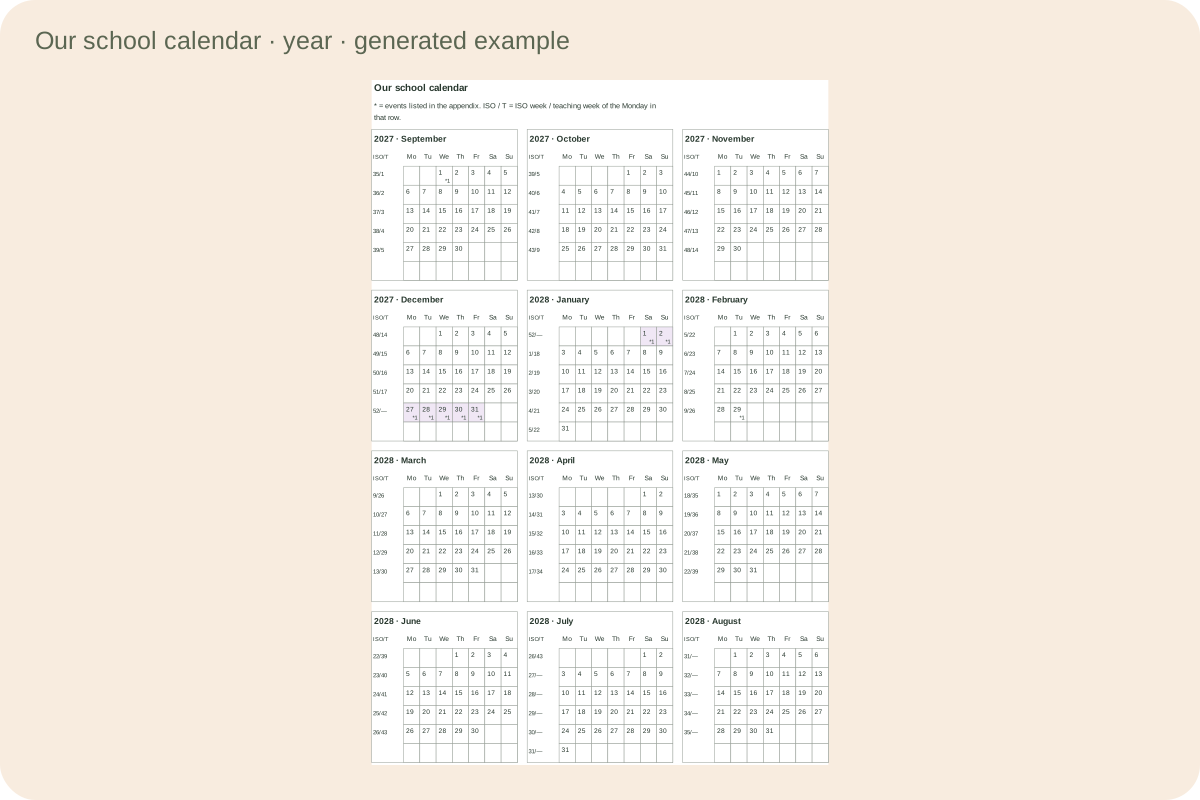
An academic year with every month intact
The year overview follows your first month across the year boundary. Every month stays complete. Short event counts keep dates legible, while full event information is retained in the appendix rather than forced into tiny boxes.
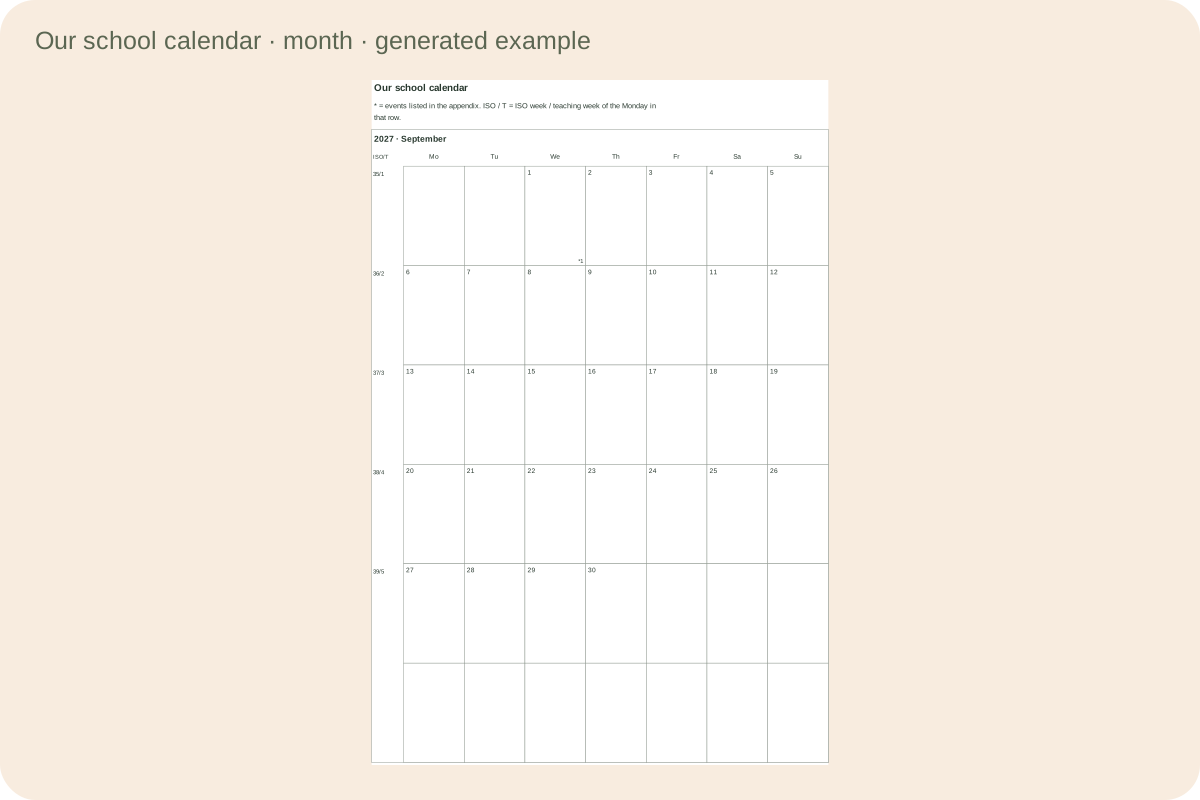
Monthly room and complete event details
A larger monthly page leaves room for handwriting. Single-day and multi-day activities each have a separate event record. Long notes continue onto additional sheets, and school holidays remain under your control instead of being guessed from location.
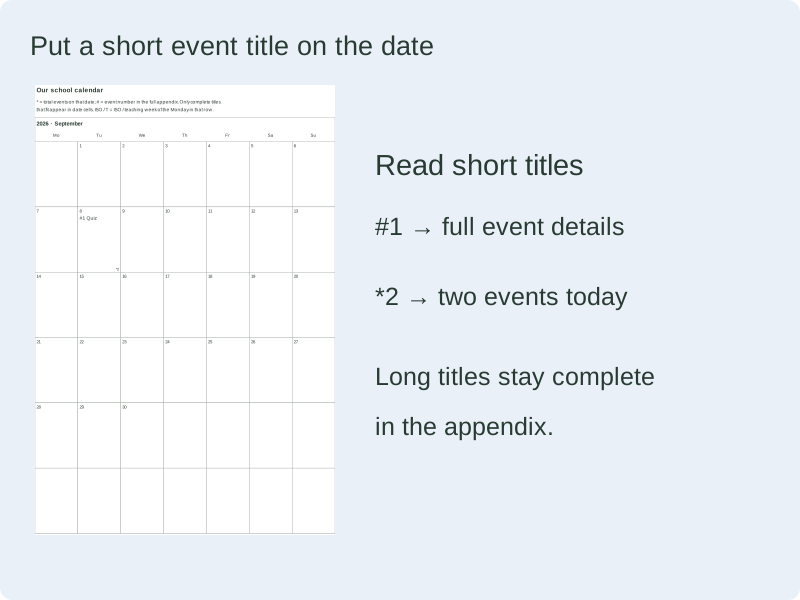
School events beside their dates
A real generated month shows short event titles and their matching appendix numbers.
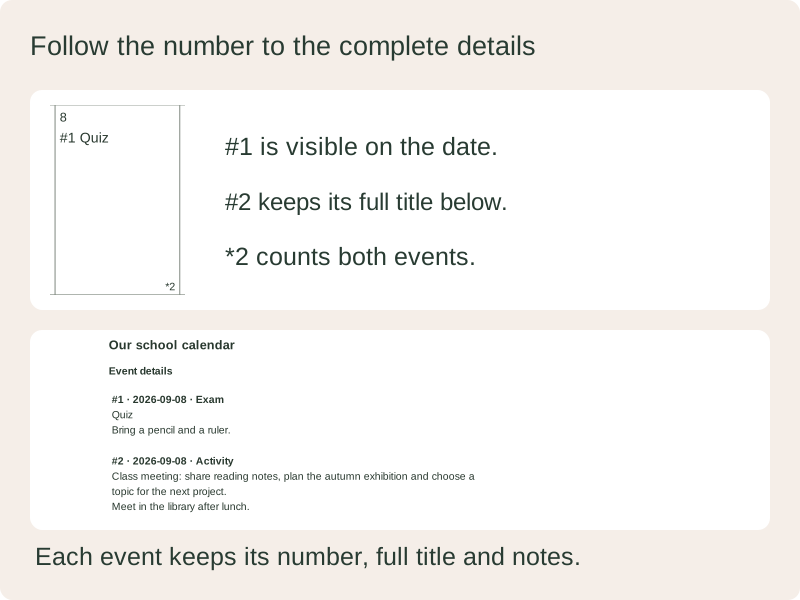
Every event keeps its full details
The count marker includes long or additional events whose complete titles are kept in the appendix.
Build a useful editable master
Match the dates and writing space to your task.
- 01
Start with the period your school uses
A school calendar printable can follow an academic year instead of January through December. Choose any first month and include one to twelve consecutive months. September through August is one possible arrangement, but an April start or a short summer term works in exactly the same way. Each month carries its own year, so the transition into January remains clear. The dates are calculated from the selected year and month, including leap years.
The monthly, six-month term and twelve-month year buttons are starting layouts. They change the visible range and page arrangement without erasing events. After selecting one, adjust the month count and first month for your own schedule. A term view here means a group of monthly calendars, not an official definition of how long a school term should last.
Back to the tool - 02
Choose writing space or an overview
Use one month per page when people need generous date boxes for handwriting. Two or three months make a compact term reference. Four, six and twelve months per page are useful for spotting the sequence of school activities, but their small date boxes are not intended for full lesson notes. The chosen number is the maximum months on each calendar page; a shorter final group contains only the remaining months.
You can request one to four month columns. The generator adjusts that request when the combination would make the date cells too narrow or the month panels too short. The preview reports the actual columns. A complete month always stays together, including a six-row month. Additional event-detail pages are counted separately from the calendar panels.
Back to the tool - 03
Keep week starts and week systems distinct
The date grid can begin on Monday or Sunday. ISO week numbers and teaching week numbers have independent switches. ISO numbers follow their own year boundary, which means the first days of January can belong to the final ISO week of the preceding year. A teaching week instead starts from the term dates and first number you provide. Changing the display switch does not redefine either system.
Week labels describe the Monday in the displayed row. This convention matters on Sunday-first calendars: the Sunday at the beginning belongs to the preceding Monday-based week. The printed legend explains the convention, and the column heading separates ISO from T for teaching. Use Monday-first when a direct one-row-to-one-teaching-week comparison is most important.
Back to the tool - 04
Define the teaching term and closed weeks
Enter the first and last dates of the teaching term and choose the weekdays that normally have classes. A Monday-to-Sunday week counts as active when at least one selected weekday falls inside the term and is not covered by a No classes event. A partial first or last week can therefore count. The first displayed teaching number can be set from one to ninety-nine.
A week with no active teaching day shows a dash. With pause numbering enabled, the next active week continues from the last active number. With it disabled, the closed week consumes a number even though its label remains a dash. Only the No classes category affects this rule; an exam or activity does not silently cancel teaching. Review this policy against your school’s own convention.
Back to the tool - 05
Enter confirmed school dates
Add opening days, exams, activities and breaks manually. Each event has an inclusive first and last date, a title and optional notes. A single-day event uses the same start and end. A multi-day break can cover several calendar weeks. The tool does not fetch public holidays or guess local school closures, so use an official school notice when entering real arrangements.
Several events can share a day. A small star and count show how many overlap that date. Every event that intersects the visible months appears in the appendix with its complete date range, category, title and notes. The sample meeting is illustrative only. Replace it before distributing a calendar, and check both event dates and the displayed academic period.
Back to the tool - 06
Keep long information in the appendix
A twelve-month overview keeps short date markers. On a larger monthly page, select complete titles when space allows. Each displayed title includes its event number and wraps at a fixed 3 mm font size. Titles are shown only when their complete text fits below the date and above the count marker. A long title that does not fit stays in the appendix, where the full event list remains available in every layout.
Events outside the currently visible months stay in the editable document but are not printed in that range. Extending the month range can reveal them again. Deleting an event asks for confirmation. Use short titles for recognition and longer notes for meeting instructions, materials or source details. Do not place private student information in a calendar intended for public display.
Back to the tool - 07
Save an editable school master
After reviewing the preview, save the generated document in this browser or download its JSON file. The file preserves all events, the term settings and the selected paper layout. Import checks that the file belongs to this tool and that dates, settings and content are valid. A failed import leaves the current valid document available instead of partly replacing its contents.
Browser storage is convenient for returning to a draft, but clearing browser data can remove it. Keep a downloaded copy for future changes. The generator allows up to two hundred events and one to twelve visible months. Split a larger archive into separate documents. A changed draft must be generated again before saving or printing, keeping the reviewed output aligned with the saved settings.
Back to the tool - 08
Print a useful calendar set
Choose A4 or Letter and portrait or landscape before the final preview. Confirm the actual calendar and appendix page counts. In the print dialog select the matching paper, use actual size or one hundred percent, and turn off browser headers and footers. The layout reserves twelve millimetres at the sides, eight at the top and bottom, and a small height safety allowance.
Use the browser’s save-as-PDF destination when you want a fixed document to distribute. JSON is the editable master; PDF is the printed appearance. Check a single sheet before printing several copies, particularly a dense year overview. Soft shading is optional, and the black-and-white setting retains date text, category labels and event counts. No answer key is needed for an open school planning calendar.
Back to the tool - 09
Read the date cell and the event list together
The star count reports all events overlapping a date, including titles that are not shown in the cell. A number such as #2 connects a visible title with its full entry in the appendix. Several short titles can share the available lines. An oversized title does not overwrite the next activity, and a short later event can still use the remaining space. Notes always stay in the event list, so a brief label can point to detailed instructions without shrinking the calendar.
Title display needs a cell at least 18 mm wide and 15 mm high. Smaller cells, including the twelve-month overview, retain count markers; the preview reports how many dated titles were displayed or deferred. A multi-day event is considered separately on each date. Switching back to counts preserves every saved title, note, date range and event ID. To give more information room, choose fewer months per page, compare paper orientation, or shorten a title while keeping the explanation in its notes.
Common questions
Practical answers about dates, records and printing.
Yes. Choose any first month and one to twelve consecutive months. The year changes automatically at January. Monthly, term and year buttons are editable starting layouts, so you can prepare a short course or a cross-year academic overview without creating another tool.
No. Enter dates from your school’s confirmed notices. A No classes event can cover an inclusive date range and affect teaching-week numbering. Examples are clearly illustrative; the generator does not treat national holidays or another school’s historical dates as your schedule.
No. ISO week numbering follows its own calendar rules. Teaching weeks use your term, weekdays, first number and closed-week setting. Labels refer to the Monday in each row, including Sunday-first grids, where that row’s Sunday belongs to the preceding Monday-based week.
Yes. Select twelve months per page. The generator keeps complete month panels and adjusts columns if necessary. Date boxes contain short markers rather than full events; event details use additional pages. Choose one to three months per page when you need writing space.
The cell shows a star and the number of overlapping events. Each event remains separately listed with its dates, category, title and full notes in the appendix. Text is wrapped and continued as needed, so a busy day does not cause one activity to overwrite another.
A week is active if it has an eligible teaching day inside the term outside No classes ranges. Completely closed weeks display a dash. Enable pause numbering to exclude those weeks from the counter, or disable it to let them consume a number. Partial active weeks still count.
The requested combination could not keep month panels readable within the paper. The preview displays the actual number of columns. It preserves all months and full six-row grids. A long title can also reduce available height, so shorten it or change orientation when necessary.
Yes. Changing visible months keeps stored events and term settings in the editable JSON. Only intersecting events print in the current appendix. Import restores the whole document after validation. Keep a downloaded backup and use browser printing for a fixed PDF copy.
Yes. Select complete titles when space allows. Larger cells can show several complete titles with their appendix numbers. Small cells and twelve-month overviews keep count markers. Every title and note remains in the full appendix, even if it also appears in the date cell.
Prepare the next set of pages
Generate, check the actual pages and keep an editable copy.