TEACHING DAYS · LESSON PERIODS · CONTINUITY
Teacher Planner Printable From timetable to lesson notes
Create a teacher planner printable that matches your teaching week. Set the dates and periods, enter courses, classes and rooms, then choose a compact timetable or detailed pages for objectives, activities, materials and reflection.

Teacher Planner Printable
Create a teacher planner printable that matches your teaching week. Set the dates and periods, enter courses, classes and rooms, then choose a compact timetable or detailed pages for objectives, activities, materials and reflection.
My worksheets
Drafts save automatically in this browser, including unfinished input. Keep up to 20 named worksheets across all tools. Large images may exceed browser storage; download data as a backup.
Worksheet preview
Teacher Planner Printable
Fit complete rows onto each page using the selected columns and writing space. Extra page space stays at the bottom; answer gaps are not stretched.
Generate or load the example to see the preview.
Print or save as PDF through your browser. Match the paper size, use Actual Size / 100% and disable browser headers and footers.
See the layout before choosing settings
Examples use the same measured output as the generator.
Keep the timetable clear
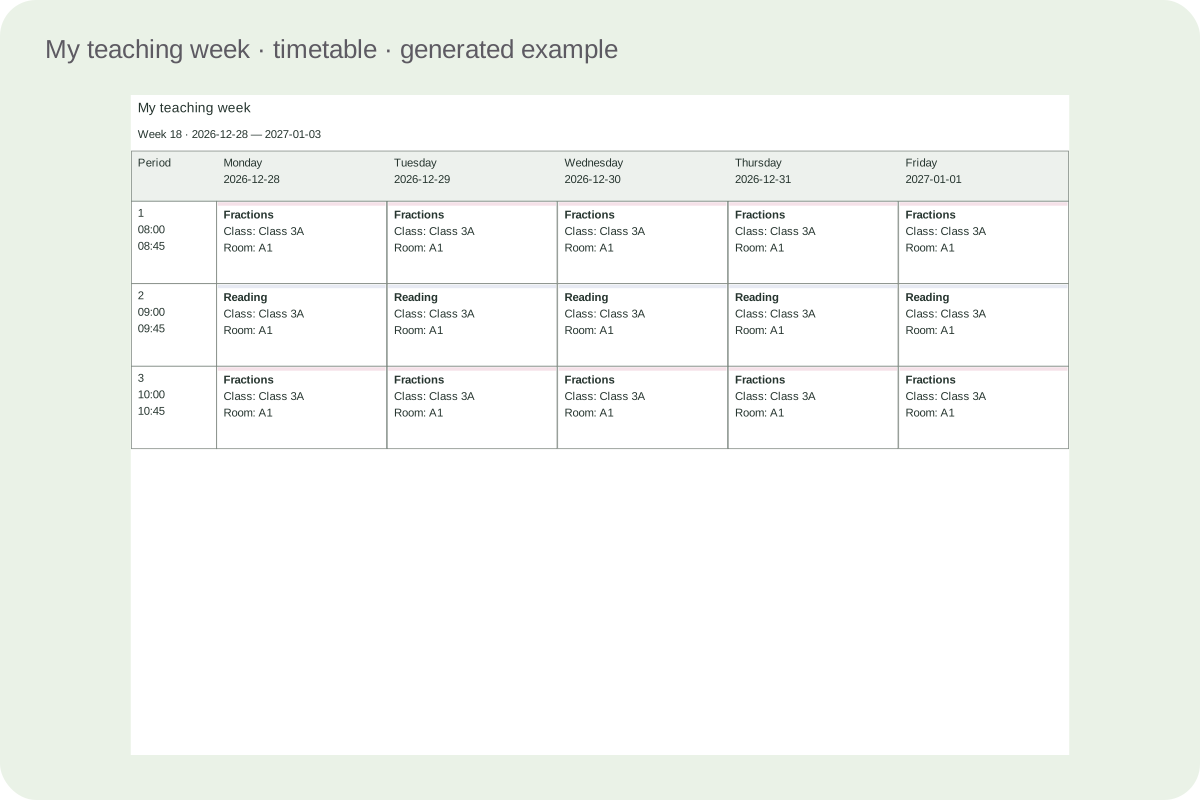
The timetable places your selected teaching days across a landscape page and periods down the side. Course, class and room labels remain visible in black and white. Matching course names receive the same soft colour marker, while the text carries the actual meaning.
Give lesson details room to continue
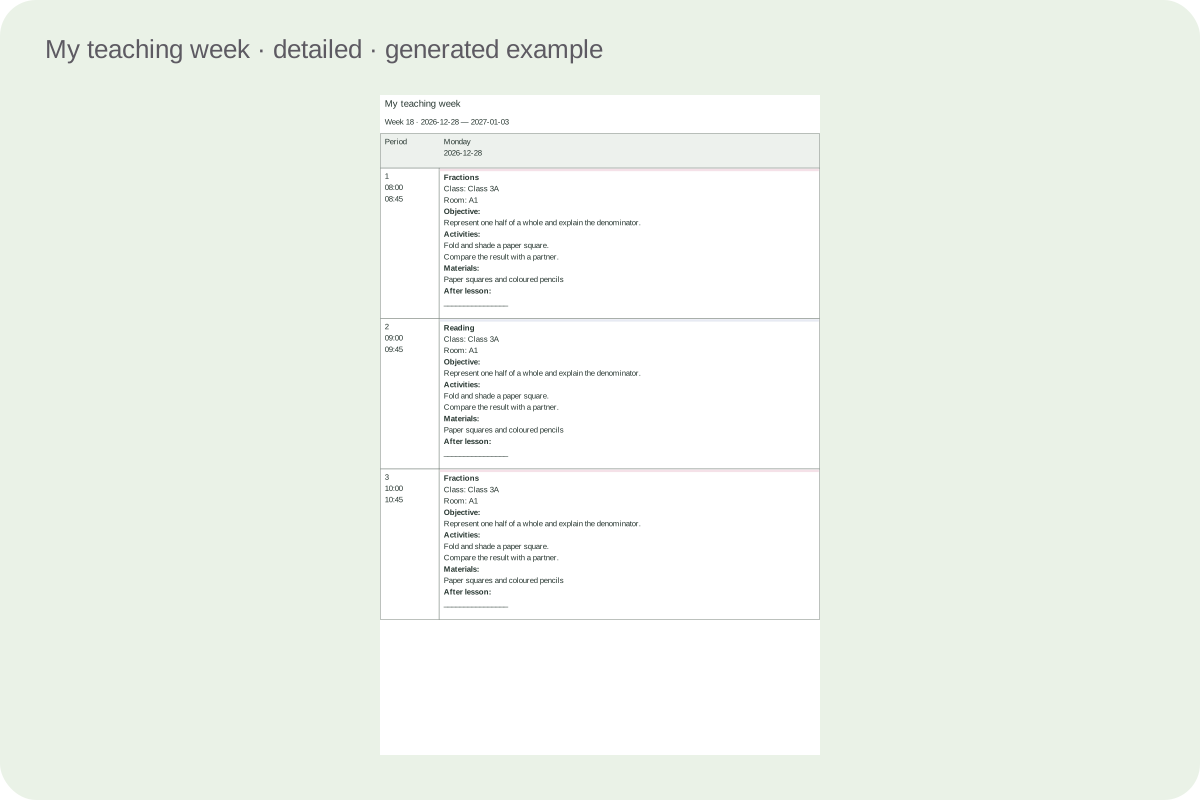
Detailed mode groups one, two or three days across the page. Selected planning fields wrap at a readable fixed size; long entries continue with repeated date and period context. Hiding a field changes the output while retaining its saved content.
Set up, save and print your pages
Choose settings for the task you want to put on paper.
- 01
Begin with the week you actually teach
Choose a first and last date, then select the weekdays on which teaching takes place. You can use any combination of one to seven days, including a weekend schedule. The date range may span up to twenty-six calendar weeks. Only dates inside the selected range appear, so a term starting on Wednesday does not invent lessons for the preceding Monday.
Calendar groups begin on Monday, but this does not require teaching on Monday. The chosen days determine the columns. Set the first displayed week number to match your own term record; subsequent numbers continue across December and January. These are your planning week numbers, not a claim about official holidays, local term dates or ISO calendar-week numbering.
Back to the tool - 02
Define periods and their times
Select between one and twelve periods. Each period can have a start and end time, or both can remain blank. Use the same period structure across the current document. The editor keeps all twelve time records so reducing the visible count does not discard a later period you have already described. Re-enable it when you need it again.
An entered end time must be later than its start time on the same day. The form does not solve room allocation, teacher availability or conflicts between overlapping periods. Check those constraints yourself before using the timetable. If different days have fundamentally different period structures, make separate saved documents rather than relying on a single shared time column to imply that difference.
Back to the tool - 03
Enter one lesson at a time
Use the week, teaching-day and period selectors to reach a lesson slot. Enter the course name and optional class and room. The selector approach keeps a large multi-week plan manageable without asking you to edit hundreds of boxes at once. The same course wording receives a consistent colour marker, and printed course names remain readable without colour.
For example, a lesson might be called Fractions, with a class label and room code. The objective can state what learners will explain or demonstrate, the activities can list the sequence, and the materials can name what to prepare. Student names are not requested. Review optional class labels before sharing a downloaded document, because the editable file contains your saved lesson content.
Back to the tool - 04
Choose a timetable or a detailed plan
Timetable mode prints the course, class and room in a landscape grid. It is useful for seeing when and where a lesson happens. Detailed mode adds the optional objective, activities, materials and after-lesson record fields. Select the fields you need and choose one, two or three teaching days per page group. A single day gets the widest writing area.
Switching modes changes presentation rather than deleting details. A lesson objective entered while using the timetable is still stored and becomes visible when you enable the detailed field. The row-height setting is a minimum: content can make a row taller. This gives you control over blank handwriting space without forcing long text into a tiny fixed rectangle.
Back to the tool - 05
Copy a previous week deliberately
Choose a later week in the lesson editor and use Copy previous week when the schedule should carry forward. The action shifts stored lessons by seven days. It includes entries for hidden days and periods, so a temporary display choice does not remove part of the source week. A confirmation explains that the destination calendar week will be replaced.
Copying includes objectives, activities, materials and after-lesson notes as well as course names. Review and revise that content for the new dates, especially reflections that described a lesson already taught. Times are shared across the document and do not need a second copy. The copy is a starting point for your planning; it does not automatically advance curriculum topics or generate fresh objectives.
Back to the tool - 06
Preserve content when narrowing the view
Removing a teaching day, lowering the period count or shortening the date range hides matching lessons from the printed view. Their records remain in the editable document. When you restore the relevant dates and settings, the same entries return. Optional detailed fields behave in the same way. This lets you prepare a focused handout without silently erasing a fuller plan.
The explicit Clear this lesson action removes the selected lesson after confirmation. Copy previous week can replace an entire destination week, also after confirmation. These are content changes, unlike visibility controls. Saving and JSON export retain hidden records, so use a separate document if the recipient should receive only a selected subset of the stored information.
Back to the tool - 07
Let long plans continue at a readable size
The generator fits complete period rows when they can fit on a fresh page. A row that is longer than a full page is divided into continuation parts, with its period, date columns and week context repeated. Text keeps the same size instead of being compressed. Detailed planning for twelve periods and seven days therefore becomes several pages when necessary.
The periods-per-page control can set a smaller maximum for a deliberate break, or zero can fill the available height automatically. One, two or three detailed days form separate page groups. Check the reported total before printing a long range, and use the browser’s page selection when you want only part of the generated output. Very large documents are rejected with a request to reduce the scope.
Back to the tool - 08
Save a master and print the reviewed version
Save in this browser for quick reuse, or download JSON for an editable master you can import later. Import validates the document and asks before replacing existing work. It preserves lesson text, hidden entries, times, the date range and the worksheet title. Browser storage is local and can be cleared, so a downloaded file is useful when the plan matters.
Use Print to print or save a PDF through the browser. Match A4 or Letter and the previewed orientation, choose actual size and disable browser headers and footers. The page already includes its print margins. After changing settings or lessons, regenerate before saving or printing. A substitute-teacher copy may need detailed materials and instructions, while a wall timetable usually needs only the compact view.
Back to the tool
Common questions
Practical answers about layout, editing and printing.
A timetable shows when and where lessons occur. A detailed plan adds objectives, activities, materials and after-lesson notes. This tool offers both views of the same saved lessons. Switching to the compact view hides details from the paper without deleting them from the editable file.
Yes. Select any one to seven weekdays and one to twelve periods. Enter optional start and end times for each period. Times are shared across the document. The tool checks individual time ranges but does not automatically resolve overlapping lessons, rooms or teacher availability.
You can select a date range covering up to twenty-six calendar weeks. The first and last partial weeks include only dates in range. Week numbering continues from your chosen starting number, including across a year boundary. Check the page total before printing a long plan.
Text wraps at a fixed size. Complete rows move to a new page when needed, and a row longer than a page continues in labelled parts. For wider writing space, use detailed mode with one day per group. Reducing visible fields can also simplify the printed copy.
No. Hidden days, periods, dates and detailed fields retain their stored content. Restoring the setting makes the lessons visible again. The JSON export includes hidden records. Clear lesson and Copy previous week are explicit content changes and ask for confirmation before removing or replacing records.
It shifts all stored lesson entries from the previous Monday-to-Sunday group forward seven days and replaces entries in the destination group. This includes hidden days and periods, objectives and notes. Review copied reflections for the new week. Shared period times remain the same.
Course names, class labels and room text remain the main identifiers. A soft colour marker is an additional cue, with consistent colours for matching course names. You do not need a colour printer to read the timetable or detailed plan, and different courses may share a palette colour.
Use the browser print dialog to save a PDF, and download JSON separately for editing later. A JSON file retains hidden records as well as visible lessons. Review its contents before sharing. This tool stores documents locally and does not provide cloud synchronization or automatic scheduling.
Prepare the pages for your next lesson
Generate, review the actual pages and keep an editable master.