PICTURE · ORDER · NEXT STEP
Visual Routine Chart Put the next step in view
Make a visual routine chart for the part of the day you want to show clearly. Arrange familiar pictures, short actions and optional times, then print a sequence, first / then pairs or a set of separate cards.
A4 / Letter · Local saving · Complete pages
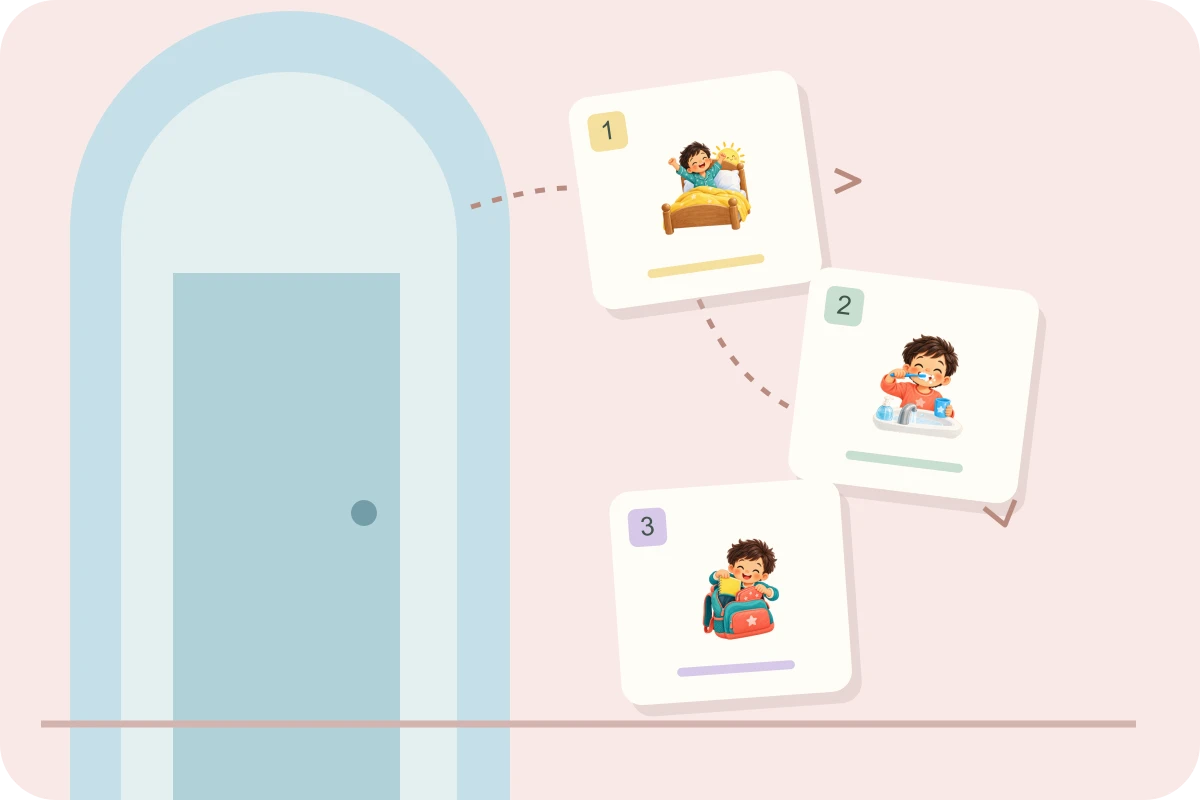
Arrange the picture sequence
Edit the settings, generate, then review the complete preview. Generate again after changing settings or steps.
My worksheets
Drafts save automatically in this browser, including unfinished input. Keep up to 20 named worksheets across all tools. Large images may exceed browser storage; download data as a backup.
Worksheet preview
Routine cards
Fit complete rows onto each page using the selected columns and writing space. Extra page space stays at the bottom; answer gaps are not stretched.
Generate or load the example to see the preview.
Print or save as PDF through your browser. Match the paper size, use Actual Size / 100% and disable browser headers and footers.
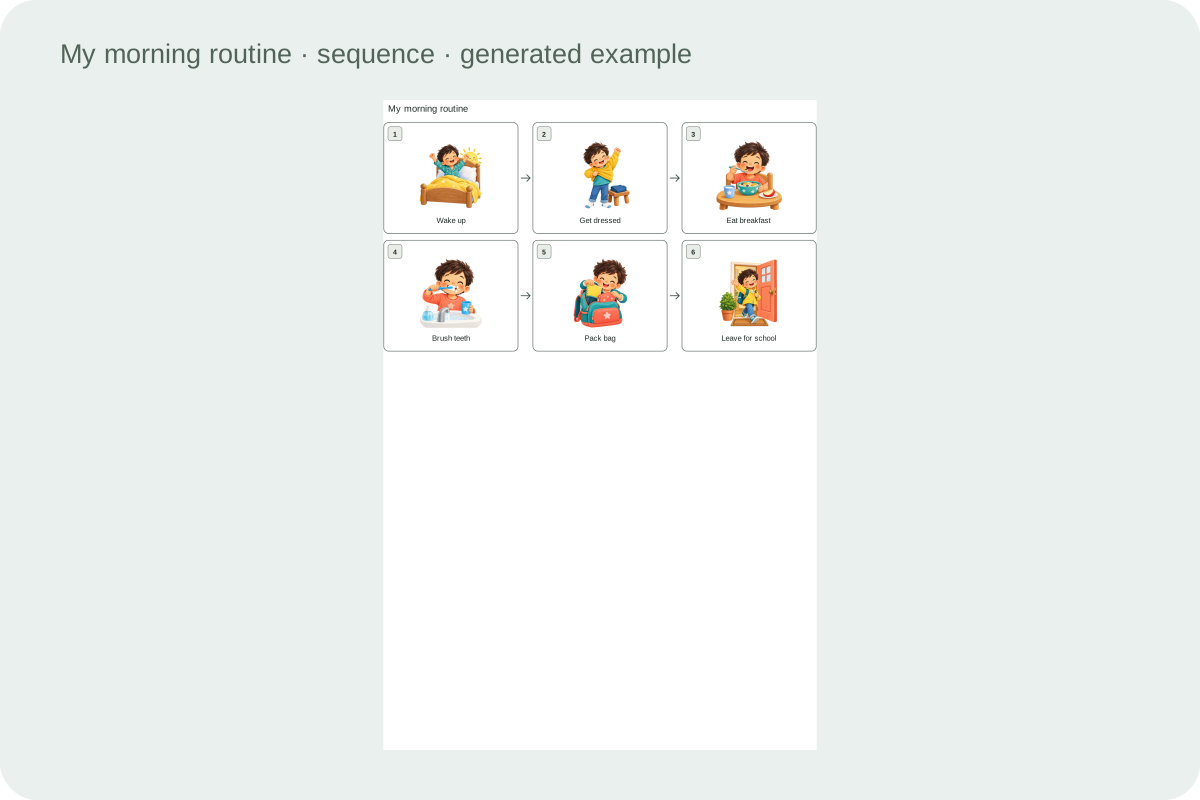
See the actual output before printing
These examples are rendered from the production layout.
Follow pictures and continuous numbers
Change the order of complete steps without separating their words, pictures and times. Twelve colorful picture-book illustrations make everyday actions recognizable, with printed numbers showing the order. Use a familiar local photo for a particular object or place.
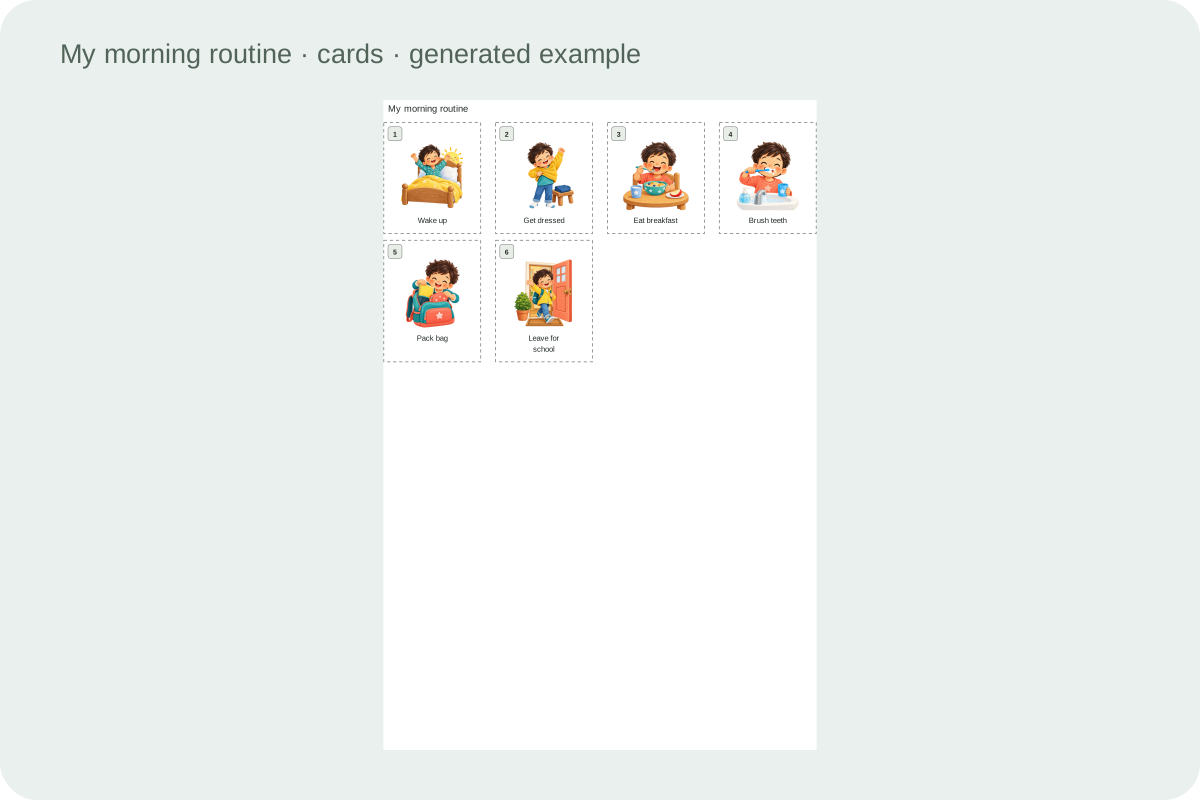
Make a set of cards to arrange
Choose one to six columns, review the physical card width and keep actions short when space is narrow. Longer labels wrap at a fixed font size and increase the row height. Complete rows continue onto later pages when needed.
Make the layout fit the task
Work through the space, wording and print choices.
- 01
Start with a sequence you can point to
A visual routine chart turns a small sequence into pictures and short actions that you can look at together. Choose morning, after school, bedtime or classroom as a starting point. These presets are editable examples, so remove an action that does not belong in your day and move another one to its real position. A morning routine chart printable is most useful when the sequence agrees with what actually happens near the door, bathroom or breakfast table.
Try describing one observable action on each card. Pack bag is easier to point to than get everything ready. If a step needs two different pictures or a long explanation, consider separating it. The chart is a shared reminder of the plan, not a test of whether someone followed every minute perfectly.
A routine chart shows the order of actions. A reward chart records progress toward an agreed goal or recognition. This tool does not accumulate stars, points or prizes. To reuse a card set, keep the editable master, print the pieces you need and arrange them again for the next activity.
- 02
Make the pictures familiar
The built-in library contains 12 colorful picture-book illustrations of everyday actions, including brushing teeth, dressing, eating, packing a bag, reading and washing hands. Each card keeps its text label and printed number so the order is clear. Select a different picture when the default does not match the action, and edit the wording so the picture and words refer to the same thing.
A photograph can be more recognizable when an action involves a particular bag, shelf or doorway. Upload a local PNG, JPEG or WebP image to replace the selected picture. Images are decoded and resized in the browser before being added to the document. Choose a simple composition with the relevant object visible at a small size; a busy room photograph may become difficult to read on a narrow card.
- 03
Arrange steps without relying on dragging
Each step has Move up and Move down buttons. They work with a mouse or the keyboard and keep the picture, wording and optional time together. Printed numbers are recalculated from the current order rather than being stored as part of the text. Add a new step at the end, move it to its intended position, and remove any duplicate action. Regenerate the preview after changing the sequence.
For an after school checklist, you might place putting the bag away before washing hands and having a snack. Another household may need a different order because of transport or an afternoon activity. Loading another preset asks before replacing the draft. Keep a downloaded copy of a useful sequence before trying a substantially different arrangement for another day.
- 04
Choose a chart, pairs or separate cards
The sequence chart defaults to three cards per row and supports one to four columns. Choose four for a compact layout. Read each row from left to right, then continue on the next row using the printed numbers. Arrows connect neighbouring steps. Rows have a 2.5 mm gap, and the next page starts only when another complete row will not fit. The first / then layout keeps consecutive steps in pairs.
With an odd number of steps, the last first / then pair contains only the remaining real step. The tool does not invent an extra task to fill the space. Choose cut-out cards when you want to arrange the sequence on a board or give out individual reminders. Dashed cutting borders can be switched off while keeping a visible card outline. The content remains in its original order across pages.
- 05
Set card size before writing a long label
Cut-out routine cards support one to six columns across. More columns make narrower cards, and the preview reports their actual width in millimetres. On portrait A4, six columns with the standard gaps produce cards twenty-six millimetres wide. That arrangement suits a very short action such as Read. Two columns give much more room for a phrase such as Put the library book in the blue bag.
Minimum card height is a lower bound. Longer text wraps and increases the row height so that the font remains readable. Pictures keep their proportions, and a complete card moves to the next page when it cannot fit below the previous row. If a configuration would exceed the page, the generator asks you to simplify it. It does not silently crop a photograph or shrink a long instruction into tiny text.
- 06
Use times only where they help
Optional times are short text values attached to individual steps. You can enter a clock time, a duration or a brief cue, then enable printed times for the whole document. Empty time fields stay empty, so one departure deadline can appear alongside several untimed actions. Turning printed times off preserves the entered values in the editable file. It also removes their printed lines, leaving the card layout to use the available space.
For example, a classroom sequence could show a time only for returning from a break. A bedtime chart might need no times at all. If a written time becomes a distraction, focus on the order and discuss changes together. This visual schedule maker does not calculate deadlines, notify a child or adjust the plan automatically when a step takes longer than expected.
- 07
Practise reading the chart together
For a child who is not reading yet, name the picture, say the action and point to the corresponding place or object. Use the same meaning consistently when you return to the chart. Let the child show which card comes next while an adult helps with any unfamiliar symbol. Short text can remain useful for adults and other people who share the routine, even when the child mainly follows the pictures.
The tool accepts up to thirty steps and adds pages as needed. That capacity is useful for preparing a set of cards, but it is not a recommendation to display thirty actions at once. Group a longer day into a few separate routines and keep only the relevant group visible. Review the list after using it and change any label that required repeated explanation. No diagnosis or improvement claim is attached to using these cards.
- 08
Save the pictures with the routine
After generating, save the document locally or download its JSON file. Uploaded pictures are embedded in that file rather than linked to an external address, so the editable routine can be restored without retrieving those images from another site. Import checks the file and image formats before replacing the current document. Browser storage has a limited capacity; downloading a file is useful when a picture-heavy chart cannot be kept there.
Print on A4 or Letter in portrait orientation with actual-size scaling and browser headers and footers disabled. The preview shows the complete cards and the resulting page count. Automatic and manual pagination preserve those cards as units. To make a PDF, choose the browser save-as-PDF destination. Review the included photographs and text before sharing a JSON file, because it contains the editable content as well as the layout.
Questions before you print
Practical details about layout, saving and using the page.
Use familiar pictures with a small amount of text and show what each picture means. An adult can point to the card, name the action and demonstrate it. If an outline picture is unfamiliar, try a photograph of the actual object or place. The chart does not assess reading ability.
No. Times are optional, and blank time fields print nothing. You can show one important departure time or hide all printed times. Hidden values remain in the editable file so that switching the display later does not erase your entries. The tool does not schedule reminders.
Yes. After local decoding and resizing, the image data is embedded in the generated JSON document. Import does not need an external image address. The file therefore contains the photographs as well as the text; review it before sharing. If browser storage is full, use the JSON download.
It groups consecutive steps into pairs in the original order. Each pair stays on a row, and the next pair continues below or on another page. An odd final step appears alone. Use a two-step document when you want only one first / then board rather than a longer collection.
Yes, in cut-out card mode. The displayed card width reflects paper size, margins and gaps. Six columns on portrait A4 are twenty-six millimetres wide, so use short labels. Two columns are better for longer instructions. Increasing the minimum height gives extra space without changing the width.
Keep the visible routine focused on what the user needs next. The generator supports up to thirty steps and multiple pages, which can also prepare a reusable card set. That limit is not an educational recommendation. Split a complicated day into separate groups if a single chart becomes hard to follow.
Text wraps at a fixed readable size and makes the card row taller. A warning suggests shorter wording for longer labels. Whole cards move to another page as needed; they are not cut into separate image and text fragments. If the complete card would not fit, change the wording or layout.
Generate the preview, choose Print, and use A4 or Letter in portrait orientation at actual size. Turn off browser headers and footers. Choose the browser save-as-PDF destination for a PDF copy. Download JSON separately when you want to preserve the editable steps and pictures for later changes.
Prepare your next copy
Choose the settings and check the complete page before printing.