Free printable column practice
Vertical math worksheet generator with room to show the method
This vertical math worksheet generator makes column addition, subtraction, multiplication and long division practice from the rules you choose. Set each number to one through four digits, choose regrouping and remainder options, and keep place values aligned. Review the student copy with its working and checking spaces, then print two, three or four calculations per row alongside the matching numbered answer key for class, tutoring or home practice.
No account · Local processing · A4 / Letter
Choose one worksheet or a class set
Keep separate drafts for one sheet and an A–D set. Every version follows the same digit rules and operation counts, with no shared arithmetic facts. This does not certify equal difficulty.
Build a column calculation worksheet
Choose operations, operand lengths and regrouping rules. Preview before printing.
My worksheets
Drafts save automatically in this browser, including unfinished input. Keep up to 20 named worksheets across all tools. Large images may exceed browser storage; download data as a backup.
Worksheet preview
Fit complete rows onto each page using the selected columns and writing space. Extra page space stays at the bottom; answer gaps are not stretched.
Choose your settings and generate a worksheet to preview it here.
For PDF, choose Save as PDF. Match A4 or Letter, use portrait orientation and turn off browser headers and footers.
Create A–D column calculation worksheets
Keep the digit lengths and operation counts consistent across two, three or four distinct versions.
My worksheets
Drafts save automatically in this browser, including unfinished input. Keep up to 20 named worksheets across all tools. Large images may exceed browser storage; download data as a backup.
Worksheet preview
Fit complete rows onto each page using the selected columns and writing space. Extra page space stays at the bottom; answer gaps are not stretched.
Set the rules and generate your version set.
In Student + answers, version A is followed by its answer copy, then B and its answers. Every version and answer section starts on a new page. Automatic pagination fills complete rows down each page.
Give place value a clear place on the page
Control the calculation being practiced without squeezing out the working space.
Line up every digit
Each operand has separate digit cells, with the ones column aligned for stacked calculations. Choose unequal lengths up to four digits without adding leading zeros. Multiplication leaves room for partial products. Division uses a bracket, with the divisor on the left, dividend inside and quotient above. Every student question includes a checking area; longer written methods receive fewer rows per page.
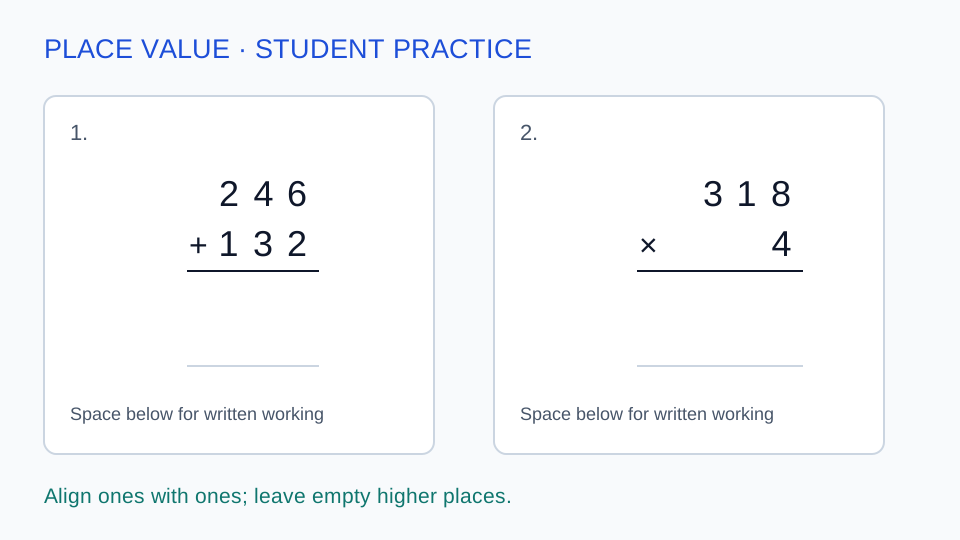
Keep a printable answer key for the same questions
Student and teacher views share questions, numbering and version. Editing recalculates results and checking equations. Addition, subtraction and multiplication keys show final results without supplying carrying marks or partial products. The division key additionally shows the quotient, remainder and successive products and differences. Keep a separate teacher copy to review the method without printing answers on the student handout.
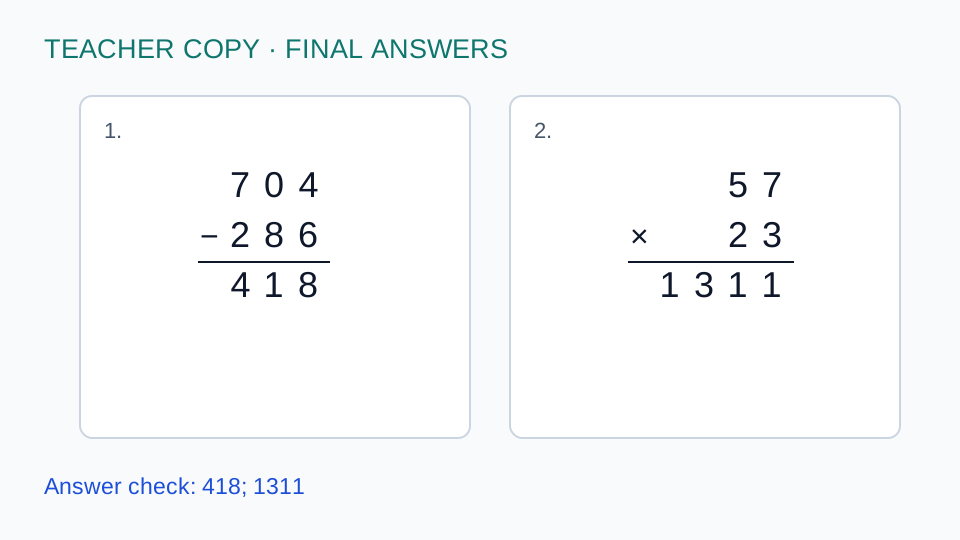
How to plan and print column calculation practice
Choose one learning goal, inspect the result and keep the corresponding answer key.
- 01
Choose the number lengths deliberately
Select one or more of addition, subtraction, multiplication and division. Each operand can have one through four digits. For division, the top-number setting controls the dividend and the bottom-number setting controls the divisor. One-digit numbers range from zero to nine, two-digit numbers from 10 to 99, three-digit numbers from 100 to 999 and four-digit numbers from 1000 to 9999. A divisor is never zero. Positive dividends are at least as large as the divisor; a zero dividend is permitted when you choose one digit.
Begin with the operation learners are already studying. If the goal is placing ones under ones, use two-digit addition without regrouping before introducing another difficulty. A mixed sheet combines separate operations across questions, rather than several operations inside one expression. For column subtraction worksheets, results always stay at zero or above. Selecting a shorter top number and a longer bottom number can therefore leave no possible subtraction question; choose compatible lengths instead of expecting the tool to reverse your settings. For four-digit long division, choose four dividend digits and one divisor digit to begin. Four-digit multiplication can produce an eight-digit product, which receives enough aligned cells rather than being truncated to the operand width.
- 02
Set carrying and borrowing as separate goals
The addition carrying setting offers unrestricted practice, no carrying or carrying required. No carrying means that no decimal column needs to regroup. Carrying required means that at least one column does, including the highest column; it does not mean every column must carry. For example, adding 50 and 50 requires carrying even though the ones calculation is straightforward. This lets you isolate the actual regrouping decision rather than relying only on the total number size.
Borrowing controls subtraction independently. With borrowing required, at least one place needs a regrouping step. Subtracting 1 from 100 is a borrowing problem because the exchange passes through a zero column. The generator can include such questions, but there is no separate filter for borrowing across zeros or exactly one borrow. Use the preview and edit individual questions when your lesson calls for a narrower pattern. These settings do not constrain multiplication carrying: multiplication remains unrestricted.
- 03
Use a short lesson example
Try the no-carry example for a sheet of 12 two-digit addition questions. First, ask learners to identify the ones and tens places in one calculation. Have them solve a small portion independently, then discuss any digit that was placed in the wrong column. For a later session, keep the same operand lengths and switch carrying to required. Changing just this setting makes the difference between the two sessions easier to explain.
For subtraction revision, choose three- or four-digit operands and borrowing required. For multiplication worksheets, begin with a multi-digit number multiplied by one digit, then increase the multiplier length. Students write partial products in the reserved space; the key shows the final product and a checking equation. For a long division worksheet, leave Allow remainders unchecked for exact division, then enable it for a mix that may include remainders. It does not require every question to have a nonzero remainder. Carrying and borrowing settings do not restrict multiplication or division. Decimal and fractional quotients are outside this tool.
Use 1208 divided by 4 to discuss the zero in the quotient: the result is 302, and dropping the tens-place zero would change its value. For remainder practice, 1547 divided by 6 gives 257 with remainder 5. Check by multiplying 6 by 257 and adding 5 to recover 1547, then confirm that the remainder is smaller than 6. Long division with remainders uses whole-number answers here. The teacher copy includes successive subtraction rows so you can find a place-value error; it does not promise a particular curriculum method or a guaranteed zero-in-the-quotient question on every generated sheet.
- 04
Review the count and edit responsibly
In One worksheet mode, request between one and 120 questions, with at least one for each selected operation. Each sheet avoids repeating the same ordered expression. Reversed addition or multiplication operands are considered different expressions, so both 34 plus 25 and 25 plus 34 may appear. If the rules leave fewer unique expressions than requested, the preview reports the actual smaller count. The tool never fills a shortage by quietly repeating questions.
Mixed practice draws from each selected operation as evenly as the available pools permit. A selected operation with no eligible expression produces a specific message instead of disappearing from the sheet. Review the student output before printing, then use Edit to change a top number, bottom number or operation. The replacement must satisfy the current digit lengths, nonnegative subtraction and regrouping rules, and it cannot duplicate another ordered expression. Its new answer and worksheet version are kept together. If you change settings after generating, the existing preview remains the current output until you generate again.
- 05
Prepare distinct A–D versions for the same lesson
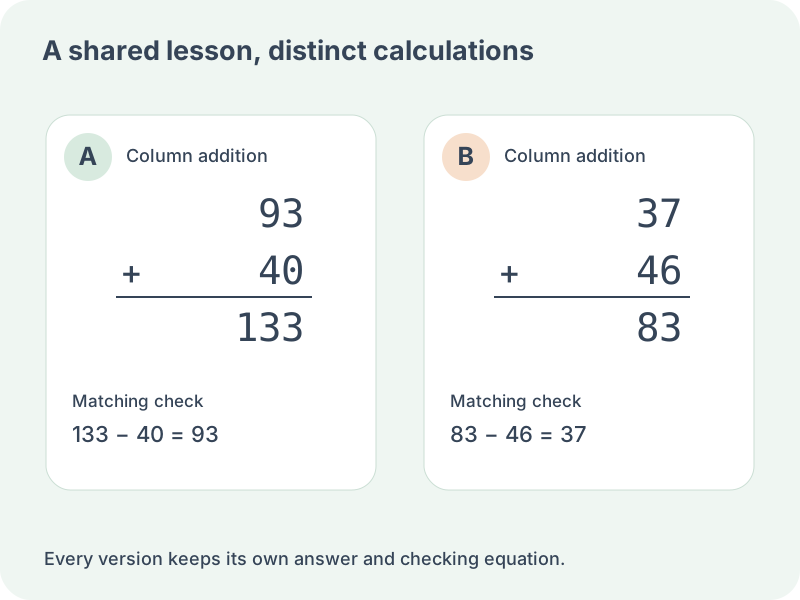
Choose A–D versions above the generator and select two, three or four papers. The question count applies to each paper, not the whole batch. The generator keeps the same operand lengths, carrying and borrowing rules, and remainder policy for every version. It also fixes the number of questions from each selected operation. A fourteen-question set using all four operations has four additions, four subtractions, three multiplications and three divisions in every version.
Distinct means different mathematical facts throughout the entire set. Reversing addition or multiplication does not create a new fact: 34 + 25 and 25 + 34 cannot appear anywhere together in the batch. Subtraction and division preserve operand order. The single-sheet mode still uses its original ordered-expression rule, so choose the batch mode when you need this stronger guarantee. The same rules and counts make the structure comparable, but they do not certify identical difficulty or replace a teacher’s review.
Some digit choices have few eligible facts. One-digit no-carry addition, for example, cannot supply unlimited versions of a long worksheet. The batch checks the available count for each operation and reports the needed and available totals before creating anything incomplete. Reduce the per-version count, choose fewer versions, change digit lengths or relax the relevant restriction. The previous preview stays available after an invalid request. Allow remainders permits exact divisions as well as nonzero remainders; it does not enforce a remainder in every question.
Every version and its answer copy starts on a new page. Within each section, automatic layout packs complete rows while retaining the calculation and checking areas. Two, three and four columns are supported, with the same choice throughout the set. Changing columns keeps all facts and edits. In the editor, the selected question’s operation stays fixed to preserve the common operation quota. Its numbers must follow the rules and must not create a repeated fact elsewhere in A, B, C or D.
Save or download the complete version set to preserve every actual question and corresponding answer. A batch file belongs in the A–D mode; an ordinary vertical worksheet belongs in One worksheet. Imported batches are checked for answers, version labels, rules, counts and duplicate facts before restoration. Each mode keeps its own draft and local save entry. Switching modes changes the active print source, so inspect the chosen mode and output before printing or saving a PDF.
- 06
Print the correct version and keep its data
Choose two, three or four calculations per row in the preview controls. The setting immediately rearranges both student and answer sheets without changing the questions, edits or version. Every student question includes space to calculate and check. Page capacity depends on the longest method in the current set: four-digit multiplication and division need more rows than short addition. Use the displayed page count rather than assuming a fixed question count on every page. Select A4 or US Letter and student output, answer output or both; a single worksheet places its student pages before its answer pages. In an A–D set, A and its answers come first, followed by B and its answers, then any later versions.
Use portrait orientation and match the paper size in the browser print dialog. Choose Save as PDF for a digital copy, switch off browser headers and footers, and inspect every page before saving. If your printer trims an edge, check its printable-area settings rather than reducing the page until the calculation becomes hard to read. Local saving stays in this browser. Downloading the worksheet data preserves exact questions and edits for later import; a seed reproduces the original generated selection only when the settings also match. Neither local saving nor file download creates cloud synchronization.
Checking equations use inverse relationships: subtract an addend from a sum, add the subtrahend to a difference, or divide a product by a nonzero factor. A zero-factor multiplication uses the multiplication-by-zero relationship instead of an invalid division by zero. Division checks use divisor times quotient plus remainder, which must equal the dividend. The remainder must also be nonnegative and less than the divisor. The student checking area stays blank for learners to write their own calculation. Column choice is retained in saved data, while older files restore with two columns and exact-division settings. Scroll horizontally when a narrow preview cannot display all chosen columns.
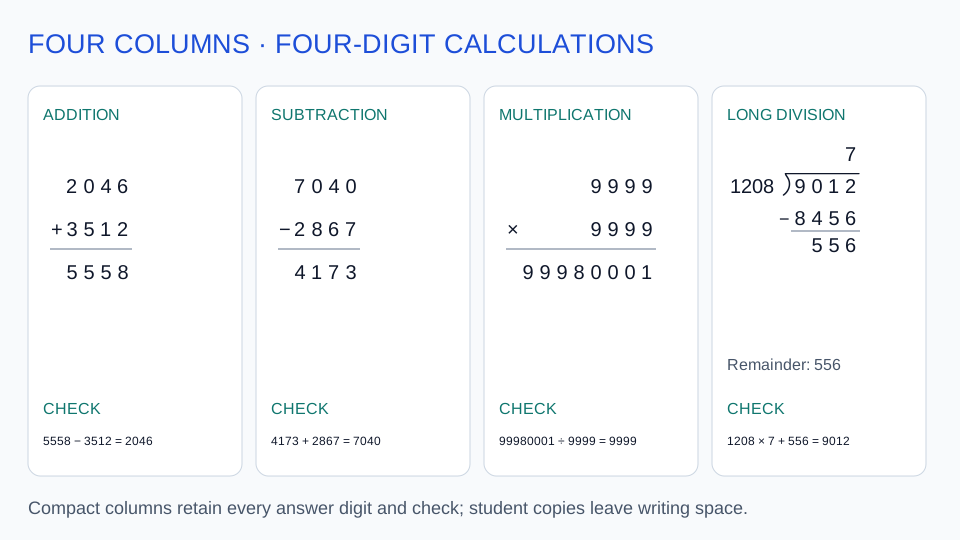
Four columns give you a compact A4 or Letter handout, including room for an eight-digit multiplication result. Choose two or three columns when learners need more width for handwritten steps and checking. Changing the column count also updates the page count, so review the final student and teacher copies before printing.
Column calculation questions
Select addition and choose None for addition carrying. Set both operand lengths to the sizes you need, then generate. Every eligible expression is checked by decimal place, so an addition that carries only in its highest column is excluded too. Choose Required for a sheet where each question needs at least one carry.
Yes. Set the lengths independently from one to four digits. Stacked operations align from the ones column; division places the quotient over the corresponding dividend digits. Subtraction requires a top number at least as large as the bottom. Positive division dividends must be at least as large as the nonzero divisor. Incompatible lengths produce a specific message instead of silently swapping operands.
For addition, subtraction and multiplication, the key supplies final results and a checking equation, without carrying marks, borrowing annotations or multiplication partial products. For division it also prints the products and differences used in the written method. Students have blank working and checking space. Review their method separately when your lesson assesses the procedure as well as the result.
Such questions can appear when subtraction borrowing is unrestricted or required. There is no dedicated across-zero setting, and Required only guarantees at least one borrowing step. Inspect the preview and edit questions to fit your lesson. Explain how exchanging place values changes the working digits before asking learners to complete a similar calculation independently.
Digit lengths and regrouping rules limit the available ordered expressions. Very restrictive one-digit practice may have fewer unique questions than your requested count. A one-digit top number cannot produce a nonnegative answer when the bottom has two digits. Increase the suitable number lengths, reduce the count or relax the rule indicated by the message.
Choose Student worksheet in the output selector, then open Print / Save PDF. Answers are available through the separate Answer key option, using the same current data. To save both copies together, choose Student + answer key and review the page order. Changing output does not generate another set of questions.
Yes. Select Division, set dividend and divisor lengths from one through four digits, and choose whether remainders are allowed. Unchecked means exact divisions only; checked permits both exact and remainder questions. Zero divisors and positive dividends smaller than their divisor are excluded. The key gives the quotient, remainder, written subtraction rows and a checking equation. It does not extend a remainder into a decimal or fractional quotient.
A new version generates a fresh selection under the currently entered settings, so individual edits are replaced. Download data or save the current sheet first when those edits matter. Changing only the output, paper size or title keeps the questions. Importing a saved data file validates the expressions and recalculates answers rather than trusting stored answer numbers. Changing only the two-, three- or four-column layout also preserves your questions and manual edits.
Multiply the divisor by the quotient and add the remainder. The result should equal the dividend, and the remainder must be smaller than the divisor. For example, 1547 divided by 6 gives 257 remainder 5, checked by 6 × 257 + 5 = 1547. The teacher key includes this equation; the student copy leaves space to complete a check independently.
It remains in its place-value column. For example, 1208 divided by 4 is 302, so the tens-place zero cannot be omitted. The division key includes the relevant subtraction row. There is no dedicated filter requiring zeros in every quotient, but you can edit a question to an expression that fits the current operand lengths and remainder setting.
Yes. Choose 4 per row under Calculations per row in the preview. Both student and answer sheets use four columns immediately, preserving the questions, manual edits and version. Every student question keeps its working and checking space. This compact layout fits A4 or Letter; use two or three columns for wider handwriting space. Pagination follows the longest written method in the set, and saved or downloaded data keeps your column preference.
No. The complete set contains no repeated arithmetic facts. Swapping the operands of addition or multiplication still counts as the same fact. Each version has the same rules and operation counts, although absolute difficulty has not been equated by assessment research.
A batch needs enough different facts for every version at once. It also treats reversed addition and multiplication as duplicates and requires the same operation quotas. The error names the operation and shows the needed and available counts; reduce the request or broaden its settings.
Yes. Use that question’s Edit button. The operation stays fixed, while valid operand changes update only that question and its answer. The replacement cannot repeat a fact in any version. Save the full batch after editing to preserve the result.
Combined output prints A student pages, A answers, B student pages, B answers, and so on. Each section starts on a fresh page. Every page names its version, and question numbering restarts at one within each version.
Prepare the next written calculation session
Start with a clear place-value or regrouping goal.
Check the student copy and keep the answer key for the same version.
Browser printing · Local worksheet data