A LETTER GRID FOR YOUR LESSON
Word search maker your vocabulary, ready to find
Use this word search maker to hide your own English words in a printable letter grid. Choose its width, height and permitted directions, decide whether words can run backwards, and review the actual placed word list. The answer copy uses the same grid and verified coordinates.
Custom words · Direction controls · A4 / Letter

Set up your word search
Choose your words, grid size and permitted directions.
My worksheets
Drafts save automatically in this browser, including unfinished input. Keep up to 20 named worksheets across all tools. Large images may exceed browser storage; download data as a backup.
Worksheet preview
Fit complete rows onto each page using the selected columns and writing space. Extra page space stays at the bottom; answer gaps are not stretched.
Enter a word list and generate to review the student worksheet and matching answers.
Match A4 or Letter in the browser print dialog. Choose Save as PDF and review every student and answer page; switch off browser headers and footers if needed.
Set the search, then check what actually fits
A custom word search should match the words and directions you selected.
Directions are individual choices
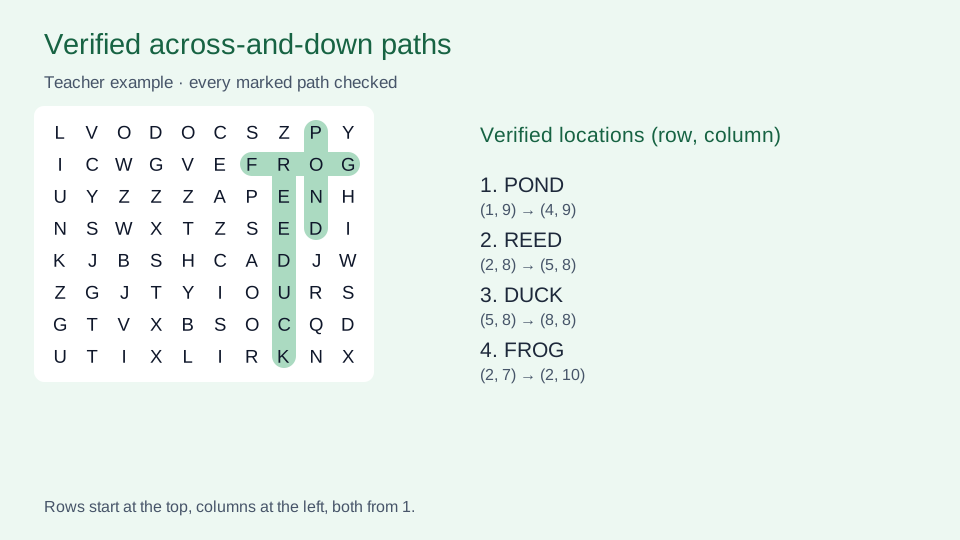
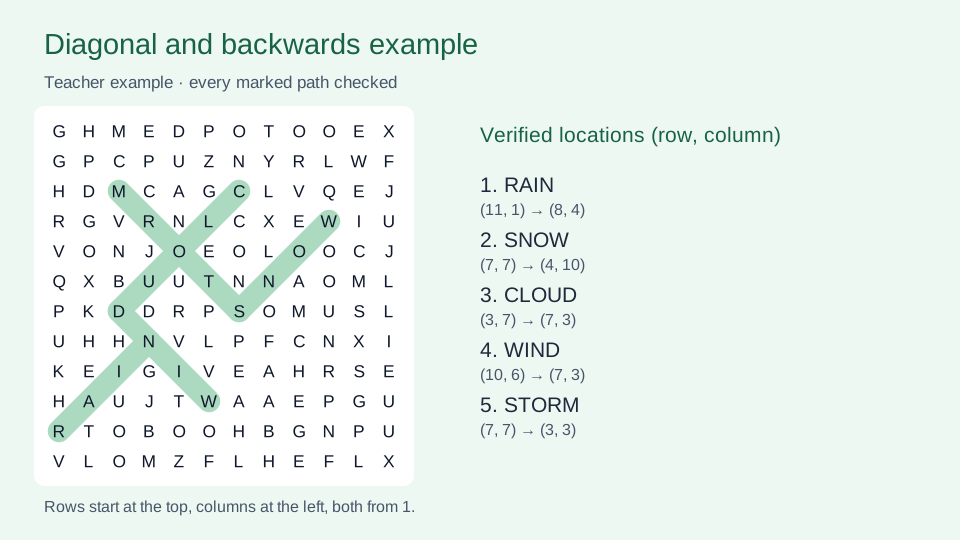
Select horizontal, vertical or diagonal placement, with at least one selected. Horizontal goes left to right, vertical goes down, and diagonals can go down either way. Allow backwards adds the opposite of each chosen direction. Turning off diagonals and backwards gives a clear across-and-down activity; it does not label that activity as appropriate for a particular grade.
The word list reflects the finished grid
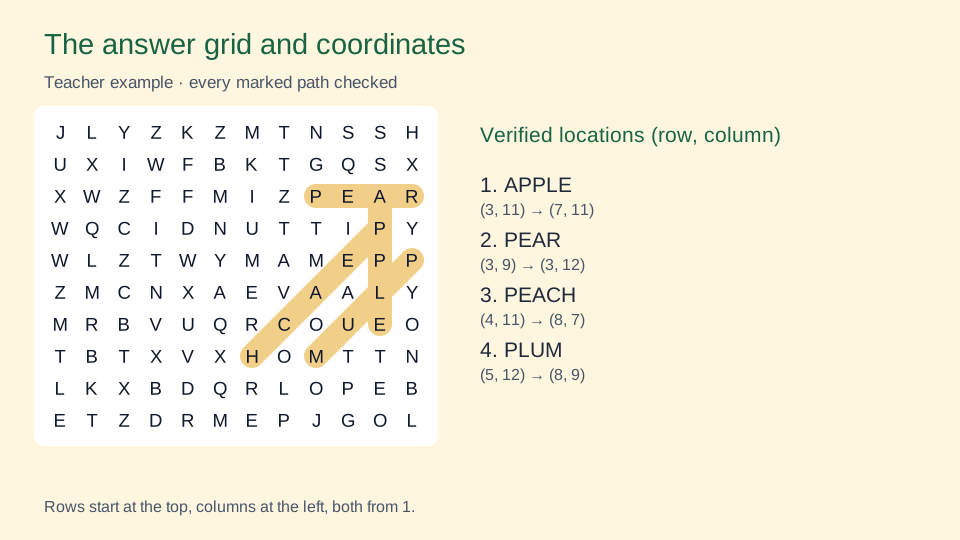
A long or crowded vocabulary set may not fit. The page names selected words that were not placed, and the student word bank contains only words actually present. Matching letters can share a cell. The teacher copy highlights one verified location per word and includes coordinates; a warning identifies additional valid occurrences that may also be accepted.
Build a printable word search from a real lesson list
Start with the vocabulary, then decide how learners will search.
- 01
Enter words, not an unfinished puzzle
Type one English word per line. The input accepts two to 24 letters A–Z and up to 40 nonempty lines. Words are normalized to uppercase for the grid and word bank, and repeated spellings are used once. Spaces inside an entry, punctuation, accents, Chinese characters and definition text are not part of this word format. Invalid lines are reported by their original line numbers.
A useful first sample is a short nature list: meadow, fern, petal, seed, grove, branch, moss and acorn. Use vocabulary already introduced in the lesson and check each spelling before generation. This is a puzzle layout tool, not a dictionary, a translation service or an automatic vocabulary planner. To reuse a list from the letter-scramble tool, paste the word portion without its meaning clues. The interface language changes the controls and instructions, not the alphabet used in the grid.
- 02
Choose the grid and the permitted paths
Width and height are independent integers from five to 20. A 10 by 12 grid has ten columns and twelve rows; the size affects available space and printed letter size. Larger grids can offer more placement options but also make scanning more demanding. A word has to fit in a straight line along at least one enabled direction; allowing diagonals does not let it bend around corners.
Begin with horizontal and vertical placement and leave backwards off. For a later activity, add diagonals while keeping the same list, then inspect the effect on the student copy. Backwards reverses the selected directions, including diagonals when enabled. It does not make every word backwards or guarantee that every chosen direction is used. At least one direction must remain enabled. Changing these controls marks the existing preview as an older result until you generate another grid.
- 03
Check what the word search generator could place
Request one to 40 target words. Input order takes the first requested entries, alphabetical order sorts before selection, and random selection can choose another subset from a longer list. After selection, the layout tries the longer words first and allows matching-letter overlaps. It checks several arrangements, but it does not guarantee a globally optimal packing or that any arbitrary list will fit.
Read the unplaced-word message before printing. If a word is longer than the relevant grid dimensions, enlarge the appropriate dimension or enable a direction that fits. If the grid is crowded, reduce the requested set or make the grid larger. Only placed targets are printed in the word bank, so learners are not told to find an absent word. A different seed may improve a crowded layout but cannot make a word fit an impossible size. When none can be placed, a specific message asks you to adjust the list or settings.
- 04
Check spelling, occurrences and edits together
For a paired classroom task, prepare eight familiar words in a small across-and-down grid. Ask learners to name the direction they will check before circling a word. After finding it, they can use it in a spoken sentence or explain its meaning separately. Finding a visible spelling is a different task from recalling the word without a list, and this tool does not assess comprehension automatically.
Random filler or overlapping targets can produce another valid occurrence of a listed word. The page counts permitted occurrences and warns when a target has more than one. The answer diagram records one verified location, not a claim that this is the only correct path. Accept another occurrence if its spelling and direction follow the task. Scan the whole puzzle before distribution; unused filler is not a checked vocabulary list. Editing one target rebuilds the entire grid, because preserving every other position can conflict with the replacement. Review the new locations and count after saving the edit.
- 05
Print the puzzle and keep its coordinate key
Show word list includes the placed targets beneath the student grid. Turn it off and generate again if you want learners to work from a separately supplied topic list; this does not add meaning clues automatically. Choose student output, answers or both. Student output has one puzzle page. The answer copy has a highlighted grid page, followed by coordinate pages of up to 20 target words each.
Coordinates count rows from the top and columns from the left, starting at one. A start such as row three, column two identifies the first letter, and the end marks the final letter even when the path runs backwards. Choose A4 or US Letter, use portrait orientation, match the paper size in the print dialog and inspect all pages before printing or saving a PDF. At large grid sizes the print layout keeps the complete grid on the page instead of cropping its last column. In a narrow preview, scroll inside the grid if necessary.
Save in this browser for the same device, or download the current worksheet data to preserve the grid, targets, coordinates and edits. Import it into this maker later, including through the other interface language. A seed and matching settings reproduce an unedited puzzle; downloaded data preserves manual changes. The tool does not publish a share link, save to a cloud classroom or provide a timed online solving game.
Questions about custom word searches
Grid size, missing words, direction rules and answer pages.
Enter one A–Z word per line, select the grid dimensions and directions, and generate. Check the placed count and any unplaced entries. The optional student word list contains only placed targets; the key uses that same grid.
Yes. Select horizontal and vertical, leave diagonal off and leave backwards off. The recorded paths then run left to right or downward. Regenerate after changing the settings so they apply to the current puzzle.
It may be longer than every permitted straight path, or the selected words may crowd the grid. Enlarge a relevant dimension, reduce the set, or change permitted directions. A new seed can try another arrangement but cannot overcome an impossible word length.
Turn off Show word list and generate again. The student print then contains the grid without the target list. Teacher editing controls stay outside the printed puzzle, and the answer copy still contains targets and coordinates.
Additional occurrences can come from overlaps or filler. A warning gives the number of permitted paths found. The answer diagram highlights one verified example; another occurrence is reasonable if it uses the exact word and follows the printed direction rules.
It can. A replacement causes a full layout rebuild and a new version marker. Other targets remain in the selected set, but their positions can change and the actual placed count may change. An edit that cannot place the replacement is rejected, leaving the previous puzzle intact.
This maker currently uses an uppercase A–Z grid. Enter individual English-letter words without spaces, punctuation or accents. Chinese is an interface option, not a Chinese-character puzzle alphabet. Unsupported lines are reported rather than silently converted.
Choose answer output to print the highlighted grid and its coordinate pages. Rows start at one at the top; columns start at one at the left. Start and end refer to the first and last letters of the word, which may run backwards when that direction is allowed.
Make a word-finding task for your next lesson
Start with a short list and clear direction rules.
Check the placed words and keep the matching coordinate key.
Custom word list · Browser printing and PDF