LOOK CLOSELY · NAME THE PARTS
Labeling worksheet maker Turn a familiar picture into a closer look
Use your own image or an original example to create a picture labeling worksheet. Place numbered points, enter the names you want learners to recall and choose whether to include a word bank. This labeling worksheet maker gives each number a clear answer line and keeps the teacher reference connected to the same picture and points.
Your picture · Clear numbered points · Matching answers
Labeling worksheet maker
Choose a picture, place the points and give each numbered spot a name.
My worksheets
Drafts save automatically in this browser, including unfinished input. Keep up to 20 named worksheets across all tools. Large images may exceed browser storage; download data as a backup.
Worksheet preview
Fit complete rows onto each page using the selected columns and writing space. Extra page space stays at the bottom; answer gaps are not stretched.
Request 1–6 questions across and 1–12 rows. Actual capacity protects readable markers, tick labels and writing space.
Generate a set to review the numbered picture, writing lines and matching labels.
Match A4 or Letter in the browser print dialog. Choose Save as PDF and review every student and answer page; switch off browser headers and footers if needed.
Give the picture a clear teaching purpose
Choose what learners should notice, then make each question easy to follow.
A diagram labeling worksheet built around your lesson
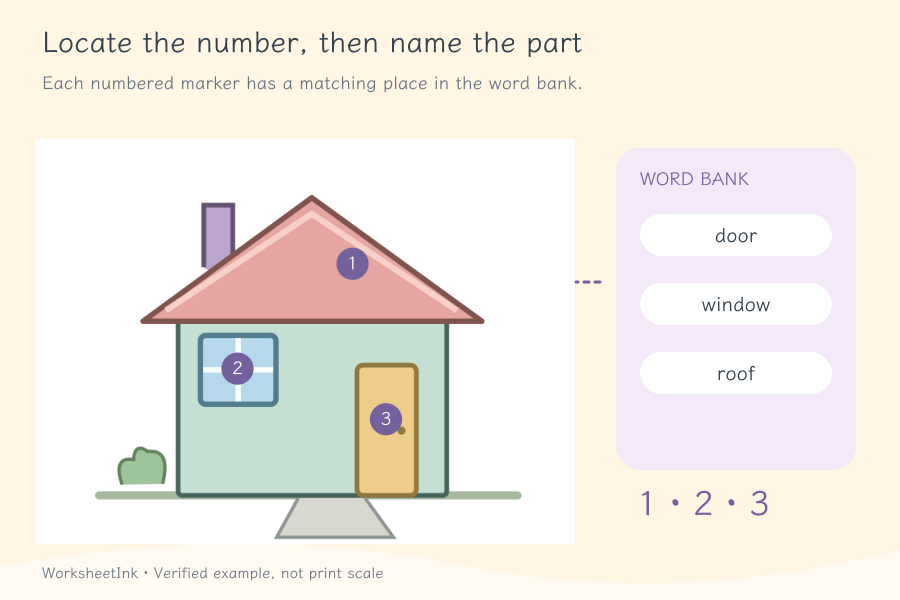
Start with a plant, an object, a room or another image that shows the features you want to discuss. You choose the image, the point locations and the answers. The tool places numbered markers at those locations and provides matching lines below. It does not identify objects or decide which scientific terms are correct. Preview the student page as a learner would: is it clear what each number refers to?
Offer words when recognition is the goal
A labeling worksheet with word bank gives learners the selected names in a shuffled list. They still need to connect each word with the correct location. Turn the bank off when you want them to recall the vocabulary independently. Teacher pages pair each item’s numbers with the answers you supplied. You can discuss alternative acceptable terms yourself; the tool does not grade student responses.
From one image to a usable classroom activity
A few well-chosen points can make a more useful task than a crowded page.
- 01
Choose a clear image without the answers already visible
Upload a static PNG, JPEG or WebP, or start with an original house or plant example. Each generated item uses the same chosen image; the selected point group can vary. Use a source that is appropriate for your lesson and available for your intended use. Existing words on the image remain visible, so choose an unlabelled version if those words would reveal answers.
Uploads can be up to 8 MB, with a maximum side of 6,000 pixels and no more than 24 million pixels overall. Very narrow or tall images outside a 1:4 to 4:1 width-to-height ratio are rejected. Accepted images are reduced to at most 900 pixels on the longest side; inspect small details after this resizing.
- 02
Place the points on the features you mean
Add one to twenty points and enter a name of up to forty characters for each. Click the image to place or move the selected point, then refine its position with the coordinate controls. Put the marker on an identifiable feature rather than between two similar regions. Names should be short enough to write comfortably and precise enough for the lesson. A label such as “leaf” and a label such as “leaf blade” ask for different levels of identification.
Positions stay attached to the image as it scales. That preserves the placement, but it does not prove that you chose the right part. Review the number against the picture yourself. Exact duplicate positions are rejected, and points that cannot remain clearly separated in print need adjustment or a different selection.
- 03
Decide how many points belong in each question
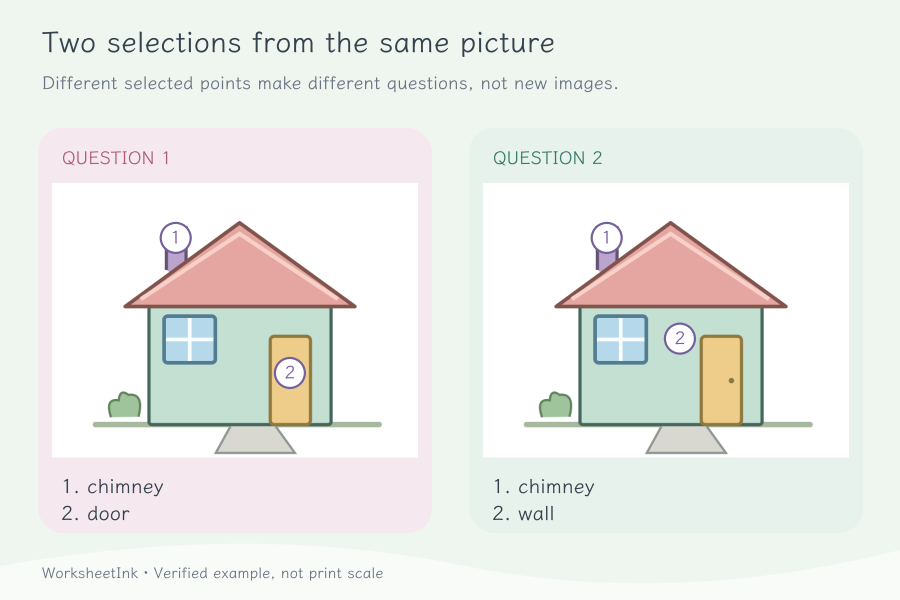
Choose the number of points to show in each item, then request one to 24 items. The maker selects different groups from your entered points. If every item uses all the points, there is only one distinct group. The tool reports a smaller actual count when the possible groups cannot fill the request. It does not count a different ordering of the same group as a new task.
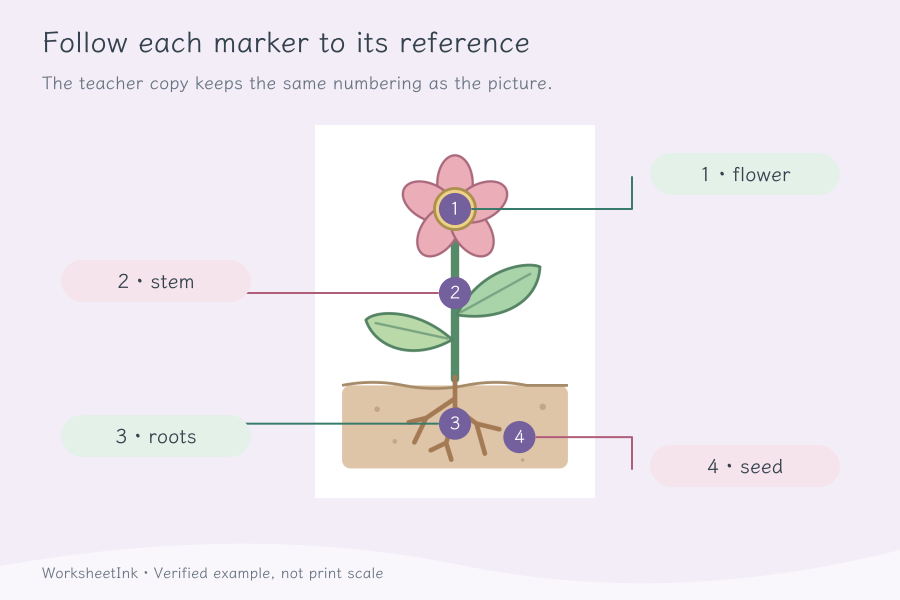
Numbers start again within each item, so a feature can have a different number in another question. Match answers using both the item number and the marker number, rather than assuming one number names the same feature everywhere.
- 04
Choose the support and check the answer spaces
Keep the word bank on for a recognition-and-matching activity, or turn it off for recall. The bank contains names from the selected points in that question, with their order shuffled. Each numbered answer has a writing line below the image. Read the words for spelling and consistency before generating. Two points may intentionally share a term, but consider whether a more specific description would make your particular task clearer.
The tool checks input and layout limits, not subject knowledge. It does not verify that a label is scientifically correct, detect every ambiguous feature or erase text from an uploaded picture. For important terminology, compare the source and answer list with the materials you teach from, then decide which alternative answers you will accept.
- 05
Fit the pictures without losing the details
Request one to six items across, one to twelve problem rows and zero, four or eight millimetres of extra space. The actual layout depends on the image proportions, marker spacing, number of answer lines and word lengths. Images keep their proportions and are not cropped. The planner leaves room around the image so markers at the edge are not cut off, and it can reduce the columns to keep points distinguishable.
Six columns are an available request, not a guarantee for every image. Select the matching A4 or Letter size in the print dialog and check readability before printing a class set.
- 06
Keep the picture, positions and reference together
The item editor changes which group of existing points appears in one question by using a replacement seed. It does not edit the source image or rename that item’s points. To change the image, a point position or a label, update the source settings and generate again. A replacement cannot duplicate another group already in the worksheet. Review the new reference whenever the content changes.
Save in the browser for a quick return, or download the worksheet data to keep the image, source points and selected questions together. Import validates the data before restoring it. Browser storage may be cleared or run out of space, so retain a downloaded copy for a reusable lesson. Changing only density, extra space or word-bank visibility keeps the content identifier.
Before you print the pictures
Practical answers about source images, numbered points and reusable copies.
Yes. Choose a supported static PNG, JPEG or WebP within the upload limits, or use the house or plant example. You supply the point names and locations; there is no automatic object recognition. The image is resized for the worksheet, so check that the features remain visible and that existing text does not supply the answers.
Place or move a selected point by clicking the image, then use the coordinate controls for finer adjustment. Review the marker against the intended feature and the printed size. Points scale with the image, but the tool cannot judge their teaching meaning. Closely packed features may need fewer selected points or a clearer source picture.
Yes. The optional bank shows the selected point names in a shuffled order for each question. Leave it visible for matching practice or hide it for independent recall. Turning it on does not create new vocabulary or check spelling; it uses the names you entered. Review the words before sharing the worksheet.
No. The uploaded picture remains visible, including any words already drawn into it. Numbered markers and answer lines do not remove those words. Prepare an unlabelled image before uploading when printed names would give away the task. The maker does not perform text recognition, automatic erasing or image retouching.
Each question uses a different group of your source points. For example, selecting all four points from a four-point image produces just one group; selecting fewer allows more combinations. These are variations of the same picture, not newly generated images. The actual count reflects the available distinct groups instead of adding duplicates.
You can request one to six across, but the actual columns depend on image width, point separation and the answer area. Detailed pictures or crowded markers may need fewer columns. Student and teacher pages have separate capacity calculations. Check the displayed layout and the final print preview rather than assuming every image fits the same grid.
The item editor replaces its point group within the current source settings. The matching answer list updates with it, and a duplicate group is rejected. To change the source names or locations, edit those settings and generate again. Use the new content revision when pairing student pages with their reference.
Save the worksheet in the current browser or download its data file. The saved set includes the working image, source point labels and positions, selected questions and layout. Import checks the restored content. A downloaded copy is useful if browser storage is cleared or too full; a printed PDF alone is not the editable worksheet data.
Make the next picture worth a closer look
Choose a clear image, mark the useful details and prepare a matching reference.
Browser printing & PDF · No registration