CUSTOM CATEGORY PRACTICE
Sorting worksheet maker A clear rule makes a useful group
Use this sorting worksheet maker to turn your own items and categories into printable practice. Supply the accepted relationships, add a classification rule and preserve more than one valid category when needed. Choose write-in answers or cut-out category headers and item cards, then check the corresponding teacher reference.
Custom text · Adjustable density · A4 / Letter

Sorting worksheet maker
Enter the content, review the result and adjust the printable layout.
My worksheets
Drafts save automatically in this browser, including unfinished input. Keep up to 20 named worksheets across all tools. Large images may exceed browser storage; download data as a backup.
Worksheet preview
Fit complete rows onto each page using the selected columns and writing space. Extra page space stays at the bottom; answer gaps are not stretched.
Request 1–6 write-in items across and 1–12 rows. Longer items, categories or reference reasons can lower density. Switch to cut-out cards to keep the selected columns and wrap text inside each card.
Generate to review the content and matching reference.
Match A4 or Letter in the browser print dialog. Choose Save as PDF and review every student and answer page; switch off browser headers and footers if needed.
Categories are part of the question, not an automatic guess
Start with a clear source and a clear teaching choice.
State which property learners should use
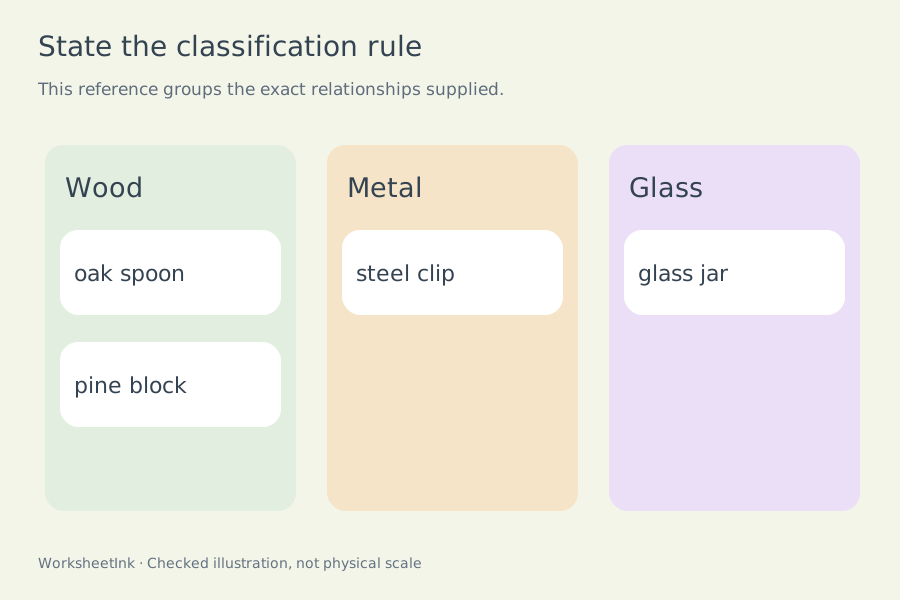
The same object can be grouped by material, purpose, shape or another property. A useful categorization worksheet tells learners which rule applies before they start. Enter that rule in the directions and provide the accepted categories with each item. The maker arranges your relationships; it does not infer word classes, evaluate a scientific claim or decide that a supplied category is pedagogically appropriate. Use familiar examples and check the whole set for unintended clues. A shuffled selection can mix entries that were originally grouped together, but it does not create balanced groups or a measured difficulty level.
Preserve more than one reasonable destination
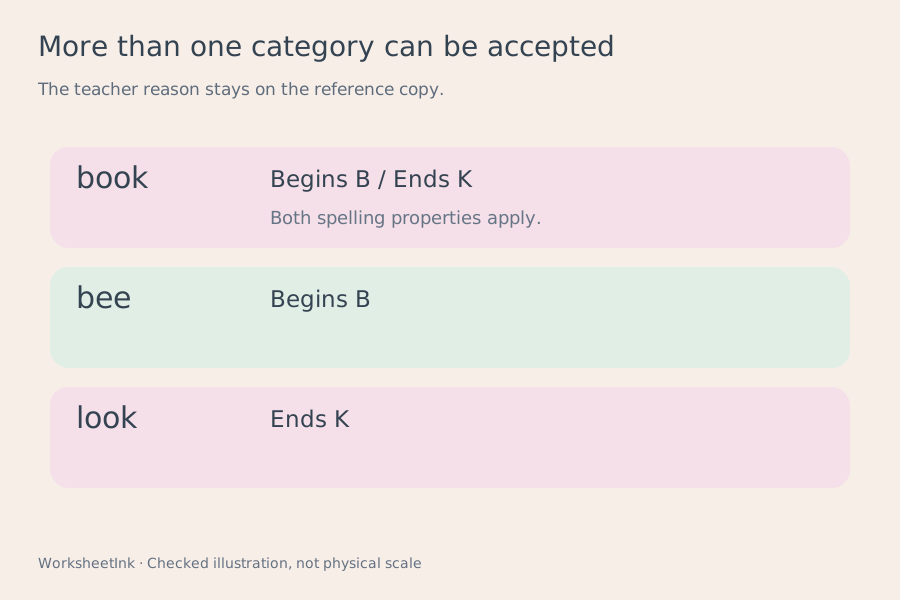
An item can have several accepted categories, separated by a tilde in its input line. The teacher reference lists them all and can include a short reason. The student chooses one accepted destination and may explain it; the card deck prints one copy of each item, not a duplicate for every possible group. This is useful when categories overlap under an explicitly stated rule. It is not a Venn-diagram generator or a promise that every interpretation is correct. If two input lines give the same item conflicting information, both are excluded until you rewrite that relationship clearly on one line.
Turn your current lesson into a checked handout
Set the task first, then make the paper fit.
- 01
Enter items and their accepted categories
Put one item on each line using item | category | optional reason. For an overlapping relationship, write item | first category ~ second category | reason. An item may contain up to eighty characters, each category up to twenty-four, and the teacher-only reason up to 160. Up to eight categories can be accepted for an individual item.
The complete valid input set needs two to eight distinct category names and allows up to 200 entries. Category and item names retain their case. Use one consistent spelling for the same group. Exact repeated entries are reported and removed. Conflicting repeated item names are reported and omitted together, rather than silently keeping the first answer. Empty fields and reserved separators should be corrected before generating a printable set.
- 02
Write a classification criterion that resolves ambiguity
A rule such as choose an applicable number property makes a different task from choose the main material. Decide whether an item should have one intended destination or several accepted choices, and enter those choices explicitly. A short reason can record the distinction for later marking without appearing on the student sheet.
For vocabulary practice, include enough context when a word changes function or meaning. For science or everyday objects, decide how the class should handle mixtures and borderline cases. The software validates input structure and preserves your supplied mapping; it does not verify the underlying subject knowledge. Read the reference yourself, and revise unclear examples instead of relying on a single answer label to settle a discussion.
- 03
Choose writing or a physical card sort
Write-in mode shows numbered items with a visible answer line. The complete category list and your criterion appear on every worksheet page so learners can work without a missing option sheet. Extra space can support a short explanation, although the website does not collect or score what students write.
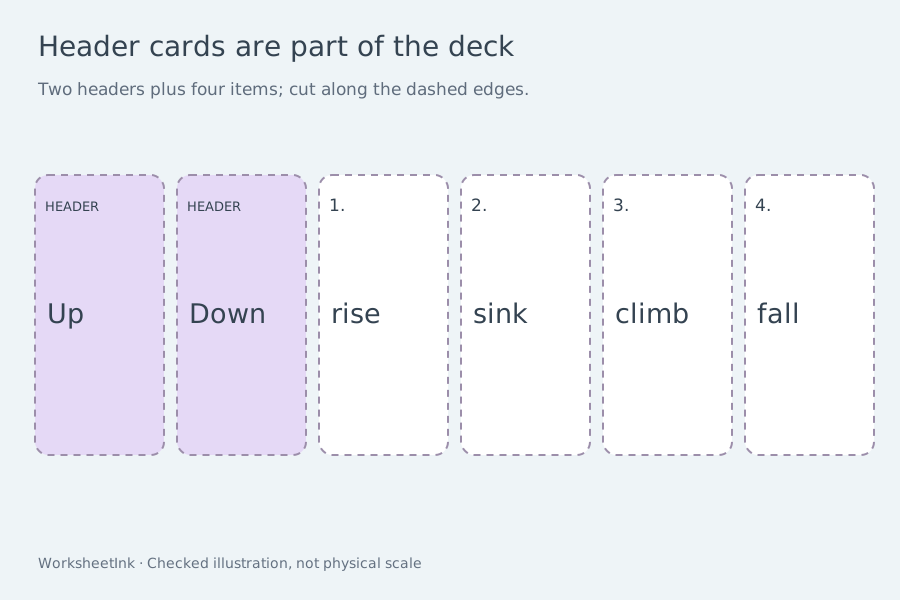
Cut-out mode produces category header cards followed by numbered item cards with dashed cutting boundaries. Arrange the headers on a desk or paste them onto your own paper, then place each item under an accepted category. This format supplies a deck rather than pre-sized destination mats. The header cards are included once in the student deck and count toward its page total. Text cards are supported; there is no image upload, drag-and-drop game or automatic online sorting activity.
- 04
Select a set and review what is represented
Request one to 200 items. Preserve input order when that order is intentional, or choose a seeded shuffled selection to mix the pool. A smaller valid pool produces a shortage notice and an honest actual count. Category names come from the complete valid pool, so the maker can warn when a selected subset contains no examples for a listed category.
A small request does not guarantee every category will be represented. Increase the count, revise the pool or deliberately use an empty category as a discussion point. Inspect the student copy for accidental category clues in the item wording. The item editor changes one relationship and creates a matching new revision. It can revise the item, accepted categories and teacher reason; the criterion remains a whole-sheet content setting.
- 05
Adjust columns, rows and useful writing space
Cut-out student sheets fit one, two, three, four, five or six cards across. Each category header or item takes one position. Text wraps inside the card, while teacher reasons remain on their own reference pages. Choose one to twelve rows per page and zero, eight or sixteen millimetres of extra space. Longer cards need taller rows; cards beyond the page capacity continue on the next page.
The capacity notices show the student card grid and the independently calculated reference grid, with header cards included in student page counts. Choose Compact to save paper, or fewer columns to give longer phrases wider cards. Write-in and reference output may still reduce columns for long content. The A4 and Letter plan reserves space for repeated directions and page headers and footers. Changing format or density preserves selected relationships, manual edits, question numbers and the content version. Text too tall for a page must be shortened rather than clipped.
- 06
Keep a reference that records your decisions
The teacher copy prints each item, every supplied accepted category and any explanatory reason. It does not reproduce the empty writing line or expose a supposedly unique answer when you supplied several. Match the printed item numbers and version with the student sheet or cut-out deck before distributing materials.
Use A4 or Letter consistently in the browser print dialog, inspect page breaks and save a PDF if needed. Local browser saving stays on this device. Downloaded JSON preserves the pool, exact selected items, category relationships, reasons, edits and layout for validated import. Keep that file after correcting a relationship. A seed repeats an unedited selection; it does not replace saving manual changes. Learner submissions, cloud sharing and automatic marking are outside this printable workflow.
Questions before preparing a class set
Practical answers about content, references and printing.
Yes. Enter one item and its accepted category relationship per line, then state the rule learners should follow. The complete input needs two to eight distinct categories. You supply the subject knowledge; the maker checks the structure, arranges the chosen items and prepares a reference from those relationships.
List each accepted category on the same line, separated by a tilde. The reference retains all of them, with an optional reason. The student can choose an accepted destination and explain the choice. One physical item card is printed; this is not a diagram showing all overlapping sets.
Select cut-out format. Print the category headers and numbered item cards, cut along the dashed boundaries, and arrange or paste them on your own surface. The deck includes text only and supplies no fixed-size destination mat. Keep the teacher reference separate so category relationships are not printed on the student item cards.
Yes. Choose write-in format for a numbered list with visible answer lines. The criterion and all category names repeat on each page. The extra-space control leaves more room for an explanation. The teacher copy lists accepted categories and reasons instead of requiring any online submission.
Identical repeated entries are removed. If two lines use the same item name with different relationships or reasons, they are treated as a conflict and omitted together. Combine the intended accepted categories on one clear line and provide one explanation. This prevents a silently chosen first answer from changing your classification rule.
No. It makes a reproducible shuffled selection from valid entries. A short subset may omit a category; the tool reports that situation while retaining the pool’s category list. Increase the count or revise the pool when every group needs examples. It does not invent items to fill a group.
Yes. Select cut-out format, then choose one through six under Cards per row. Preview and print use the selected columns. Longer text wraps within each card, and teacher reasons use a separate layout. Adjust rows and extra space to control page capacity; remaining cards continue on another page, with category headers counted too. Write-in and reference output can still reduce density for long content, so check their capacity and page-count notices.
Yes. Format and density rearrange the current relationships without changing their version. Download the current JSON after editing to retain the exact pool, selected items and reasons. Import validates the saved structure and references. Browser saving is local to one device, and physical printing should be tested on your own setup.
Give the next sort a clear rule
Review the content, then give learners usable room to respond.
Browser print / Save PDF · No registration