Chore Chart Printable for shared responsibilities
Create a chore chart printable with clear jobs, named owners and dated completion boxes. Use a personal week, shared family assignments or rotating classroom responsibilities, then keep an editable master for the next cycle.
Personal · Shared · Rotation · A4 / Letter
Chore Chart Printable
Create a chore chart printable with clear jobs, named owners and dated completion boxes. Use a personal week, shared family assignments or rotating classroom responsibilities, then keep an editable master for the next cycle.
My worksheets
Drafts save automatically in this browser, including unfinished input. Keep up to 20 named worksheets across all tools. Large images may exceed browser storage; download data as a backup.
Worksheet preview
Chore Chart Printable
Fit complete rows onto each page using the selected columns and writing space. Extra page space stays at the bottom; answer gaps are not stretched.
Generate or load the example to see the preview.
Print or save as PDF through your browser. Match the paper size, use Actual Size / 100% and disable browser headers and footers.
Keep jobs, people and dates together
A readable plan for the responsibilities you have agreed.
See each owner beside the scheduled date
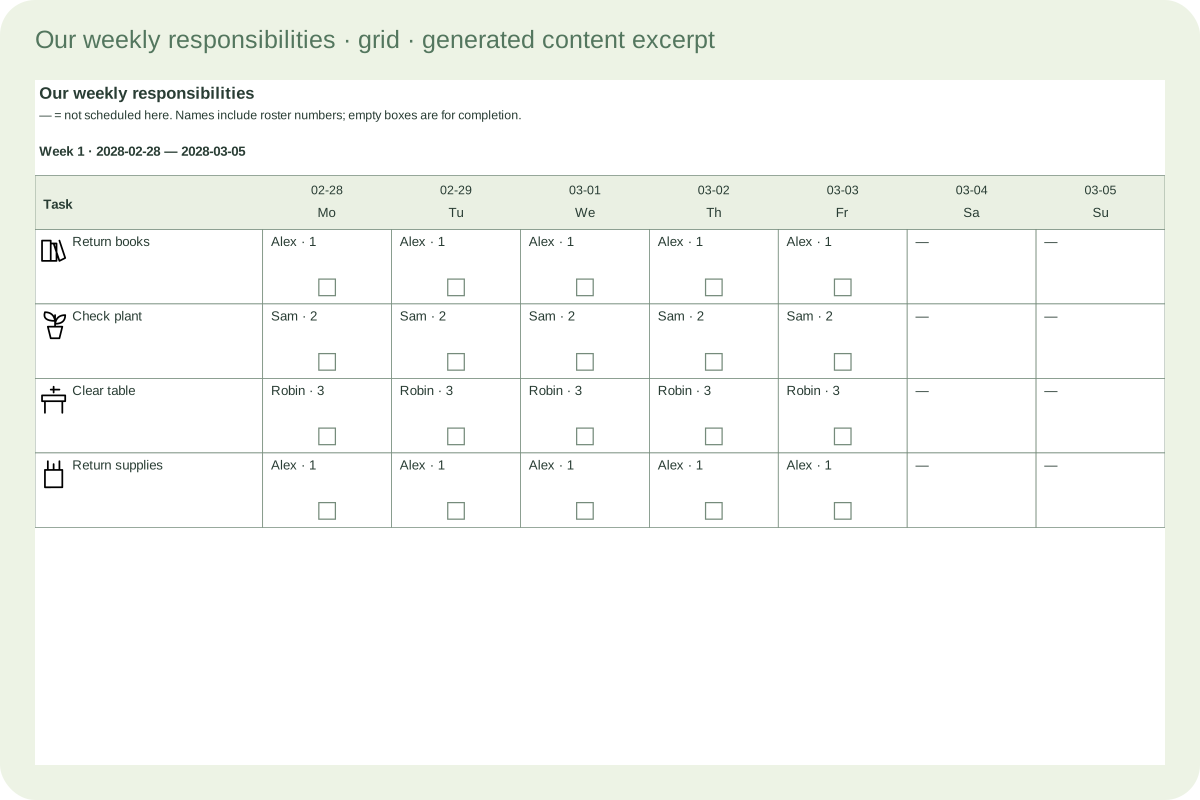
Choose weekdays separately for each job. An empty box invites a completion mark, while a dash means nothing is scheduled in that position. Roster numbers identify people with the same name. Landscape shared grids reserve room for the owner inside each date cell, and complete rows continue with repeated headings when the task list grows.
Small cards with complete dated entries
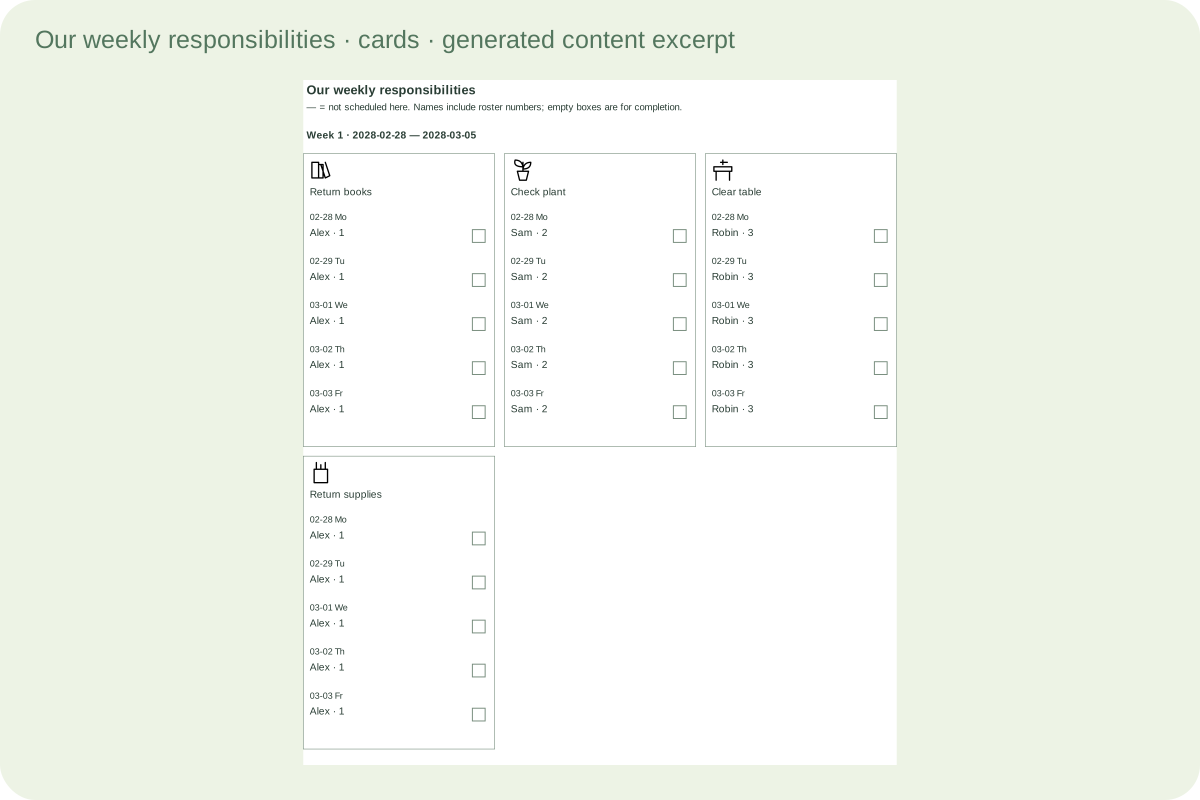
Short cards support up to six columns, and wider lists use up to three. Each card keeps the task label and its dated owner entries together. If a card needs to continue, the task name appears again with a continuation label. Use fewer columns when names need more room; colour and icons never replace the written responsibility.
Build an agreement people can read
Choose the responsibilities before arranging the page.
- 01
Start with a small set of observable jobs
A chore chart printable is useful when a reader can tell who is responsible, when the job is due and what finishing means. Write “return the books to the shelf” rather than an instruction such as “be helpful.” Keep a longer explanation for your conversation with the group. The printed task should be a reminder of an agreed responsibility, not the first time someone hears about it.
This generator accepts up to eighty tasks and sixty people. Those are document limits, not a recommendation to give one child eighty jobs. Add only the entries you need. A person can be an adult, a child, a table group or a household nickname. No age field decides what someone should do; adults choose suitable work and explain any supervision or materials involved.
Back to the tool - 02
Give each person a stable place in the roster
Names are editable labels. Two people called Sam remain two separate roster entries, and the printed name includes a small roster number so their assignments remain distinguishable. You can use initials or group names instead of full names. Editing the spelling preserves that person’s assignments because the document uses an internal identity rather than matching the name text.
The number beside a name reflects the current roster order. Removing a person changes later display numbers, so review and replace older printed copies after changing the roster. Deletion asks for confirmation. Tasks manually assigned to the removed person become locked and unassigned, including in rotation mode, until you choose a replacement or deliberately unlock them. Other automatic rotation positions are recalculated using the remaining roster.
Back to the tool - 03
Choose the right view of responsibility
The shared mode shows every task and its manually selected owner. It is useful for a family agreement or a classroom board with fixed responsibilities. Personal mode uses those same manual assignments but prints only tasks scheduled for the selected person. Switching between these modes preserves the roster, tasks, chosen weekdays and manual owners; it does not delete entries belonging to someone else.
Rotation mode assigns unlocked tasks using the roster order. Choose the person who starts the cycle and either a daily or weekly cadence. A manual owner selected in the editor is locked automatically. Leave that lock in place for a fixed responsibility, or clear it when the job should rejoin the cycle. The saved manual owner remains available when you return to shared or personal mode.
Back to the tool - 04
Understand what a rotation does and does not balance
For weekly rotation, a cycle is a seven-day block beginning on your selected first date. Each unlocked task moves one place forward in the roster in the next block. Tasks begin at successive roster positions, so two adjacent tasks do not always go to the same person. Across one complete roster-length cycle, every person receives each unlocked job once.
Daily rotation advances a task when that task is due, skipping its unselected weekdays. It does not advance merely because a blank weekend date appears on the paper. Different weekday schedules therefore have separate daily cycles. Locks, different frequencies and different effort levels can make total workloads unequal. Review the actual chart together; this is a transparent turn-taking rule, not an assessment of effort, ability or overall fairness.
Back to the tool - 05
Set the dates and the recurring weekdays
The first date starts the printed range exactly, even if it is a Wednesday. Choose one to twelve consecutive seven-day blocks. Each task has its own weekday selection, so one job can be due every school day while another appears only on Friday. At least one weekday is required for each task. A dash distinguishes a date with no scheduled job from an empty completion box.
Dates use the real calendar, including leap days and transitions between months and years. The supported range is 1900 through 2199, and the entire printed interval must stay inside it. Week labels are relative blocks in this document, not ISO week numbers or the school’s teaching weeks. Use the separate school calendar when you need term dates and academic week numbering.
Back to the tool - 06
Pick a grid, short cards or wider task lists
The weekly grid keeps tasks at the left and seven dates across the page. Shared and rotating grids use landscape paper to leave room for names inside the date cells. Personal grids use your selected orientation. Every continuation page repeats the date headings and document scope. A complete task row moves together, so the name, dates and completion spaces remain aligned.
Cards support one to six requested columns. The list layout uses up to three wider columns for longer task names. Long cards continue on additional cards with the task name repeated and a continuation label; each dated owner entry stays together. The output summary shows the actual column count. Small original line icons for books, plants, tables and supplies help identify jobs, but the text always remains present.
Back to the tool - 07
Leave usable space and check the whole output
Choose A4 or Letter and review the page count before printing. Grid rows have a configurable minimum height, and wrapped names can increase that height. Automatic row capacity uses the available printable area; a positive maximum rows setting deliberately caps each page. The layout does not shrink a long name to tiny lettering just to force another row onto the sheet.
The print area reserves twelve millimetres at each side and eight at the top and bottom, with an additional height allowance for pagination. Print at actual size with the matching paper and orientation. Check the first and last dates, every unassigned entry and all continuation pages. Completion boxes are intended for pencil marks on paper; this tool does not maintain an online record of completed chores or send reminders.
Back to the tool - 08
Save an editable master for the next cycle
After generating the chart, save locally or download its JSON data file. The file preserves the roster, task identities, manual locks, frequency choices, dates, layout and generated assignments. Restoring a compatible file checks the assignments against the saved rules so an altered or inconsistent document cannot silently change responsibility. A changed draft must be generated before it becomes the printable output.
Local storage belongs to this browser and may disappear if its data is cleared, so keep a downloaded backup when the chart matters. Imported JSON is limited to two megabytes. The import is for this tool’s structured files; it does not read an arbitrary spreadsheet, photograph or PDF. Save a separate copy before changing the starting date for a new cycle if you want to retain the previous arrangement.
Back to the tool
Common questions
Practical answers about owners, rotation and printing.
Yes. Shared mode prints the full task list with one manually chosen owner per task. Use nicknames or group labels if that is clearer. Every printed person label includes a roster number, so repeated names remain distinct. For two people jointly doing a job, create a group entry or separate clearly named responsibilities.
Choose daily or weekly rotation. Weekly means each seven-day block from the selected start date. Daily advances separately for each job on its scheduled weekdays. Select the starting person, inspect the assignments and lock any job that needs a fixed owner. Completing a full roster-length cycle gives every person a turn at each unlocked job; it does not measure workload.
No. Selecting a manual owner automatically locks that task, and rotation leaves locked tasks with that owner. A locked unassigned task stays visibly unassigned. Clear its lock deliberately to let it rotate again. Manual owners remain stored when switching modes, including when the automatic rotation displays a different owner.
A confirmation explains the consequence before deletion. Tasks manually assigned to that person lose their owner and remain locked as unassigned until you repair them. Other automatic assignments use the remaining roster. Identical names do not make two entries the same person, and deleting one does not remove the other.
No. You choose the jobs and decide who can safely do them with appropriate guidance. There is no age-based chore recommendation or automatic assessment of ability. The examples are editable labels, not a prescribed programme, and the printed chart does not replace adult explanation or supervision.
Use a landscape grid, or choose cards and wider task lists. Grid rows continue as complete rows with repeated date headings. Cards use up to six columns, while lists use up to three; long cards continue with repeated task labels. Keep fewer columns for long text and review the output summary instead of shrinking the whole document.
No. The empty boxes are for marking a printed sheet. The editable JSON keeps planning data and assignments, not a history of completed tasks. Local save belongs to this browser, and a downloaded file is your portable backup. No account, reminders or automatic group messages are part of this tool.
Yes. The roster, task text, scheduled weekdays and manual assignments remain stored when changing paper, orientation, mode or layout. Personal mode hides tasks belonging to other people without deleting them. Generate the changed draft and review every page before printing; importing a file replaces the current document only after confirmation.
Prepare the next set of responsibilities
Review the generated assignments and save an editable backup.