SPACING · DOT SIZE · OPEN SPACE
Dot Grid Paper Printable Leave room for your own layout
Create dot grid paper printable for handwriting, diagrams and journal layouts. Set the centre spacing, adjust diameter and shade independently, then print full sheets or two measured inserts with an optional comparison sample.
A4 / Letter · Local saving · Physical dimensions
Choose your dot paper specification
Edit, generate and review the complete preview. Generate again after changing the draft.
My worksheets
Drafts save automatically in this browser, including unfinished input. Keep up to 20 named worksheets across all tools. Large images may exceed browser storage; download data as a backup.
Worksheet preview
Blank dot grid paper
Fit complete rows onto each page using the selected columns and writing space. Extra page space stays at the bottom; answer gaps are not stretched.
Generate or load the example to see the preview.
Print or save as PDF through your browser. Match the paper size, use Actual Size / 100% and disable browser headers and footers.
See the generated paper
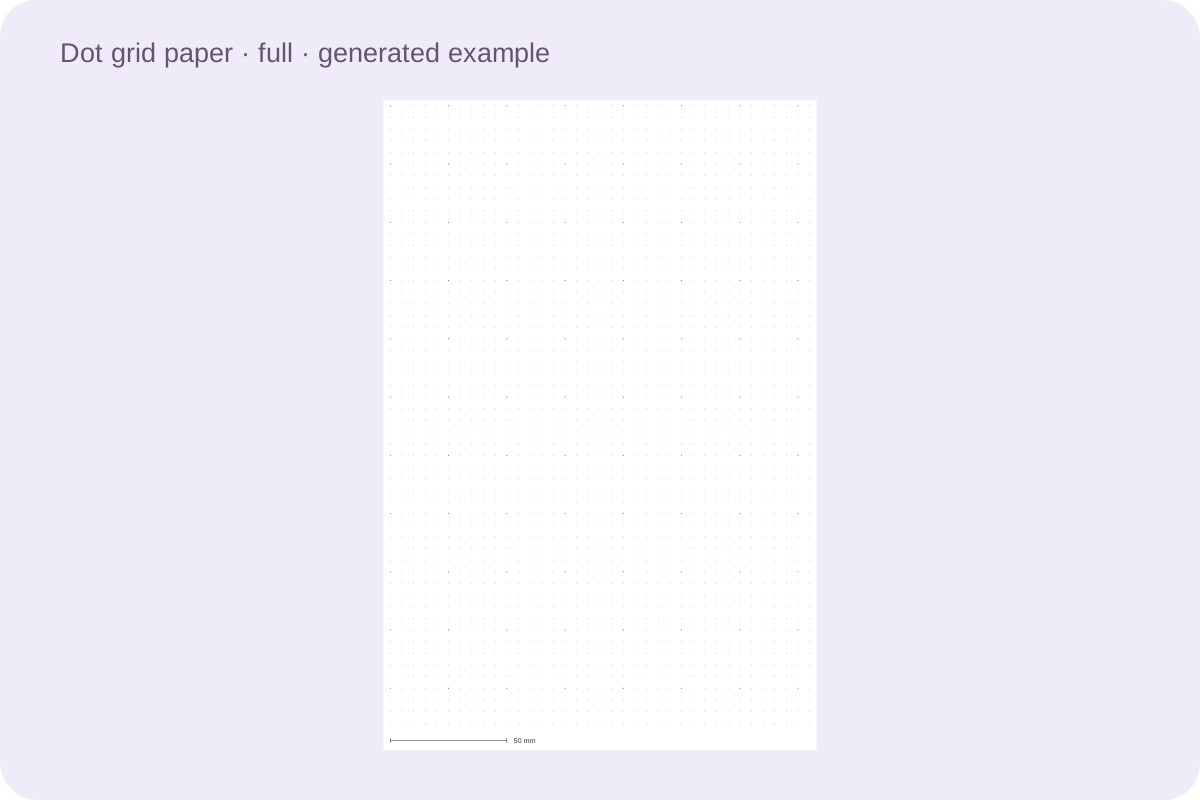
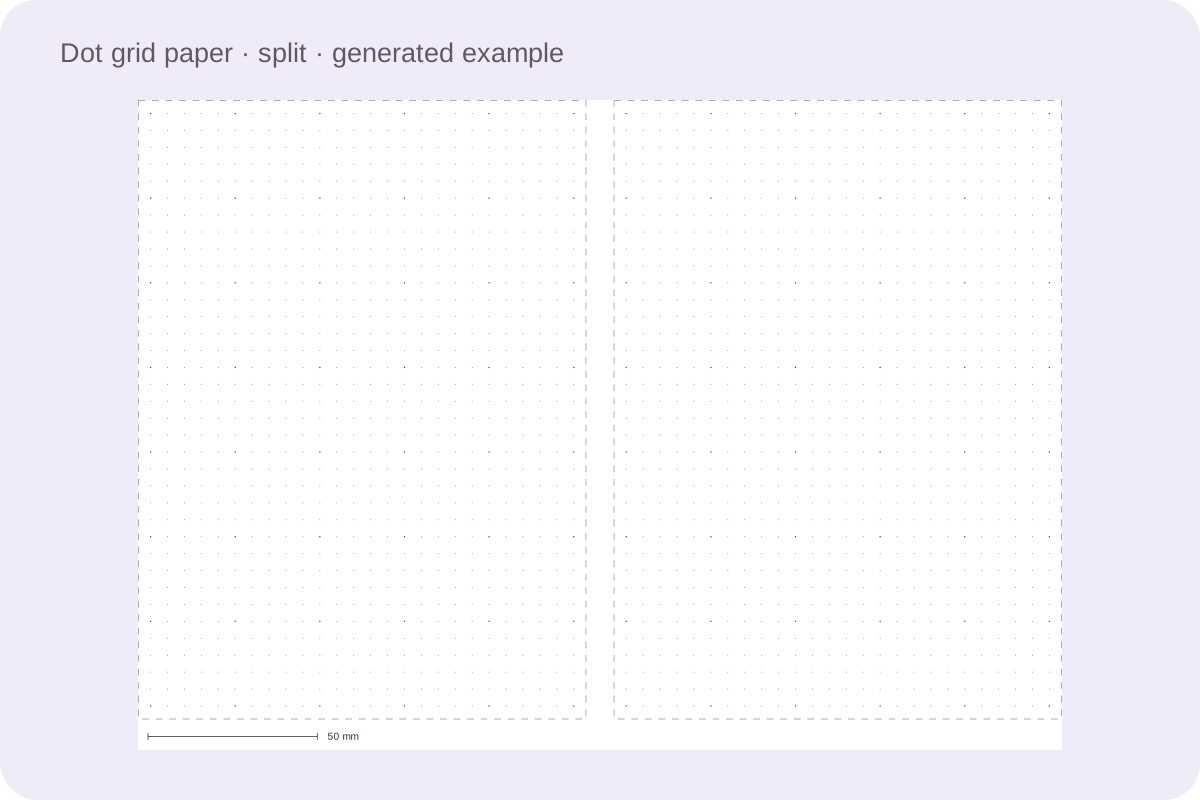
Examples rendered from the production layout.
Change visibility without moving the grid
Dot diameter and grayscale shade adjust visibility while leaving the selected centre spacing intact. The grid uses complete intervals and keeps every outer dot inside the writing area. The preview separates point counts from the gaps between them.
Two inserts with honest finished dimensions
Landscape split mode leaves two complete dot panels with a clear cutting gap. Each has its own optional binding allowance. The dimensions shown in the preview include the effect of titles and the calibration strip, so you can compare the result with your notebook before printing.
Choose the settings for your task
Check the content and measurements before printing the first copy.
- 01
Begin with the space between dot centres
Dot grid paper printable uses a repeating pattern of small points to guide handwriting, diagrams and free layouts. Spacing is the distance from the centre of one point to the centre of the next. Choose from three to twelve millimetres, or start with one of the four, five, six or seven millimetre presets. A five-millimetre grid is a useful starting point for many small layouts, but it is not a rule for every notebook or writing style.
Try writing a short heading, a sentence and a small table on one sample. If letters repeatedly occupy several rows, a wider interval may feel more comfortable. If a compact list has too much unused space, a smaller interval may suit it. The tool keeps the selected distance exact in its drawing rather than stretching the final row toward the page edge.
- 02
Adjust dot size and shade independently
Dot diameter controls the width of each printed circle. The available range is 0.2 to 0.6 millimetres. Shade controls how light or dark that circle is, with light, medium and dark grayscale choices. Increasing the diameter does not move the dot centres, change the spacing or rearrange the grid. This separation lets you make a point easier to see without changing the dimensions of a planned box.
A larger pale dot and a smaller dark dot can look different after printing or copying. Paper, ink and printer settings also affect the result, so the screen preview cannot promise identical visibility on every printer. Turn on the sample sheet to compare several sizes and shades on the same paper before choosing a large batch of notebook inserts.
- 03
Use stronger points as occasional references
You can emphasize the intersections at every fifth or tenth interval. These locating points are a little larger and darker than the surrounding pattern. They help you count a broad section while leaving the intermediate points available for small adjustments. The setting counts intervals, not the ordinal number of a dot, so a five-interval span includes both its starting point and its ending point.
A separate centre mark adds a small cross at the physical centre of each panel. It marks the panel centre even when the regular dot pattern has no dot exactly there. Leave it off when you want an uninterrupted blank grid. Neither option prints a finished journal layout or changes the measurements of the smaller intervals between the points.
- 04
Choose full paper or two trimmed inserts
Full-paper mode uses the printable area of A4 or Letter and supports portrait or landscape orientation. Split mode automatically uses landscape and places two panels side by side with a clear cutting gap. The preview reports the actual width and height of each panel. These are trimmed notebook inserts, not a promise of two standard A5 pages. A true A5 sheet measures 148 by 210 millimetres, which is different from the smaller panels produced after printer margins.
Check the dimensions against the notebook or cover you intend to use. Turning the calibration strip or title on changes the available height, and switching from A4 to Letter changes both dimensions. Cutting guides surround the panel without crossing the writing dots. Use the displayed finished size when deciding whether the insert will fit your binding.
- 05
Leave room for binding without moving the rhythm
Extra binding space creates a blank strip at the left of each writing panel, in addition to the page margin. The grid is centred in the remaining writing width. This can make room for a binding edge or a place to hold the page. It is a layout allowance, not a hole-punch template, so check the actual hardware before deciding how much space to reserve.
Changing the allowance recalculates how many complete intervals fit. Dot diameter still has no effect on the dot centres. A small inset keeps the outside points fully inside the panel, including the enlarged locating points. The generator does not cut circles in half to suggest that the page has been filled more completely than its dimensions allow.
- 06
Count points and intervals separately
The preview shows a count of points across and down, followed by the corresponding number of intervals. A row with ten points contains nine gaps between them. Multiply the interval count by the selected spacing to find the distance between the first and last dot centres. The panel itself is slightly larger because it also includes the clear space outside those centres.
This distinction matters when you draw a calendar, a tracker or a diagram that must occupy a measured width. Plan the box using gaps between points rather than treating the number of dots as the number of squares. If you need continuous rules or numbered coordinate axes, the related graph-paper tool may be more suitable than connecting every point by hand.
- 07
Compare a real print before choosing a batch
The optional test sheet prints a three-by-three comparison of dot diameters and grayscale shades at five-millimetre spacing. Each sample is labelled with its settings, and the page includes a fifty-millimetre calibration line. The line helps reveal printer scaling; it does not correct it automatically. Measure the line and compare the dot samples under the lighting in which you will use the paper.
If dots disappear, check the printer’s economy or toner-saving mode and compare a darker shade or larger diameter. If dots dominate the handwriting, try a lighter or smaller setting. A sample is also useful before photocopying, since a pattern that looks clear on an original can change in a copy. Choose the result you can actually read rather than relying only on the screen.
- 08
Save the specification for a matching refill
After generating, save the paper settings locally or download the JSON document. It retains the chosen spacing, diameter, shade, binding space, locating points and panel layout. Import validates the file before replacing the current document. This is useful when you want the next notebook refill to match the previous one without remembering every setting. The version label identifies the configuration; it does not randomize the grid.
Print or save as PDF through the browser dialog, using the same paper size and orientation shown in the preview. Choose actual size or one hundred percent and disable browser headers and footers. Both pagination modes keep whole paper sheets together. The selected number of sheets excludes the optional extra test page, which is counted separately in the displayed total. Store an editable JSON copy as well as a PDF if you expect to change the design later.
Questions before you print
Practical choices about content, size, saving and printing.
No. Choose any supported spacing from 3 to 12 mm. The 4, 5, 6 and 7 mm presets are convenient starting points. Try a short writing sample and pick an interval that suits the size of your handwriting and the layout you want to draw.
A light shade, small diameter or economy print setting can make dots hard to see. Compare the included sample sheet and try a darker or larger dot. Check actual-size scaling too. Screen appearance is not a guarantee that a particular printer or photocopier will reproduce the same shade.
Yes. Split mode puts two panels on landscape A4 or Letter with cutting guides. The preview reports their actual finished dimensions after margins and the optional calibration band. They are trimmed inserts, not standard A5 sheets. Check those dimensions against your notebook before printing a batch.
Diameter is the width of a circle. Spacing is the distance between neighbouring circle centres. Changing diameter affects visibility while keeping those centres fixed. Changing spacing alters how many intervals fit and therefore the scale of the writing grid. Shade is a third, independent setting.
Both ends of a gap need a point. Ten points in a row therefore make nine intervals. The preview reports both counts. Use the interval count multiplied by spacing to measure between the first and last dot centres; the panel also includes a small clear edge around them.
Stronger intersections appear every five or ten intervals when enabled. They help count larger areas without drawing continuous lines. The separate cross identifies the panel’s physical centre, which may not coincide with a grid point. You can switch either option off for plain dotted paper.
Nine labelled samples compare 0.2, 0.4 and 0.6 mm dots in three grayscale shades, all at 5 mm spacing. A 50 mm line helps check print scaling. The test sheet is an additional page after the requested paper sheets and is included in the total page count.
Yes. Save in this browser or download the JSON settings file, then import it into this tool. The file retains the physical specification and panel options. Use the browser print dialog to save a PDF if you want a fixed printable copy; JSON is the editable version.
Prepare your next printable
Generate, review the preview and print at actual size.