FIVE LINES · REAL SPACING · ROOM TO WRITE
Blank Staff Paper Sized for your handwriting
Make blank staff paper for music lessons, melody sketches and theory practice. Set the distance between the lines, choose single staves or a piano grand staff, and see how many complete systems fit before printing.
Blank Staff Paper
Make blank staff paper for music lessons, melody sketches and theory practice. Set the distance between the lines, choose single staves or a piano grand staff, and see how many complete systems fit before printing.
My worksheets
Drafts save automatically in this browser, including unfinished input. Keep up to 20 named worksheets across all tools. Large images may exceed browser storage; download data as a backup.
Worksheet preview
Blank Staff Paper
Fit complete rows onto each page using the selected columns and writing space. Extra page space stays at the bottom; answer gaps are not stretched.
Generate or load the example to see the preview.
Print or save as PDF through your browser. Match the paper size, use Actual Size / 100% and disable browser headers and footers.
See the layout before choosing settings
Examples use the same measured output as the generator.
Five lines with room around them
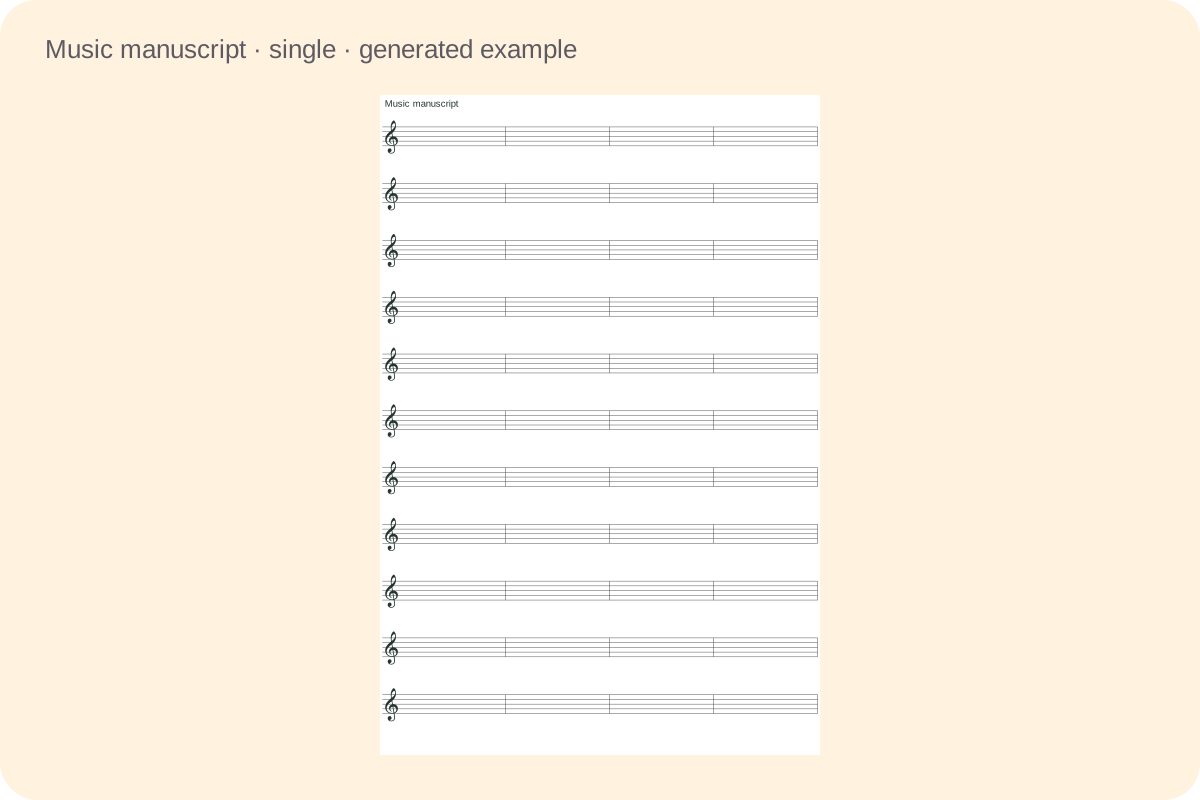
A staff has five horizontal lines and four spaces between them. The generator measures the distance between line centres, then keeps extra room above and below for handwriting. Changing the number requested never stretches or squeezes those distances.
Two staves form one piano system
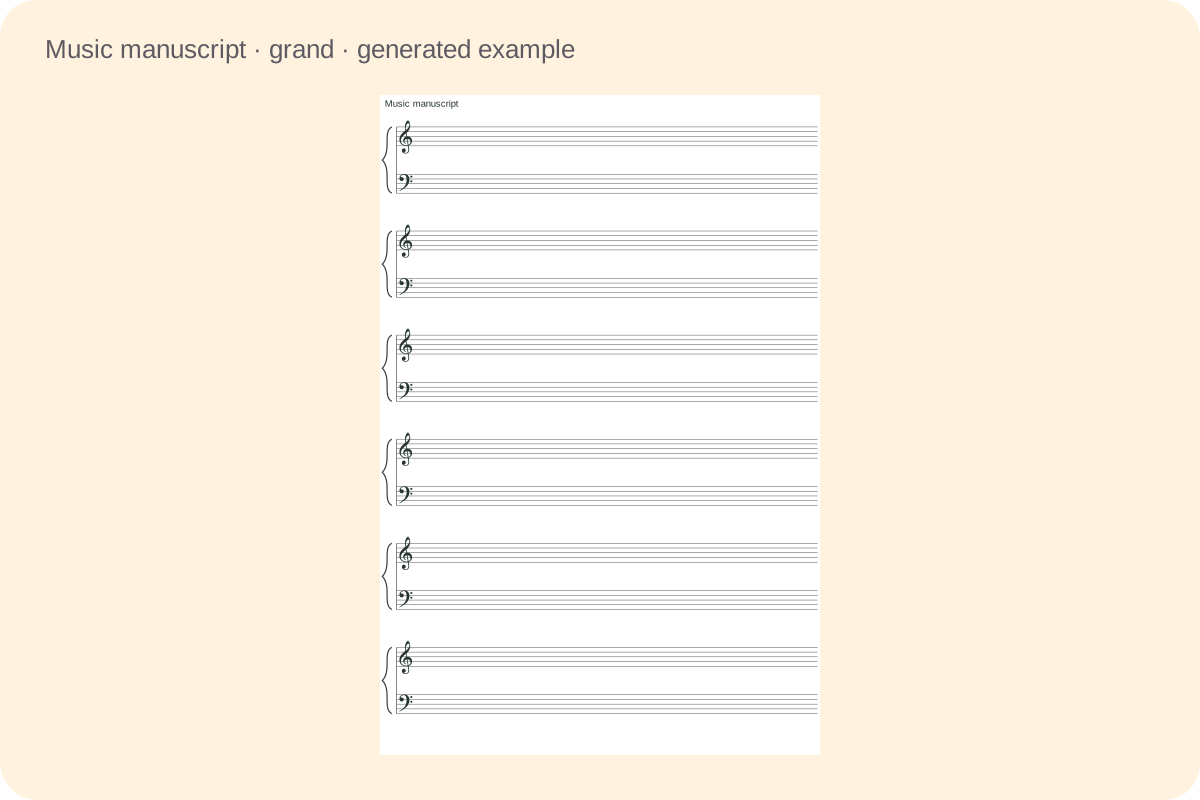
Grand-staff mode joins an upper and lower staff with a brace and a connecting line. The optional clefs are treble above and bass below. The displayed system count refers to these complete pairs, so six systems contain twelve five-line staves.
Set up, save and print your pages
Choose settings for the task you want to put on paper.
- 01
Choose a single staff or a piano pair
Use a single staff when you want one line of music at a time, such as a melody, a short notation exercise or a rhythm task. Use the grand staff when the exercise needs upper and lower parts together. Each piano system contains two distinct five-line staves, with a brace at the left showing that they belong together. The generator leaves them blank for you to write on.
For a mixed classroom, make separate files for the different tasks. A page of large single staves and a page of piano pairs are two layouts of the same tool. This first version does not provide guitar tablature, automatic composition, scanned-score recognition or editable notes. Those jobs need different notation features, so the paper preview should be judged as a writing surface.
Back to the tool - 02
Set the line spacing in millimetres
Line spacing is the distance from the centre of one horizontal line to the centre of the next. Choose from 1.5 to 4 millimetres in the editor. The height from the first line to the fifth is four times that setting. A two-millimetre interval therefore gives an eight-millimetre staff, before the clear writing room around it is added.
Try a small sample with the pencil or pen you will use in the lesson. Someone writing large noteheads may prefer more space, while compact copying may use a smaller setting. The generator does not decide a size from age or ability. Keep the scale at one hundred percent when printing; fit-to-page scaling changes the physical interval even though the preview still contains the original measurements.
Back to the tool - 03
Leave space between complete systems
The gap control adds clear room between the reserved writing areas of neighbouring systems. Each system already keeps two staff spaces above and below its lines. This protects room for clefs and ledger-line work. In piano mode a separate control sets the open distance between the upper staff’s bottom line and the lower staff’s top line.
These measurements do different jobs. Increasing the gap between systems separates consecutive exercises. Increasing the piano gap makes more room between the two hands within one exercise. Neither changes the distance between the five lines. The lower edge may have some unused space when another complete system cannot fit; the generator keeps that remainder instead of distorting the notation surface.
Back to the tool - 04
Use capacity instead of assuming a fixed count
Automatic capacity fills the usable height with as many complete systems as the current dimensions allow. You can also request a specific count or choose the ten, twelve and fourteen presets. Those numbers are requests, not promises that every combination fits. A large staff, a title or a wide piano gap can reduce the available capacity.
The preview reports the requested count, actual count and maximum capacity. If your request is too large, a visible message explains the reduced result. The paper keeps the selected physical dimensions. To fit more systems, adjust the spacing or clear gaps deliberately, change the paper or orientation, or hide an unnecessary title. To get more writing pages, increase the sheet count instead.
Back to the tool - 05
Choose clefs and optional measure divisions
Turn clefs off for pure blank manuscript paper. When single-staff clefs are enabled, select treble or bass. Piano mode uses the standard upper treble and lower bass pairing. The treble curl is registered to the second line from the bottom; the bass dots surround the fourth line from the bottom. The symbols are vector outlines, so printing does not depend on an installed music font.
Set measure divisions to zero for no added bar lines. A positive number divides the writable length after the clef area into that many equal spaces, with a closing bar at the right. These are visual writing guides, not a time signature or a promise about how many notes fit. Disabling clefs returns their horizontal allowance to the blank writing area.
Back to the tool - 06
Add only the headings you need
The worksheet title can be printed or hidden. The author line is controlled separately and can contain a name or remain blank for handwriting. Both wrap within the page instead of running into the first staff. When a heading is hidden, its space becomes available to the capacity calculation. Avoid using a very long title when a short lesson label will do.
You can generate between one and twenty copies of the chosen paper layout. Choose portrait or landscape and A4 or Letter before checking the result. The system count is per sheet, while the page count is the number of physical sheets. A piano pair counts as one system even though it contains ten horizontal staff lines in total.
Back to the tool - 07
Prepare a reusable music lesson master
A useful master might contain generous blank staves for a teacher to write a model, followed by space for a learner to repeat the exercise. Another could use piano pairs with bar lines for a short two-hand pattern. The generator supplies the paper, and you decide the notes, rhythm, key signature and instructions that belong on it.
Save the generated version in this browser, or download the JSON file to keep an editable copy. Import restores the paper specification, headings and settings after validation. Browser storage may be cleared and is not cloud backup. A JSON file is different from a PDF: it can reopen the controls, while a PDF keeps a fixed page appearance for printing or sharing.
Back to the tool - 08
Check actual-size printing before a batch
Use the Print button and choose the same paper size and direction shown in the preview. Select actual size or one hundred percent, disable browser headers and footers, and avoid adding another set of wide margins. The design already allows twelve millimetres at the sides, eight at the top and bottom and a small height safety margin.
Measure the distance across four staff spaces on one print if physical size matters to your task. The browser can save the same print output as a PDF. Automatic and manual pagination preserve complete paper sheets. Regenerate after changing the draft so the printed and saved versions match the settings you have reviewed. The tool provides no answer sheet because the music has not been written yet.
Back to the tool
Common questions
Practical answers about layout, editing and printing.
A staff is one set of five lines. A grand staff combines two such sets with a brace and a connecting line, usually treble above and bass below. In this generator the piano count refers to complete pairs, so five systems contain ten individual staves.
Use the displayed capacity for your chosen line spacing, clear gaps, headings and paper. Automatic mode fits complete systems. Ten, twelve and fourteen are convenient requests; if fewer fit, the preview states the actual result. More pages can provide extra room without shrinking the lines.
Yes. Turn off clefs and set measure divisions to zero. A single staff then has uninterrupted blank lines. Grand-staff mode still keeps its brace and connecting line so the pair remains identifiable. Turning off clefs also removes their reserved horizontal writing allowance.
No. It creates blank manuscript paper for handwriting. It does not enter notes, generate melodies, scan a score or judge musical answers. Use the page for your own notation task, with a separate notation editor if you need an editable digital score.
It measures adjacent line centres. Five lines contain four intervals, so the first-to-fifth-line distance is eight millimetres. Space above and below the staff is additional. Print at one hundred percent to preserve those measurements; browser fit-to-page settings may change them.
The complete systems did not fit with the selected spacing and headings. The preview shows the maximum and the actual count, and keeps the physical dimensions. You can reduce gaps, hide a heading, use another orientation or print additional sheets instead of squeezing the staff.
Yes. The two clefs are embedded vector outlines and the staff lines are drawn as measured geometry. Piano mode places the treble clef above the bass clef and joins the pair. No emoji or system music character is needed to display these symbols.
Download the generated JSON to reopen the settings later. Use Print and the browser’s save-as-PDF destination for a fixed printable document. Local browser saving is convenient but is not a backup service. Regenerate edited settings before saving, downloading or printing.
Prepare the pages for your next lesson
Generate, review the actual pages and keep an editable master.