Math Color by Number Worksheet Generator
Solve the fact, find its result in the key, and color a small geometric pattern. Make focused addition, subtraction, selected-table multiplication or exact-division practice with matching references you can still read in black and white. Also choose plain numbered regions without calculations and customise the colour names and palette.
20 closed templates · 3–8 colors · A4 & Letter
Math Color by Number Worksheet Generator
Solve the fact, find its result in the key, and color a small geometric pattern. Make focused addition, subtraction, selected-table multiplication or exact-division practice with matching references you can still read in black and white. Also choose plain numbered regions without calculations and customise the colour names and palette.
My worksheets
Drafts save automatically in this browser, including unfinished input. Keep up to 20 named worksheets across all tools. Large images may exceed browser storage; download data as a backup.
Worksheet preview
Fit complete rows onto each page using the selected columns and writing space. Extra page space stays at the bottom; answer gaps are not stretched.
Choose 1–6. Six columns require a 10 mm compact mosaic. Wider shapes retain their size and require fewer columns. Automatic pagination fills the usable page with complete rows.
Generate a set to see the outlined regions and result keys.
Match A4 or Letter in the browser print dialog. Choose Save as PDF and review every student and answer page; switch off browser headers and footers if needed.
A calculation and a matching decision in every region
Each small picture has its own key. Keep that key with the picture when cutting or sharing activities.
Different facts can belong to the same color
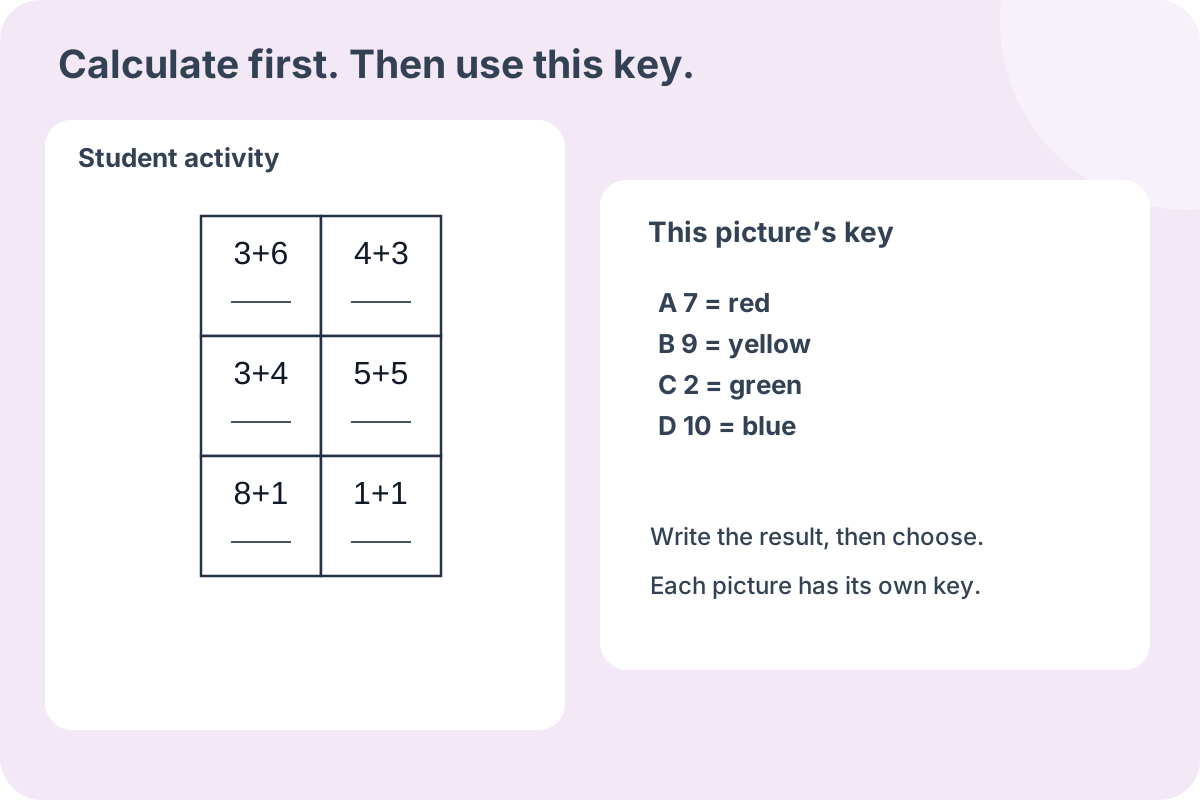
The task asks for two connected decisions. A learner first works out the expression inside a closed region, then finds that result in the nearby color key. Different expressions can lead to the same result, so two regions may need the same pencil even when their printed facts look different. The key uses a result, a letter code and a written color name. That extra code lets you discuss a choice without relying on a colored swatch. Each diagram has a separate key; read the one beneath the current picture before moving to another activity.
A reference you can check without guessing a shade
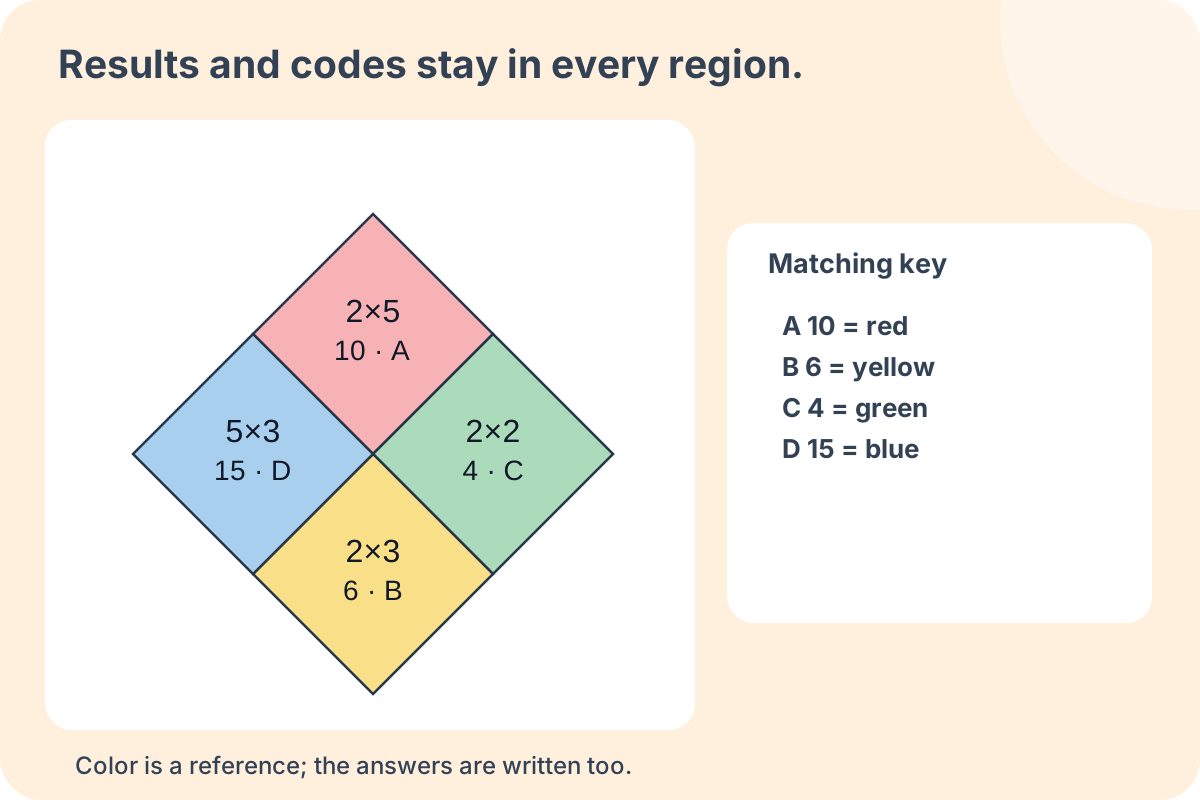
In arithmetic mode, student copies contain outline regions, a short answer line and a written key. The teacher copy keeps the original fact, adds its result and the matching letter, and can also fill the region with a light reference color. Choose the ink-saving answer style to keep the regions white while retaining every result and code. Neither version uses a decorative image as mathematical data. The compact mosaic, offset bricks, diamond pieces and separate petals are drawn as closed vector shapes, with labels placed inside their own regions.
Plain numbers and an editable eight-colour key
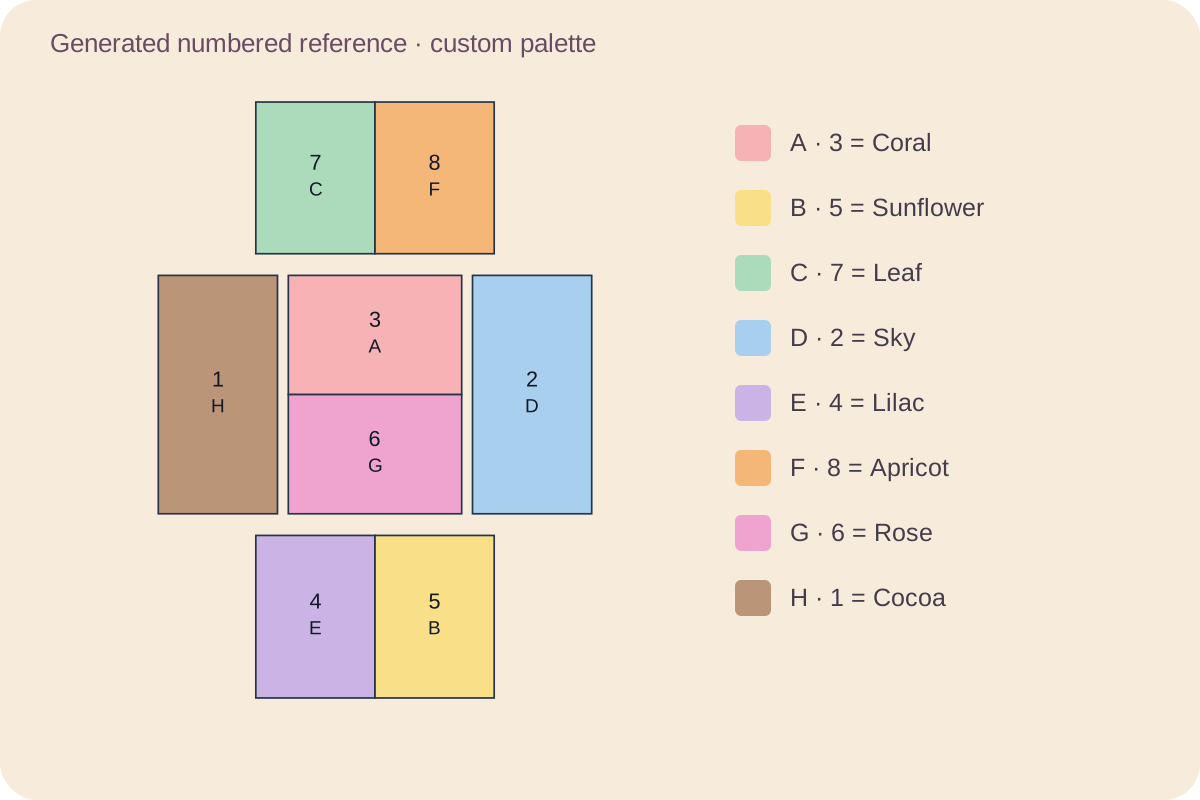
Eight separate robot or gift regions can use eight different colours. Numbers, A–H codes and your chosen names provide a written key. This mode uses the original closed templates, requires no photograph upload, and keeps student pages suitable for a monochrome printer.
Plan a small math coloring activity
Use the key to make reasoning visible, and keep the printed regions comfortable to work in.
- 01
Choose plain numbers or arithmetic
Plain numbered mode prints an integer from one through the selected colour count in each region. Match that number directly to the local key; there is no calculation or hidden arithmetic answer to discover. Arithmetic mode keeps addition, subtraction, mixed practice, selected multiplication tables and exact division. Both modes use the same twenty closed templates, but they ask for different kinds of attention.
The seed can change which number belongs to which colour, so keep every picture with its own legend. Numbered student pages show the number without an extra answer line. The reference adds the letter code and optionally the colour fill; the ink-saving reference retains the code on white regions. Switching modes keeps the arithmetic choices in the draft, and generating replaces the output with the selected activity.
- 02
Choose the arithmetic before the picture
Start with addition, subtraction, mixed addition and subtraction, multiplication or exact division. For addition and subtraction, choose a limit of ten or twenty. All operands and answers stay within the selected limit; subtraction remains positive and never introduces a negative answer. Addition uses positive addends. Mixed practice alternates the two signs across the regions, so the learner needs to read each operation instead of assuming that a whole picture uses one rule.
Multiplication keeps both factors from two to nine. Select one or more tables: at least one factor must belong to that selection, while the other may be any number from two to nine. Exact division uses your chosen tables as divisors and a quotient from two to nine. The dividend is formed from their product, so there is never a remainder. Neither task uses the addition/subtraction limit. For example, selecting seven permits 7 × 4 and 4 × 7 in multiplication, or 28 ÷ 7 in division.
- 03
Use division results as the color code
A division region might show 28 ÷ 7. Work out four, write it on the answer line, then find four in this picture’s key. The teacher reference keeps the original division expression and adds its quotient and letter code. It does not use the dividend as the color key. Repeating the same quotient with different dividends and divisors can help learners compare facts while keeping one consistent result-to-color rule within the diagram.
Choosing only the seven table allows either multiplication factor to be seven, or eight division facts with divisor seven. A picture selects just three to eight distinct results. Repeated expressions are allowed when the regions using a result outnumber its candidate facts; that is expected with a single divisor. Multiple selected tables broaden the candidate pool, but do not impose equal representation. Change the seed for another selection, and keep each newly generated picture with its matching local key.
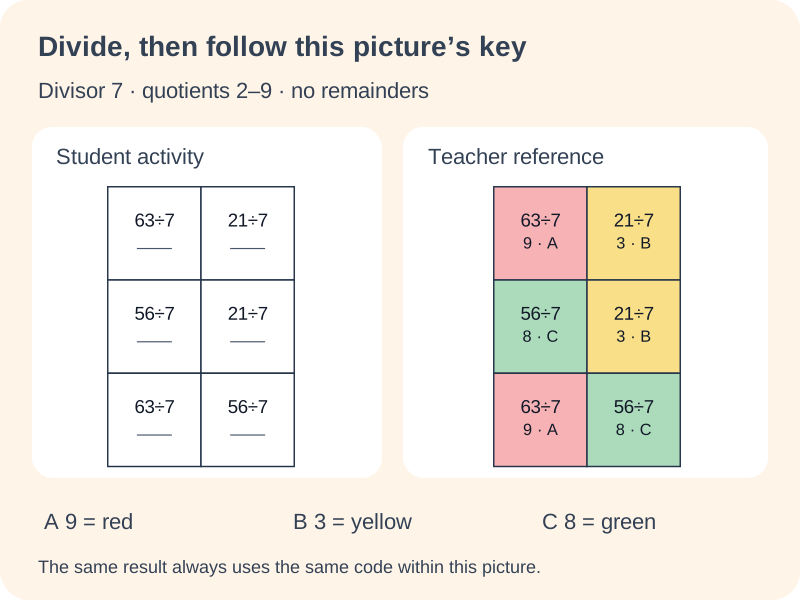
- 04
Pick a template with an achievable amount to color
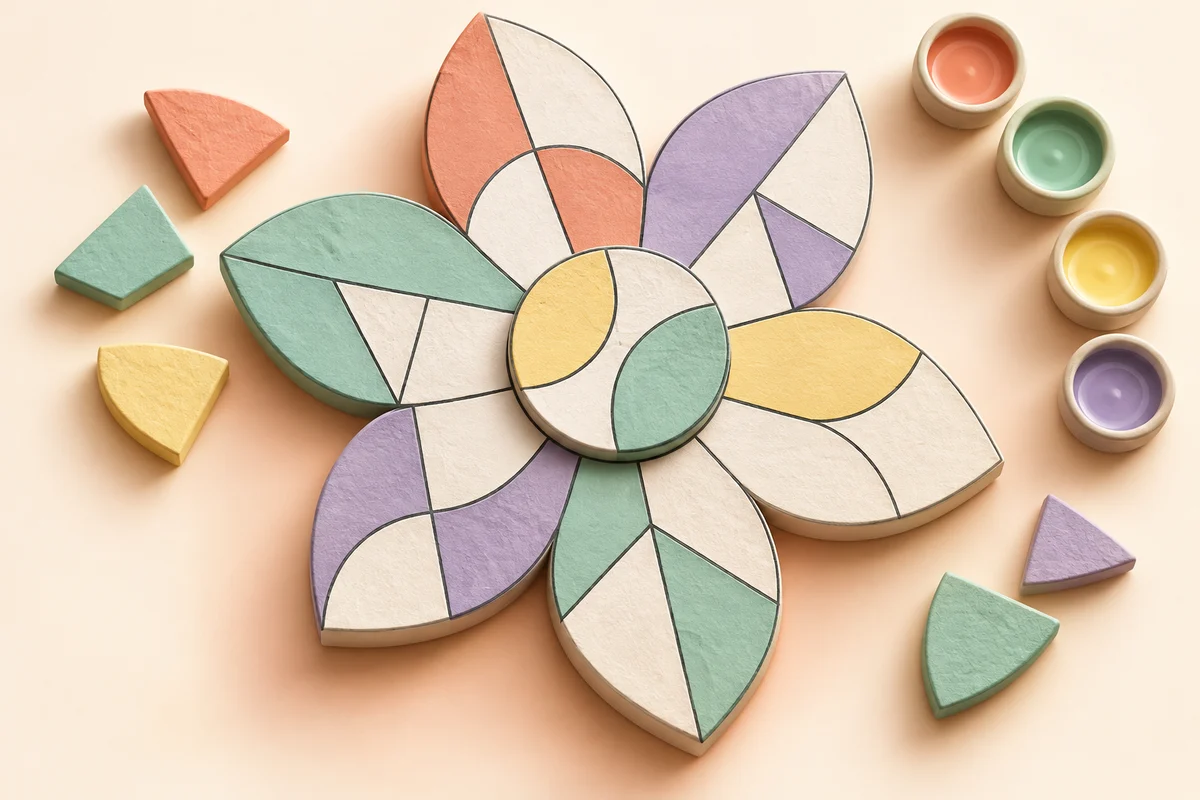
Choose among 20 original pictures: compact mosaic, offset bricks, diamond pieces, separate petals, little house, rocket, sailboat, butterfly, fish, evergreen tree, tulip, mushroom, ice cream cone, hot-air balloon, robot, steam train, castle, gift box, umbrella and turtle. Open the picture browser to compare their silhouettes; every choice shows its region count. One template is used throughout each generated set, while expressions and local result keys can vary between diagrams.
The requested count means complete diagrams, not individual arithmetic expressions. Twelve mosaics therefore contain seventy-two facts. The preview summary reports both totals so you can reduce the set before printing. A short set of three or four diagrams may be enough for a station, a partner check or an untimed home activity; the tool accepts one through 120 diagrams when a longer collection is useful.
Diamond pieces, the evergreen tree and the ice cream cone each have four regions for a shorter activity. The turtle has seven, while the robot and gift box each have eight. The white space outside an outlined region is not an extra question. Thumbnail colors only help distinguish regions: they are not answers to a generated worksheet, whose result key may assign colors differently.
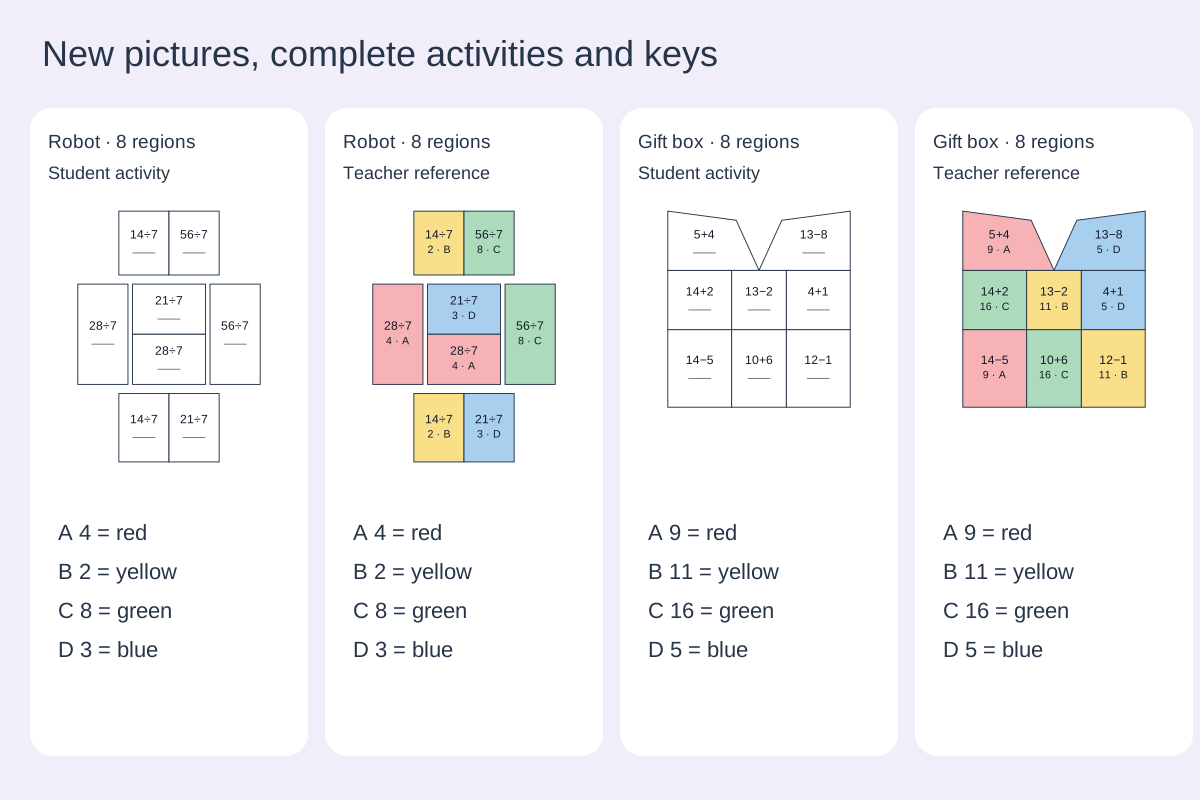
- 05
Introduce the result key explicitly
Choose three to eight colours, up to the number of regions in the selected template. A four-region diamond supports at most four, while the eight-region robot and gift box support eight. The default palette adds purple, orange, pink and brown to red, yellow, green and blue. Codes A through H identify the entries, and every selected colour appears in at least one region.
Show the learner one complete example: read the sign, calculate, write the result on the short line, locate that number in the key, then color the region. The line is optional working evidence, not a separate arithmetic task. If a learner needs help distinguishing pencils, label the pencils with A through H or let the learner record the code beside the numerical answer. The answer key remains usable either way.
- 06
Keep the repeated results meaningful
The generator selects valid expressions for the results in each key. When a result has several available expressions, it cycles through a shuffled set before repeating one for that result and operation. Repetition can still occur when a small range provides few choices. Changing a seed rearranges the valid selection; it does not guarantee that every fact in the complete worksheet will be unique.
Use a repeated result as a discussion prompt. Ask which two expressions reached the same number and whether their calculations were the same. A completed pattern is a convenient reference, but it cannot tell you which strategy the learner used. Check the written result or ask for an explanation before deciding whether a mismatch came from arithmetic, reading the key or choosing the pencil.
- 07
Set a physical size that leaves usable coloring space
Choose a base unit of ten, twelve or sixteen millimetres. In the mosaic, one unit is the edge of each square. Other pictures combine several units: the fish and turtle span 4.2 units across, the robot is 5.5 units tall and the ice cream cone is six units tall. Expressions stay approximately nine points tall rather than shrinking to fit more columns. The preview summary reports the actual drawing width, so the chosen size describes the printed geometry as well as the screen preview.
One to six diagrams per row are available, subject to that physical width. Six columns work with the ten-millimetre compact mosaic. Wide bricks, diamonds, flowers and larger regions need fewer columns. An impossible combination produces a message and keeps the last valid worksheet; the tool does not silently replace your chosen size or column count. Try fewer columns first if the current template cannot fit.
- 08
Print the complete student and teacher outputs
Select student questions, teacher answers, or both. Student regions stay white, and their keys use words and codes, so ordinary black-and-white printing is sufficient. The color reference adds light fills while retaining the same numerical answers and letter codes. Ink-saving references remove those fills and still show every result. If your printer discards background colors, the text remains the information needed to check the work.
Automatic pagination places complete rows down the usable A4 or Letter page and keeps each diagram with its own key. It does not split a single activity across sheets. A little space can remain when the next complete row will not fit. Match the selected paper size in your browser print dialog, review both output sections and print at the intended scale. Add extra working space only when learners will use it.
- 09
Save a version or replace one diagram
The same settings and seed reproduce the same arithmetic regions and keys. Replacing one diagram uses a new item seed while preserving the other diagrams. That replacement may change its local key, so always distribute the updated key with the updated picture. Changing columns, spacing or answer appearance keeps the mathematical questions unchanged. The version identifier helps you pair a student copy with the correct teacher reference.
Browser saving is convenient on the same device. Download the worksheet data when you need a separate reusable copy, then import it later to restore the stored content. Import checks the template, generated expressions, results, color assignments and version instead of trusting an edited answer field. Saving this data is separate from saving a printable PDF through the browser. Keep whichever formats you need for your lesson.
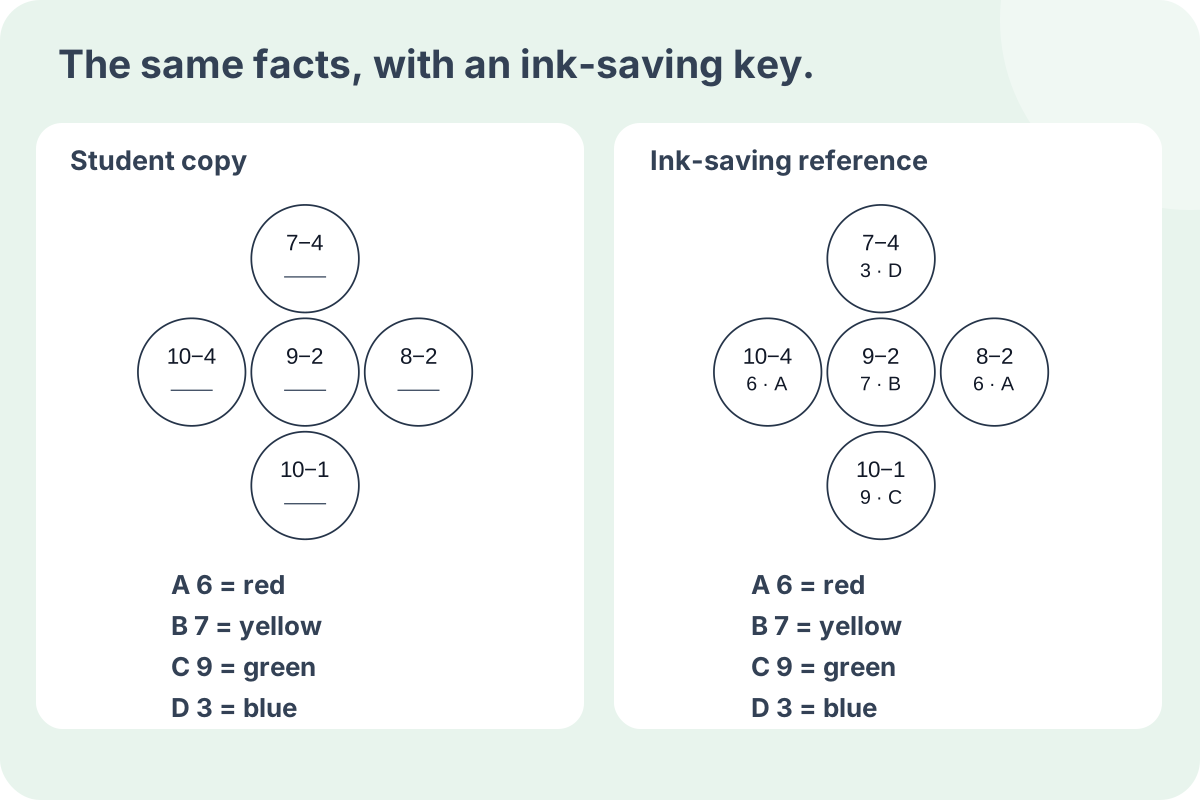
- 10
Match the palette to the pencils available
Enable the custom palette to edit the names and swatches in all eight slots, A through H. The activity uses the first three to eight slots according to your colour count. Each name accepts up to eighteen characters. Names and colour values must be distinct, including currently unused slots, so every code has a clear meaning when you later increase the colour count.
Use names that a learner can match to the pencils on the table, such as sky blue or dark green. Custom names print exactly as entered instead of being translated into a default label. Screen swatches are approximate guides, not a promise of printer colour accuracy. Student sheets remain white outlines with written keys. All eight custom slots are saved in JSON, including unused ones; earlier three- and four-colour arithmetic files still restore with their original questions.
Math coloring and printing questions
Clear keys, readable regions and complete reference pages.
Each outlined region contains an arithmetic expression. The learner calculates its result, matches that number to the nearby key and uses the named color. The letters A through H provide an additional written code. This version uses small geometric patterns rather than uploaded photographs. Every diagram is a complete activity with its own result key.
Yes. Student pages contain white regions and a written legend with results, letter codes and color names. The learner supplies the coloring pencils. Teacher pages include results and codes as text even in the colored reference style. Choose the ink-saving answer style when you want all answer regions to remain white.
Within one diagram, yes. Each result appears once in that diagram’s key, so equal results match the same code and color. A different diagram can have a different set of results. Always use the key immediately below the picture being completed; do not carry a result-to-color rule from an earlier diagram into the next one.
Yes. Select multiplication and check one or more tables from two to nine. At least one factor comes from those tables; both factors stay within two to nine. To practise division by the same numbers, choose exact division and keep your selection. Each small picture uses only three to eight result codes, so selecting several tables does not promise that every table appears in every picture.
Column count cannot override the actual drawing width. A ten-millimetre mosaic is compact enough for six columns while retaining approximately nine-point expressions. Bricks are wider; diamonds and flowers span four size units. Choose fewer columns or a smaller supported region size when the layout message appears. The tool keeps your last valid preview until the settings fit.
The count is the number of complete diagrams. Mosaics and brick diagrams have six facts each, diamonds have four, and flowers have five. The generated summary shows both diagrams and arithmetic regions. Reduce the diagram count if you want a shorter activity. All regions are included in the matching teacher output.
Yes. Ask the learner to write the numerical answer and its matching letter code. You can check both against the teacher reference without comparing shades. If the purpose of the lesson includes coloring or pencil control, provide the materials needed for that separate part of the activity; recording a code only answers the calculation-and-matching task.
Save the worksheet in this browser or download its data file. Restoring valid saved data preserves the expressions, local keys and version. Replacing one item deliberately creates a new revision. Print both outputs from the current version and compare their identifiers when handing them out. A PDF is a separate printable copy made through the browser dialog.
No. Divisors and quotients are integers from two to nine, and the dividend is their product. Every expression therefore has one whole-number quotient and a matching color entry. This is table-fact division practice; remainder, decimal and long-division work belong in a different lesson.
Not necessarily. Selected tables restrict the eligible facts, and each diagram then chooses three to eight results for its color key. To guarantee a focus on one table, select only that table. Use a larger set to offer more opportunities for varied facts, but review the generated content if you need a precise distribution.
There are 20 choices: the original four geometric patterns plus sixteen animal, plant, transport and everyday-object pictures. Each has four to eight regions and a thumbnail in the template browser. The original geometry and seeded questions remain unchanged, so earlier saved files still import. New pictures use the same arithmetic choices, selected tables, exact division, color references and ink-saving answers.
Yes. Choose plain numbered mode. Each region shows an integer from one through the chosen colour count, which maps directly to the key beneath that picture. There is no arithmetic answer line. The reference keeps the number and letter code and can be coloured or ink-saving.
Each selected colour must occupy at least one region. The robot and gift box have eight regions, whereas the diamond has four. Choose fewer colours or another template. Enable the custom palette to edit all eight names and swatches; the first N are used and every slot is retained in the saved file.
Turn the next small fact set into a pattern
Choose the arithmetic, leave comfortable coloring space and keep the matching reference.
Browser printing & PDF · No registration